
 Horizon DockWindows app
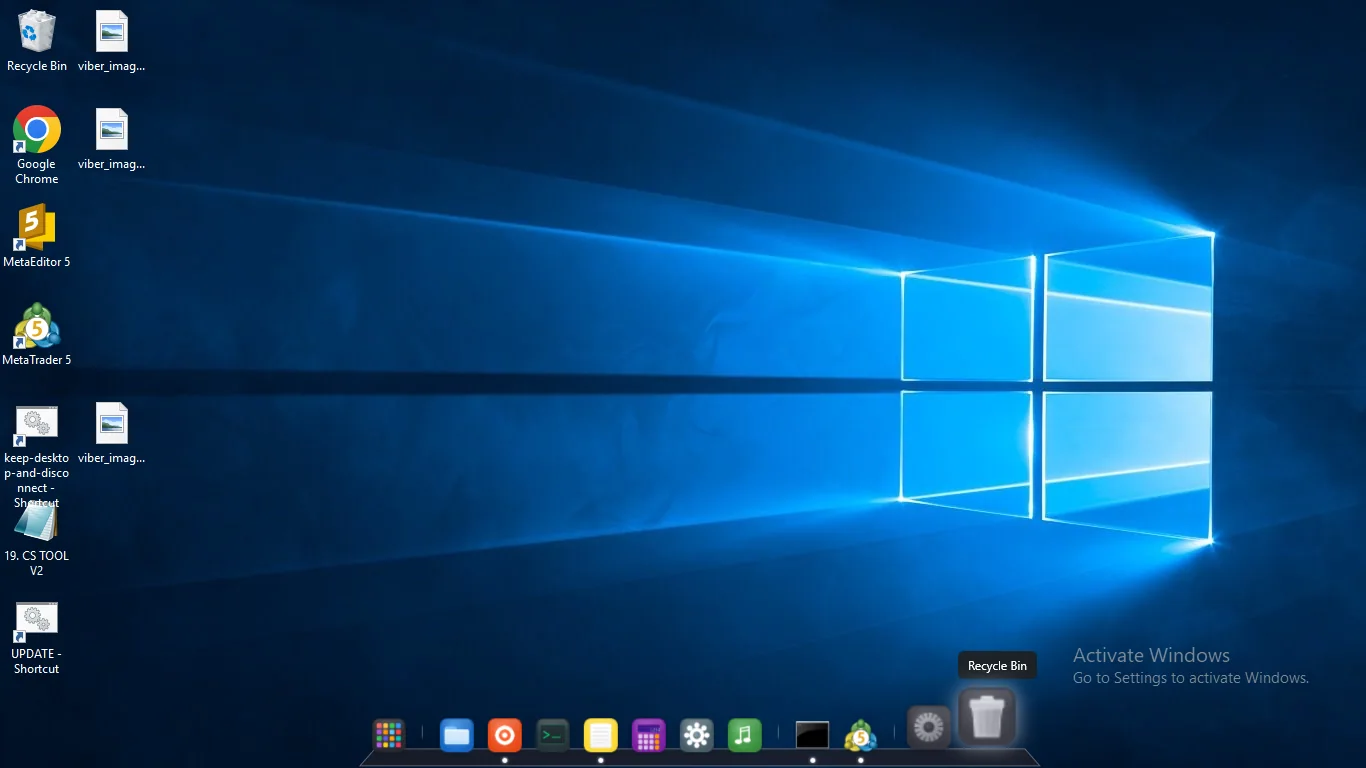
Smooth animated Windows dock with fish-eye magnification
Horizon Dock gives you magnified icons, a quick app launcher, custom themes, and flexible screen placement. Works fully offline with no ads and no account.

Everything you need in a desktop dock
Fish-eye icon magnification
Hover over the dock to smoothly magnify icons with fluid animations. Adjust icon size, zoom level, and animation speed to suit your workflow.
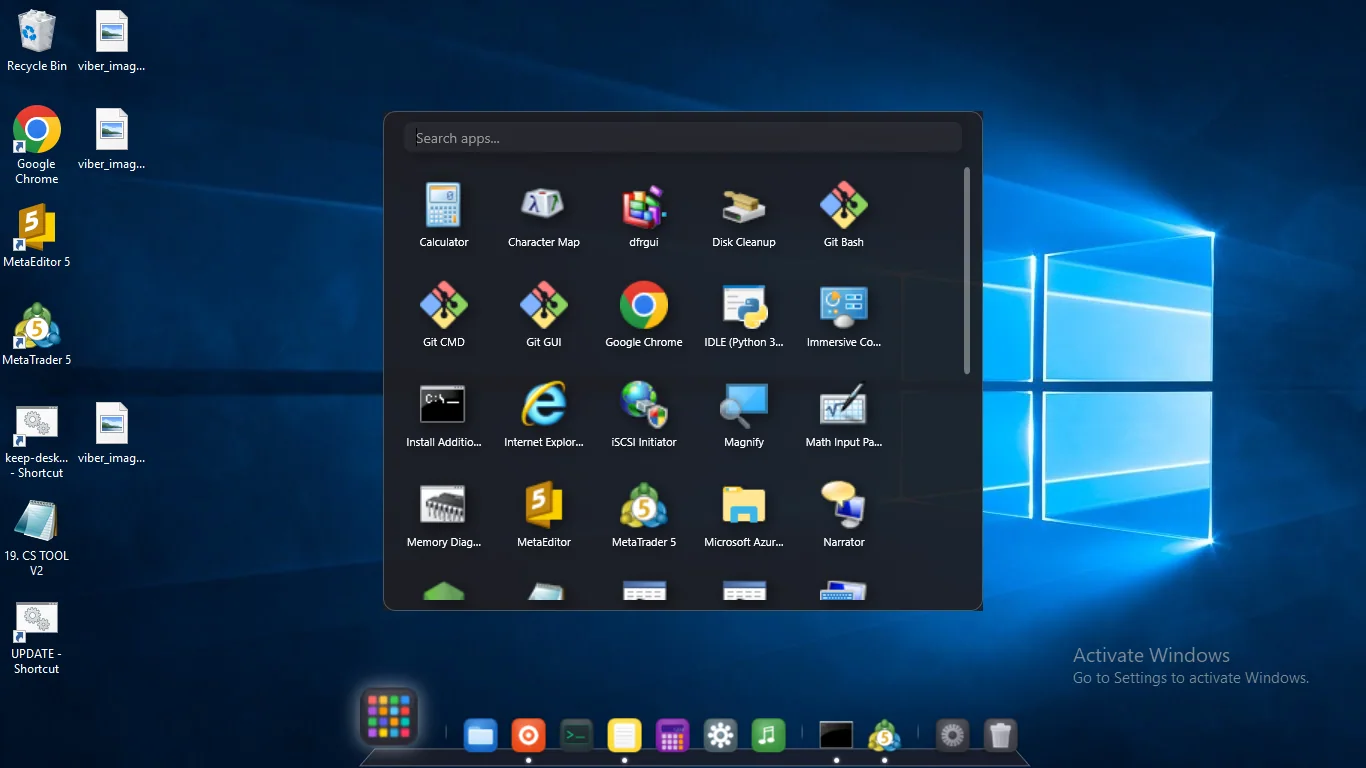
Fast app launcher with search
Browse installed programs in a clean full-screen grid. Search instantly by typing and launch or pin your favorite apps to the dock with one click.
Flexible screen placement
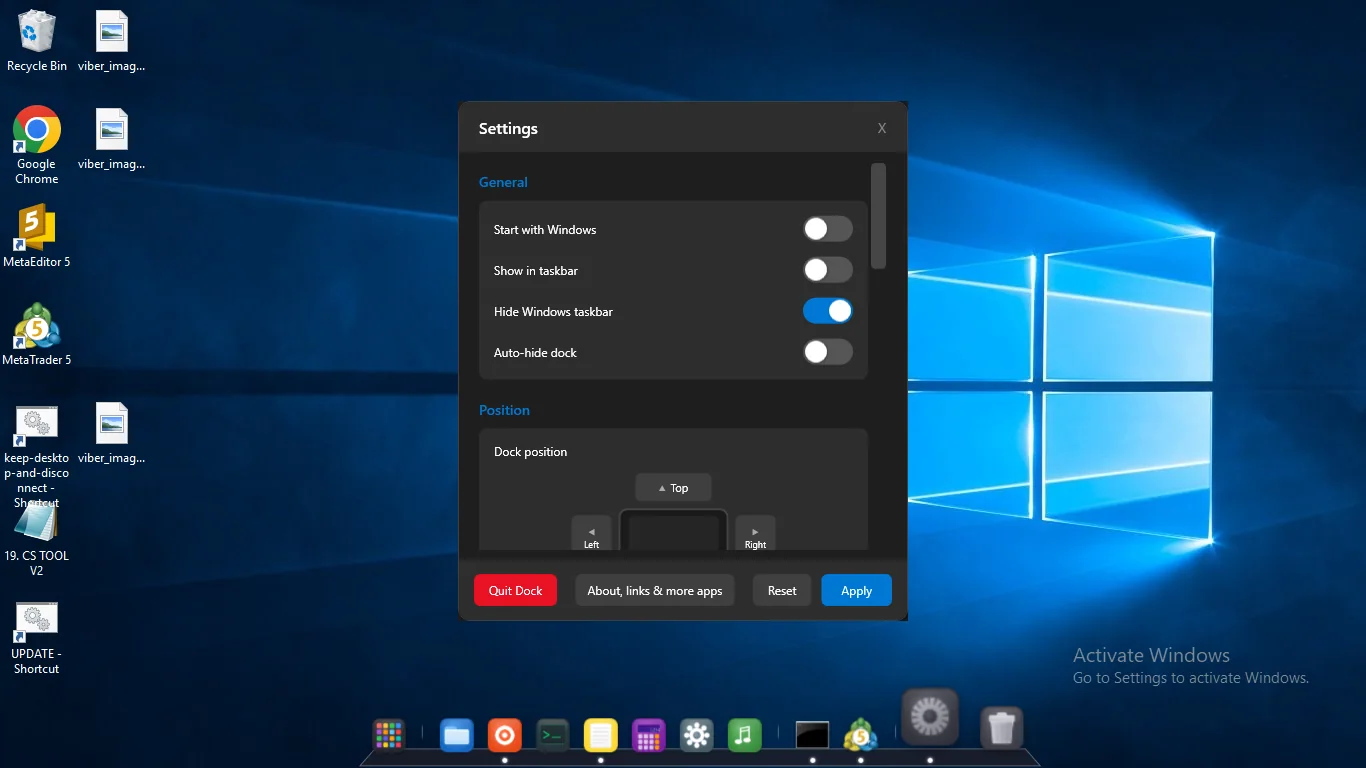
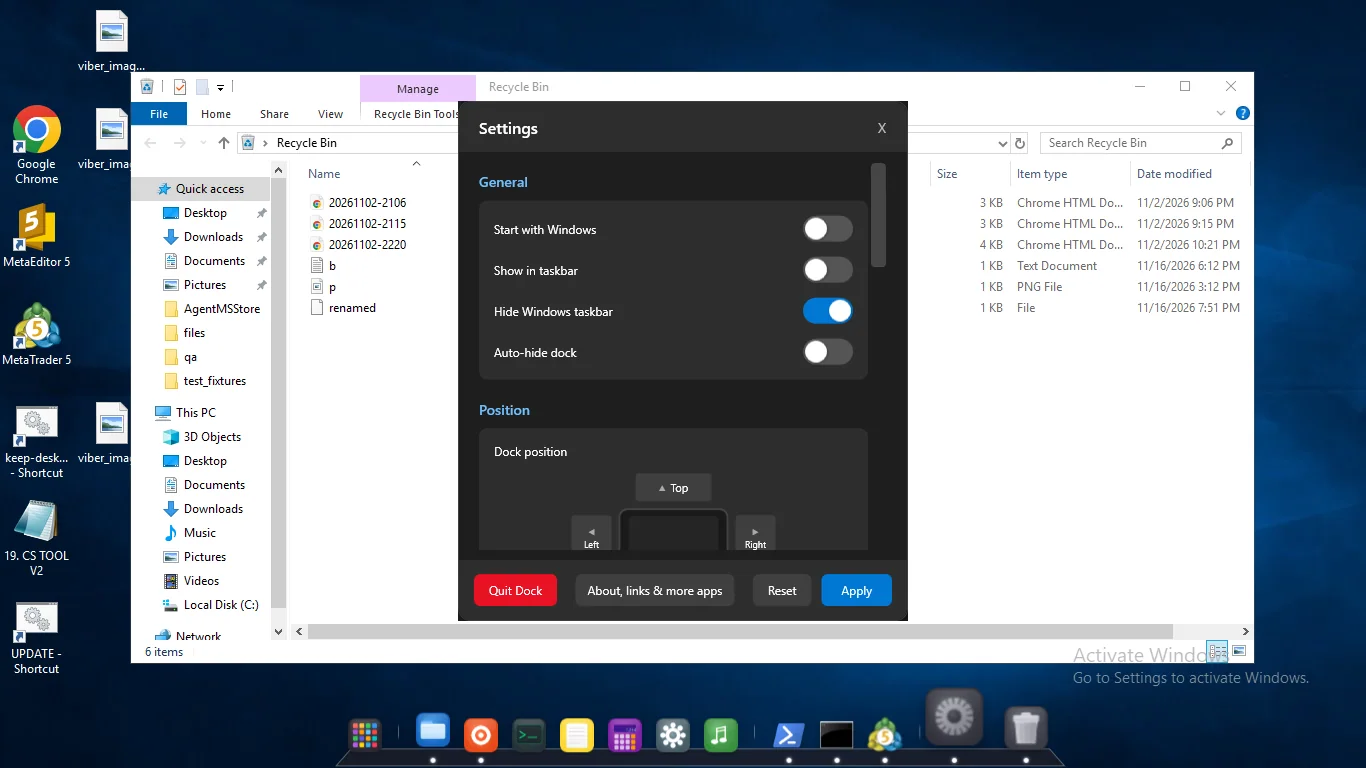
Place the dock on any display edge: bottom, top, left, or right. Choose which screen displays the dock when using multiple monitors.
Smart auto-hide and taskbar control
Dock auto-hides when windows expand or apps run full screen. Optionally hide the Windows taskbar for an uncluttered desktop.
Theme presets and adjustable opacity
Choose from Dark, Gray, Blue, Purple, or Transparent styles. Adjust background opacity from 0% to 100% and enjoy subtle icon reflections.
Built-in Recycle Bin and easy pinning
Pin apps by dropping files or shortcuts onto the dock. Drag to reorder icons, and manage the Recycle Bin with a quick empty shortcut.
How it works
- Get it from the Microsoft Store and open Horizon Dock on your Windows 10 or 11 PC.
- Choose your preferred screen edge, theme preset, and icon magnification settings.
- Pin favorite apps, search with the launcher, and enjoy a clean, animated desktop.
Screenshots
Great for
Switching from Mac to Windows
Keep the familiar animated dock experience, smooth icon magnification, and quick launchpad layout on your Windows desktop.
Minimalist desktop setups
Hide the Windows taskbar, auto-hide the dock, and keep only essential apps pinned to your screen for distraction-free work.
Multi-monitor workspace organization
Select exactly which display hosts your dock so your primary workspace stays uncluttered and easy to navigate.
FAQ
How do I get a macOS-style dock on Windows 10 or 11?
Install Horizon Dock from the Microsoft Store. It adds an animated dock with fish-eye icon zoom to your screen edge. You can drag and drop icons to pin apps, customize themes, and launch installed programs from a built-in search grid.
Is Horizon Dock free to use?
Horizon Dock is a paid app with a Store-managed free trial. You can test all features during the trial period. A one-time purchase provides lifetime access through your Microsoft account, with no recurring subscriptions and no advertisements.
Is Horizon Dock safe and private?
Yes. Horizon Dock works fully offline on your PC. It requires no user account, contains no telemetry or third-party ads, and never sends personal data anywhere. Settings and pinned shortcuts are stored locally on your device.
What are the system requirements for Horizon Dock?
Horizon Dock runs on 64-bit Windows 10 (build 17763 or later) and Windows 11. It needs no dedicated graphics card or heavy system resources. A mouse and keyboard are recommended for navigation, and the app interface is in English.
Does Horizon Dock replace the Windows taskbar?
You can keep both or choose to hide the Windows taskbar in Settings for a dedicated dock look. When an app runs full screen or a window maximizes, Horizon Dock automatically hides or reserves screen space so your workflow is never blocked.
Can I navigate Horizon Dock with a keyboard?
Yes. Press Ctrl+Alt+D anytime to focus the dock. Use Tab or arrow keys to move between icons, Enter or Space to launch an app, and Shift+F10 to open an item context menu.
Guides
Get Horizon Dock from the Microsoft Store