
How to Add a Dock to Windows 11 (Animated, Like the Mac Dock)
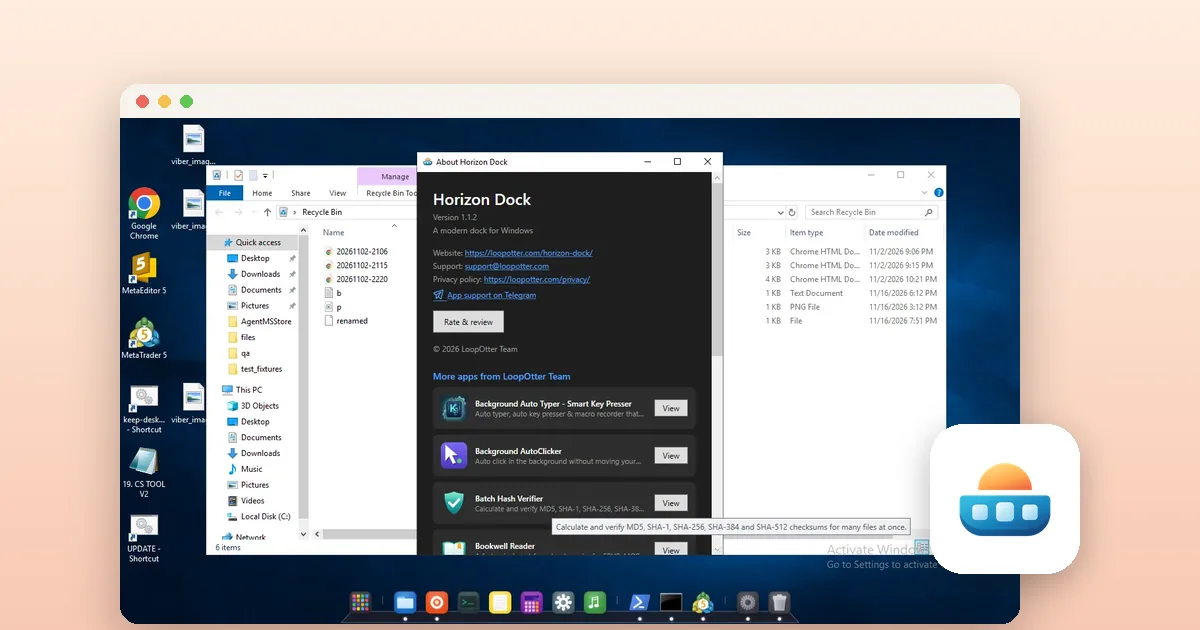
To add a dock to Windows 11, install a dock app that draws an icon bar on your screen edge, then pin your apps to it and optionally hide the Windows taskbar. Windows 11 has no dock of its own, so this guide shows what the built-in taskbar can do and how to set up an animated dock with magnified icons.
Can the Windows 11 taskbar act as a dock?
Partly. The taskbar can already hold pinned apps and show running ones. In Settings, under Personalization, then Taskbar, you can set the alignment of taskbar icons and turn on automatic hiding of the taskbar in the taskbar behaviors section. These cover the basics.
What the taskbar does not do is move to the top or the sides of the screen, magnify icons when you hover, or show an animated bar. If you want those, you need a separate dock app.
What should a good dock app offer?
Before you install anything, decide what matters to you. These are the features people usually want from a Windows dock:
- Smooth icon magnification and animation without slowing the PC.
- Placement on any screen edge and on the monitor you choose.
- Auto-hide, including when a game or video runs full screen.
- Drag-and-drop pinning and reordering of apps.
- A launcher so you can find apps that are not pinned.
- A way to switch it off or exit it easily if you do not like it.
How do I set up Horizon Dock?
Horizon Dock is a dock for Windows 10 and 11 from the Microsoft Store. It is a paid app with a free trial that the Store manages, and the price is shown on its Store page. It works offline and needs no account.
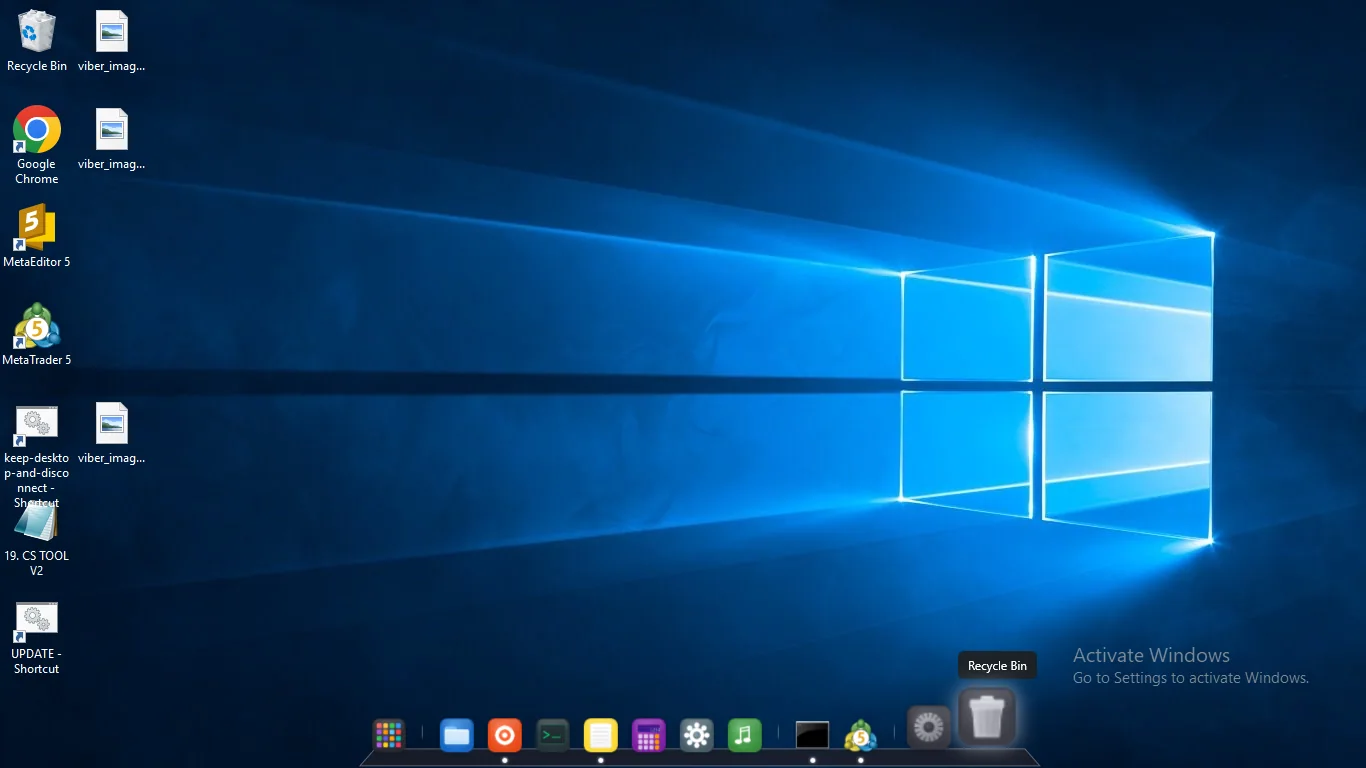
- Install Horizon Dock from the Microsoft Store and start the free trial.
- Open Settings from the dock. Choose a theme, icon size and opacity.
- Pick the dock position: bottom, top, left or right, and the monitor that should show it.
- Pin your favorite apps by dragging files or shortcuts onto the dock, and drag the icons to reorder them.
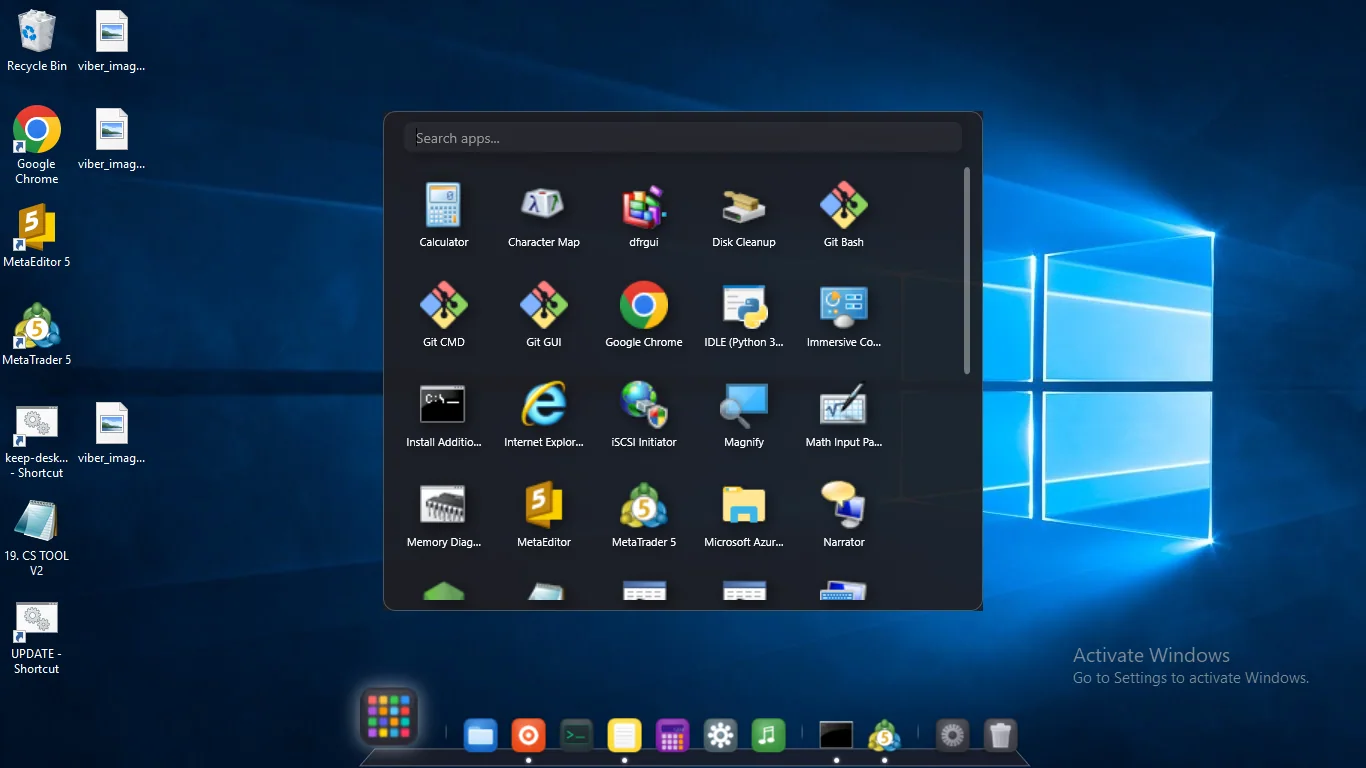
- Open the launcher button to search all installed apps and pin more.
- Turn on Start with Windows if you want the dock after each sign-in.
How do I find and launch apps that are not pinned?
The first icon on the dock opens the app launcher. It shows installed apps in a grid with a search box at the top, so you can type a few letters and launch with one click. Pin the apps you use most so they stay on the dock.
Should I hide the Windows taskbar?
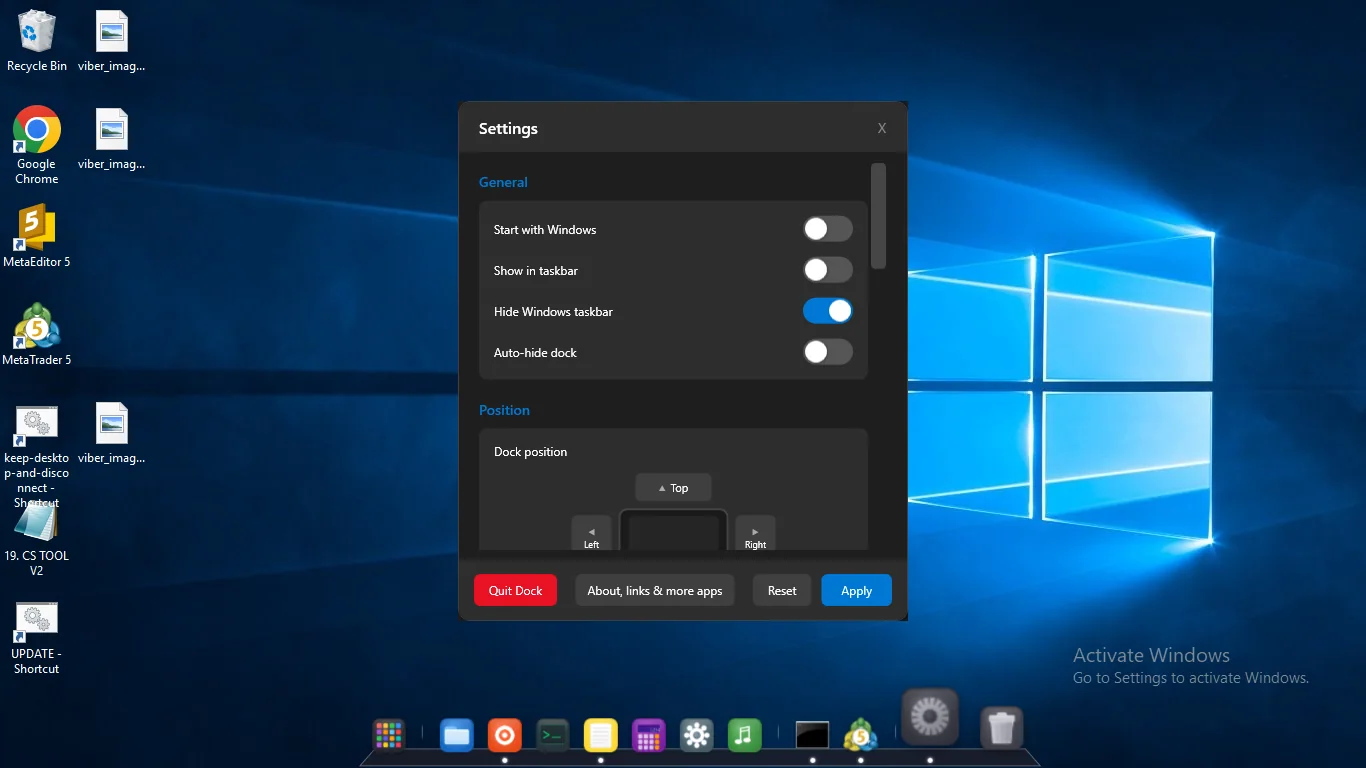
You do not have to. A dock can sit next to the taskbar, which is a safe way to test it. If you want a cleaner screen, Horizon Dock has a Hide Windows taskbar toggle in Settings, along with options for auto-hiding the dock and showing the dock in the taskbar.
Remember where the toggle is. If you are not happy with the result, turn it off to get the taskbar back, and you can quit the dock from the Settings window with the Quit Dock button.
What about multiple monitors and full-screen apps?
On a multi-monitor setup, put the dock on the display you use most and leave the other screen free. Enable auto-hide and full-screen detection so the dock does not cover games, videos or presentations.
Tools for this
Horizon Dock
A smooth animated Windows dock with fish-eye magnification, app launcher, custom themes, and multi-monitor support.
FAQ
Does Windows 11 have a dock like macOS?
No. The taskbar holds pinned and running apps, but it cannot magnify icons or move to the top or sides of the screen. A dock app adds those features.
Can I move the dock to the side or top of the screen?
With Horizon Dock, yes. You can place it on the bottom, top, left or right edge and choose which monitor shows it.
Will a dock replace the Windows taskbar?
Only if you want it to. Horizon Dock has an option to hide the Windows taskbar, and you can switch it off any time to bring the taskbar back.
Is Horizon Dock free?
It is a paid app with a free trial managed by the Microsoft Store. The current price is on the Store page. There are no ads and no subscriptions.
Does a dock work on Windows 10?
Horizon Dock is made for both Windows 10 and Windows 11, works offline and does not need an account.