
How to Use a Teleprompter on Windows for Video Calls and Recordings
To use a teleprompter on Windows, put your script in a window that stays on top of everything else, place it right under your webcam, and set the scroll speed to your natural speaking pace. This guide covers the setup, the settings that matter, and what to check before you share your screen.
What do you need for a teleprompter on a PC?
Any teleprompter setup needs three things: a script, text that scrolls at a steady pace, and a reading window close to the camera lens. The closer the text is to the lens, the less your eyes appear to wander.
Windows has no built-in teleprompter. Free workarounds exist: a Word or Notepad document in large type, or PowerPoint speaker notes in Presenter view. They work, but you scroll by hand, and the window is often hidden behind the call app.
How do I set up a floating teleprompter step by step?
These steps apply to any always-on-top teleprompter. The example uses PromptPane Teleprompter.
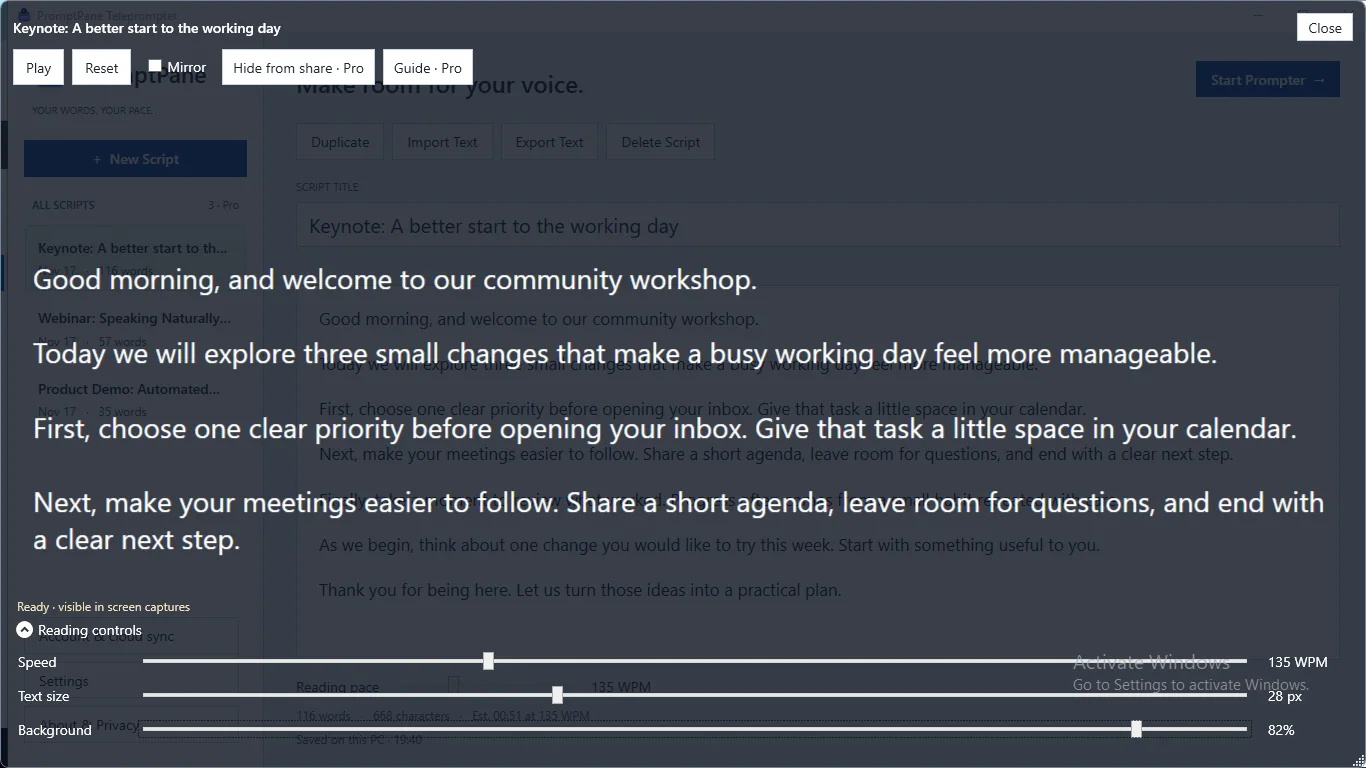
- Write or paste your script. Use short sentences and one idea per line. Plain text import works well.
- Check the length. A word count and estimated reading time help you fit a time slot.
- Set the speed. Start slower than you think, then raise it until it feels like talking, not reading. The example screen uses 135 words per minute.
- Set text size so you can read it from your normal seat distance. The example uses 28 px, and the range is 16 to 48 px.
- Lower the background opacity so you can still see your video call or recording software behind the text.
- Drag the prompter window to the top of the screen, just under the webcam.
- Press Play, do a short test read, and adjust.
When should I use mirror mode?
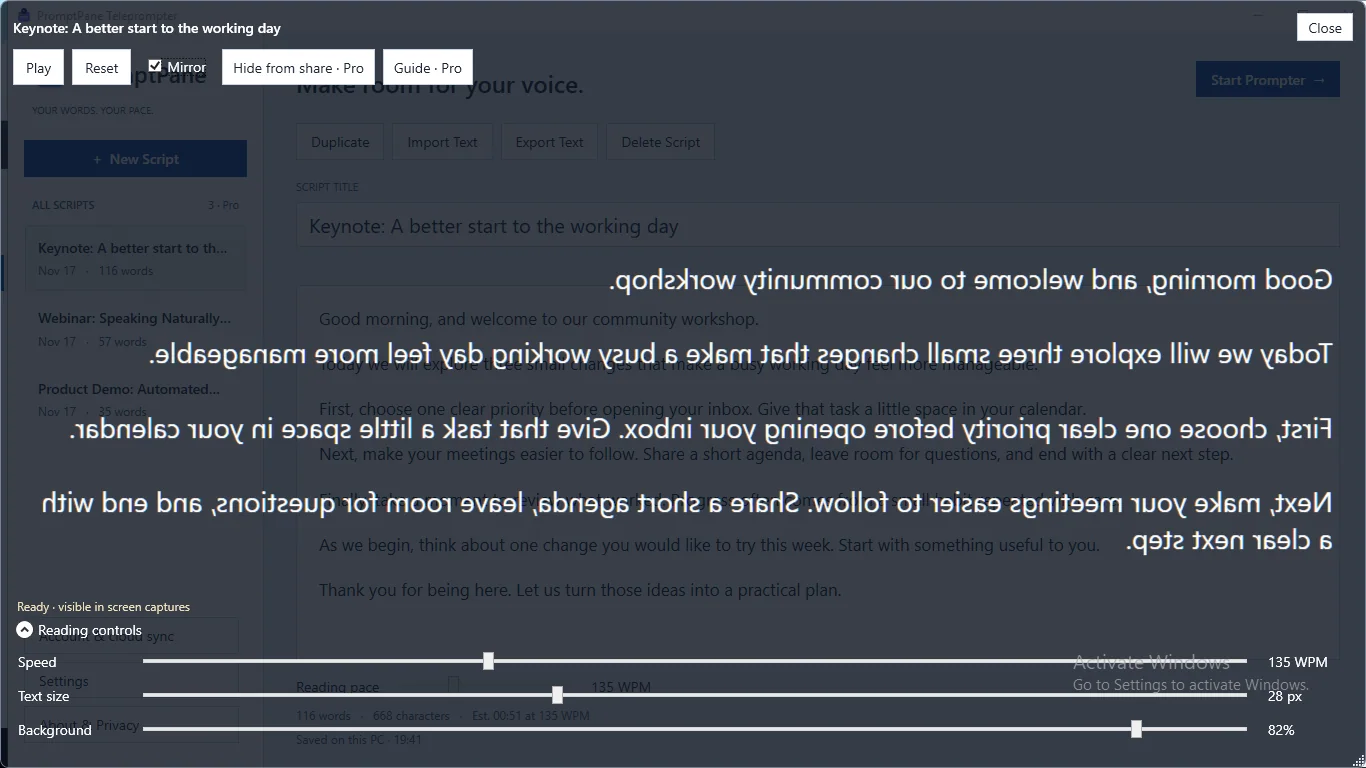
Mirror mode flips text horizontally. You only need it with a physical teleprompter: a beam-splitter glass in front of a camera that reflects a screen. For a normal webcam call, leave it off.
PromptPane includes mirror mode in the free edition.
Will my audience see the teleprompter when I share my screen?
It depends on what you share. If you share a single window, other windows are usually not captured. If you share your whole screen, a floating window can be captured with everything else.
PromptPane shows a status line in the prompter such as visible in screen captures. Pro adds a capture exclusion option, but it is off by default. Do not rely on it until you have tested it in your own app.
- Start a test meeting alone, or record a short clip.
- Share your screen the way you normally would.
- Look at the shared view or the recording. If the script is visible, share a single window instead.
What does the free edition include?
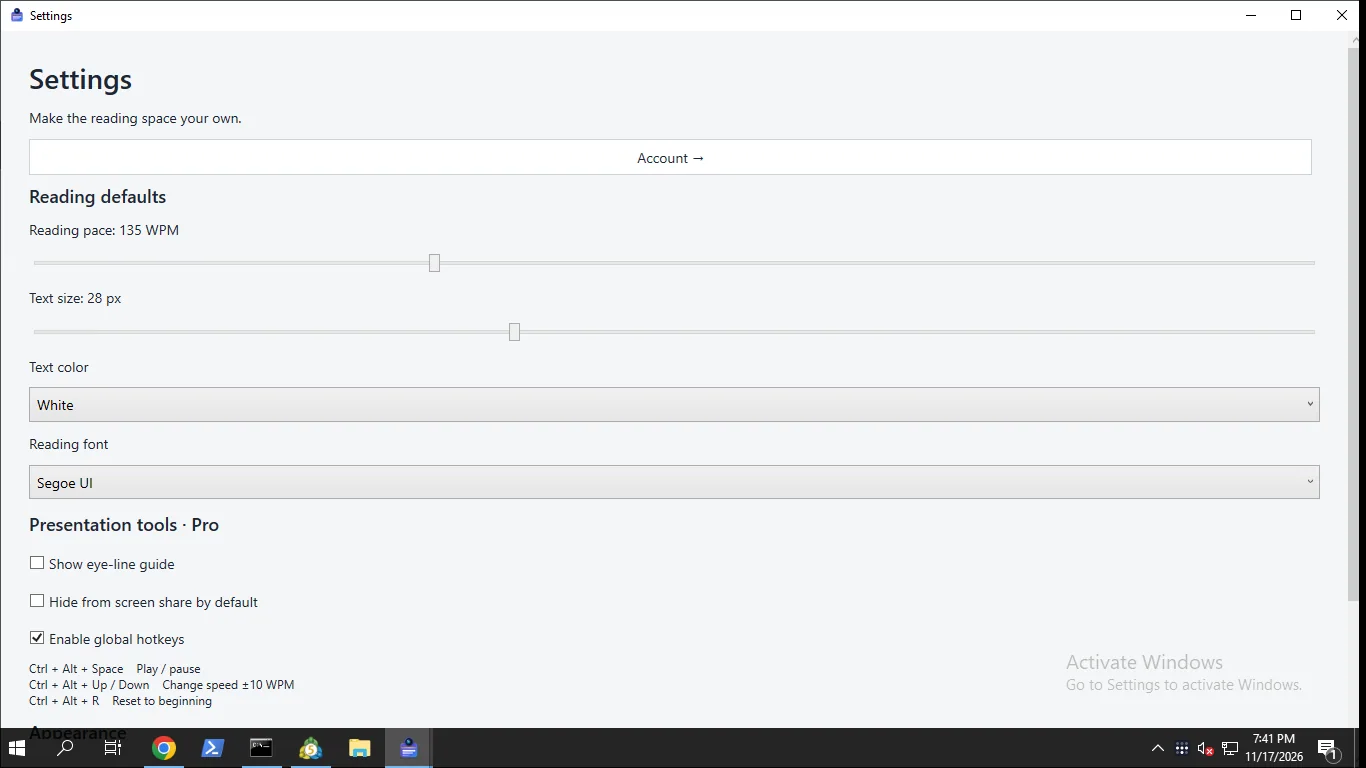
From the Store listing: the free edition has a floating always-on-top prompter, local autosave, up to three scripts, speed from 60 to 300 WPM, text size from 16 to 48 px and mirror mode. Pro adds global hotkeys, capture exclusion, an eye-line guide and optional cloud script sync. An account is only needed for cloud sync.
How do I read naturally from a teleprompter?
- Rehearse once aloud before recording so the speed is set for you.
- Write the way you talk. Contractions and short phrases sound better than formal writing.
- Keep text size large enough that you do not lean toward the screen.
- Pause the scroll when you want to ad-lib, then resume.
- Blink and glance away now and then. Staring at one point looks stiff.
Tools for this
PromptPane Teleprompter
Floating, always-on-top teleprompter that keeps your script right next to your webcam.
FAQ
Does Windows 11 have a built-in teleprompter?
No. You can use a large-font document or PowerPoint speaker notes, but you scroll manually. A teleprompter app scrolls the text for you.
What scroll speed should I use?
Start slower than expected, and raise it until the text matches your natural speaking pace. Do a short test read before you record.
Where should the script window go?
Directly under or beside the webcam, at the top of your screen, so your eyes stay close to the lens.
Can I use a teleprompter with Zoom, Teams or Meet?
Yes, if the prompter window stays on top of the call window. Test your screen share first so you know whether the script is visible to others.