
How to Take a Scrolling Screenshot on Windows 11 (Browser, Apps and Chats)
The Snipping Tool in Windows 11 cannot capture a scrolling screenshot, so you have three practical options: your browser's full-page capture for web pages, a scrolling-capture tool, or taking several screenshots and stitching them into one long image. This guide shows each method, when it works, and where it falls short.
Can Windows 11 take a scrolling screenshot by itself?
No. The Snipping Tool and the Win+Shift+S shortcut capture a rectangle, a window or the full screen, but only what is visible at that moment. There is no "capture the rest of the page" option for ordinary apps.
What you can do depends on what you are capturing: a web page, a desktop app, or a long chat or document on your phone.
How do I capture a whole web page in Edge or Firefox?
Browsers are the easy case because they know the full length of the page. Menu names change between versions, so look for the capture option if yours differs slightly.
- In Microsoft Edge, open the page, then open the Edge menu (three dots) and look for Screenshot or Web capture. Choose the full-page option and save the image.
- In Firefox, right-click the page, choose Take Screenshot, then pick Save full page.
- In Chrome there is no built-in full-page option in the normal menu, so you need an extension or Chrome's developer tools.
- Very long pages with lazy-loaded images may come out with blank gaps. Scroll to the bottom first so everything loads, then capture.
- Sticky headers can repeat or cover content in the result.
How do I screenshot a long chat, document or app that does not scroll in a browser?
For desktop apps, phone chats and anything else, the most reliable method needs no special permissions: take overlapping screenshots as you scroll, then join them into one tall image.
The key is overlap. Scroll so that the last few lines of one screenshot appear at the top of the next. Without overlap you cannot tell where one image ends and the next begins, and you will lose content.
- Take the first screenshot (Win+Shift+S on a PC, or the screenshot buttons on your phone).
- Scroll down about two thirds of a screen, so the new view repeats a few lines from the previous one.
- Take the next screenshot. Repeat until you reach the end.
- Join the screenshots in order into one image, trimming the repeated parts.
How do I stitch the screenshots into one long image?
You can place the pictures one under another in an image editor and delete the repeated strips by hand. This works but is slow, and it is easy to leave a visible seam or a repeated line.
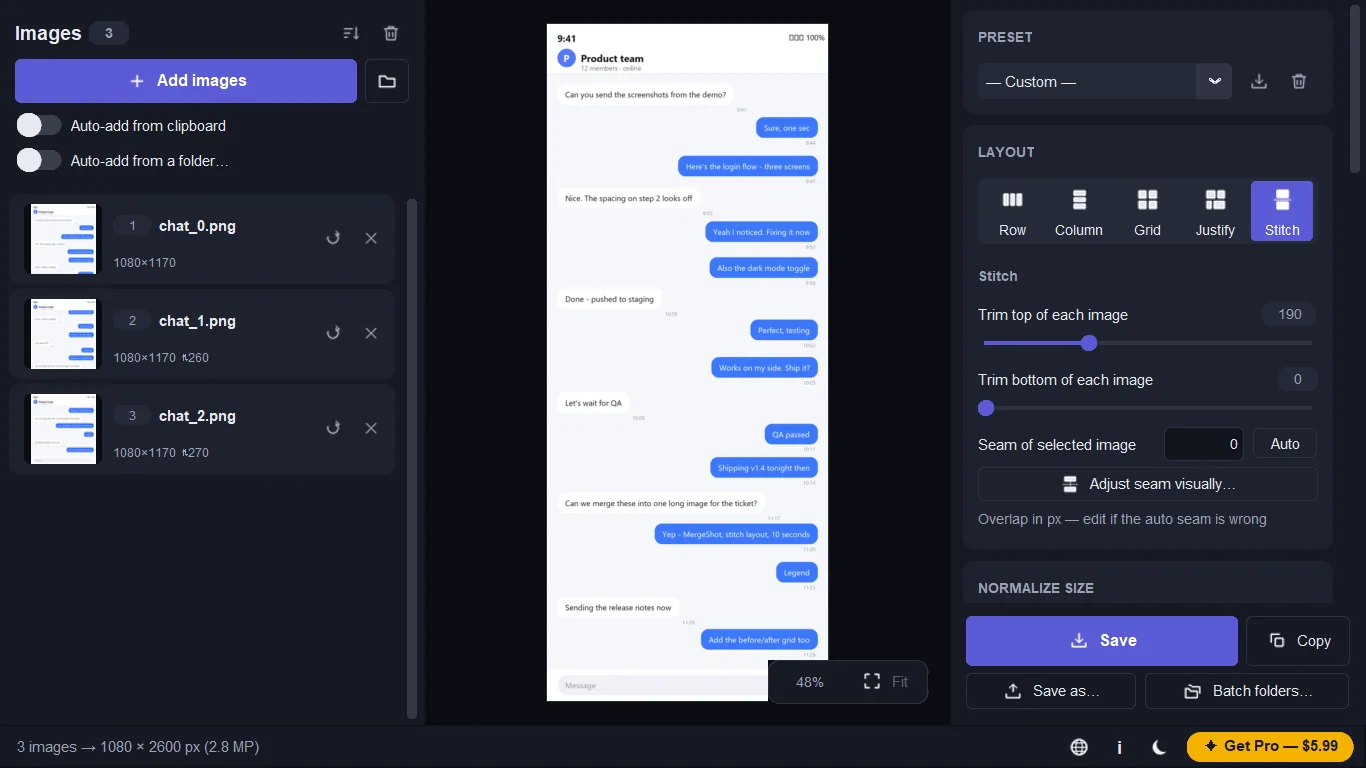
MergeShot, a Windows app from LoopOtter, has a Stitch layout for this. You add the screenshots in order, choose Stitch, and use the trim controls to cut the repeated top or bottom of each image. According to its listing, the Pro version adds automatic overlap detection and a drag-to-align seam editor for tricky pages, while merging itself works offline and nothing is uploaded.
You can add images by dragging them in, pasting with Ctrl+V, or auto-adding every Win+Shift+S capture, then save as PNG, JPG, WebP or PDF.
Which method should I choose?
Before sharing, check the result for names, emails or card numbers you did not mean to include.
- A normal web page: use Edge or Firefox full-page capture.
- A long chat, order page or document on your phone: take overlapping screenshots and stitch them.
- A desktop app with a scrolling list: either a scrolling-capture tool or overlapping screenshots, whichever your app allows.
- Sensitive content: stitch locally on your PC instead of using an online joiner, so private chats are never uploaded.
Tools for this
MergeShot
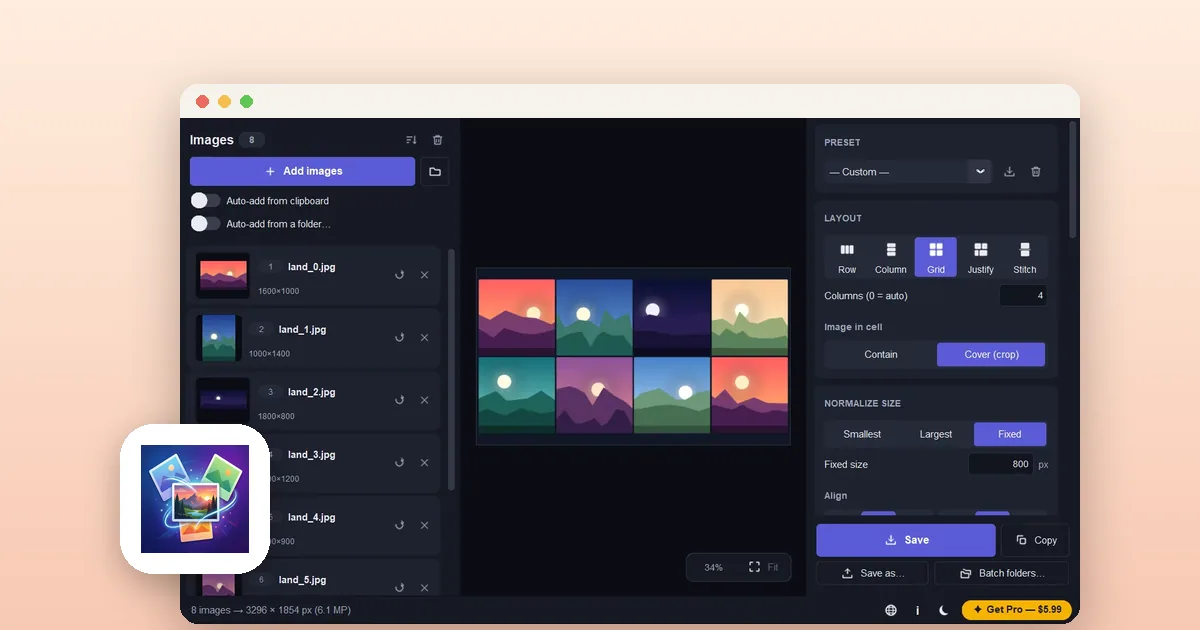
Combine images side by side, build photo grids, and stitch scrolling screenshots. 100% offline with no watermark.
FAQ
Does the Snipping Tool support scrolling screenshots?
No. The Windows 11 Snipping Tool captures a rectangle, window or full screen, but not content that requires scrolling.
How do I screenshot a whole web page on Windows 11?
Use the full-page capture in Microsoft Edge (Screenshot or Web capture in the menu) or Firefox (right-click, Take Screenshot, Save full page). Chrome needs an extension.
How do I make one long image from several screenshots?
Take screenshots that overlap by a few lines as you scroll, then join them in order and trim the repeated parts, either by hand in an editor or with a stitching tool such as MergeShot.
Is it safe to use an online tool to stitch private chats?
Online tools upload your images to a server. For private chats, a tool that runs offline on your own PC avoids that.