
How to Send Keystrokes to a Background Window on Windows 11
To send keystrokes to a background window on Windows 11 without losing focus, use an AutoHotkey script with ControlSend or a dedicated background key presser like Background Auto Typer. Standard macro tools rely on SendInput, which forces you to keep the target window active. This guide explains why normal automation steals focus, provides working AutoHotkey and Windows API examples, and demonstrates how to automate background typing safely.
Why do standard automation tools steal focus on Windows?
Most macro tools and Python automation scripts simulate keystrokes using the Windows SendInput API. This function injects synthetic keystrokes into the operating system's global hardware input queue.
Because global queue inputs are delivered only to whichever window currently holds active user focus (GetForegroundWindow), standard tools cannot type into a second window without bringing it forward. Running a standard script while browsing or writing documents causes the script to steal focus or send keystrokes into the wrong application.
To type into a window while you continue using your PC, an automation tool must bypass the global input stream and post discrete keyboard messages (WM_KEYDOWN, WM_KEYUP, and WM_CHAR) directly to the application's window handle (HWND) message queue.
- SendInput requires active focus and pulls foreground control away from your active work.
- Background typing requires delivering Win32 messages directly to the target window handle.
- Sending input to the wrong window risks accidental text entry or unintended key triggers.
Method 1: How to use AutoHotkey ControlSend for background input
AutoHotkey (AHK) includes a command called ControlSend that directs simulated keystrokes to a specific window title without activating it.
Below is an example AutoHotkey v2 script that sends the Space key to a background window every two seconds while keeping your active desktop focus intact.
- Download and install AutoHotkey v2 from autohotkey.com.
- Create a new file named 'background_press.ahk'.
- Right-click the file, select Edit Script, and paste: #Requires AutoHotkey v2.0 SetKeyDelay 40, 40 F8::{ Loop { ControlSend "{Space}", , "Target Window Title" Sleep 2000 } } F9::ExitApp
- Replace 'Target Window Title' with the exact title of your background window.
- Save and run the script. Press F8 to start sending background keys, and press F9 to stop.
- Best for: Users comfortable writing and modifying simple automation scripts.
- Limitation: Complex applications (such as Discord or Electron apps) often require child control identifiers.
- Limitation: An un-elevated script will be blocked by Windows UIPI if the target app runs as Administrator.
Method 2: How developers send background messages using the Win32 API
Programmers in C# or Python can interface directly with user32.dll using PostMessage.
Your code uses FindWindow to locate the target window handle (HWND), then dispatches WM_KEYDOWN and WM_KEYUP messages directly into the target thread's message loop.
Note that full-screen games using DirectInput or RawInput bypass the Win32 message queue and read hardware states directly. Such games ignore PostMessage unless hardware-level emulation is used.
- Locate the top-level HWND using FindWindow or EnumWindows.
- If targeting an edit box, use FindWindowEx to find the child HWND.
- Dispatch WM_KEYDOWN with the virtual key code via PostMessage.
- Follow with WM_KEYUP after a short delay (20 to 50 milliseconds).
- PostMessage is asynchronous and does not block the calling thread.
- WM_CHAR handles text characters; WM_KEYDOWN handles navigation and function keys.
- DirectInput titles and kernel anti-cheats ignore Win32 message queue injections.
Method 3: How to automate background typing with Background Auto Typer
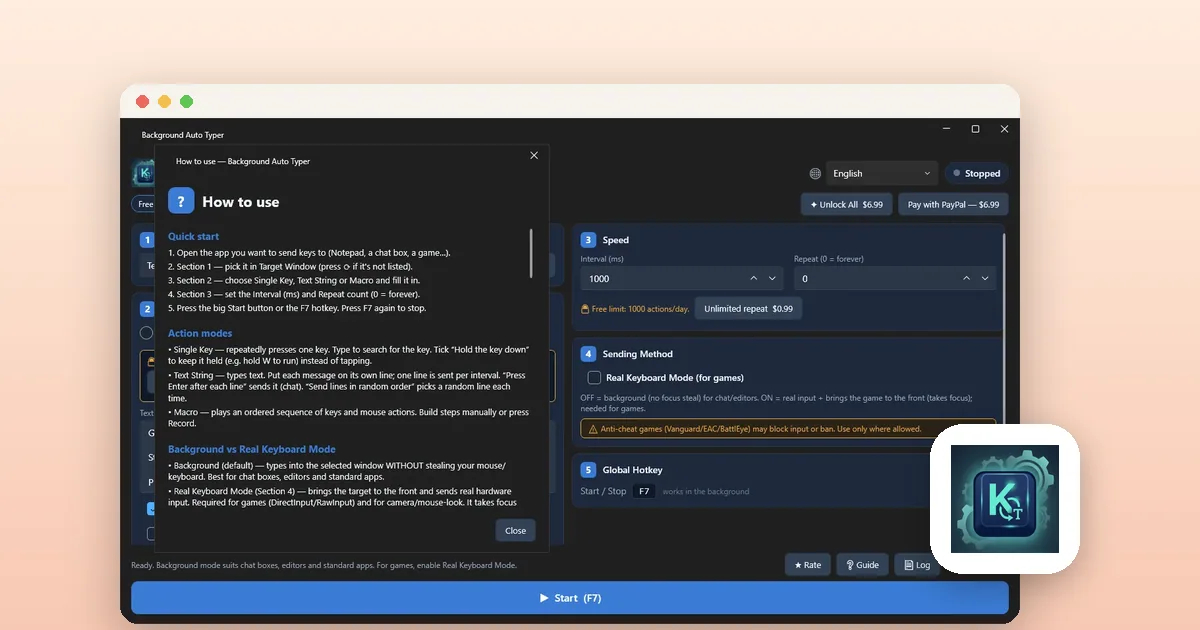
For users who need reliable background typing without writing scripts, Background Auto Typer - Smart Key Presser provides a visual utility built for Windows 10 and 11.
Background Auto Typer displays all running windows in a dropdown menu. Once selected, it streams single keystrokes, held keys, or text lines directly into the background process while your mouse and keyboard remain free.
The app runs 100% offline with no account, no background telemetry, and no ads. It includes millisecond interval control, repeat counters, and a global F7 start/stop hotkey.
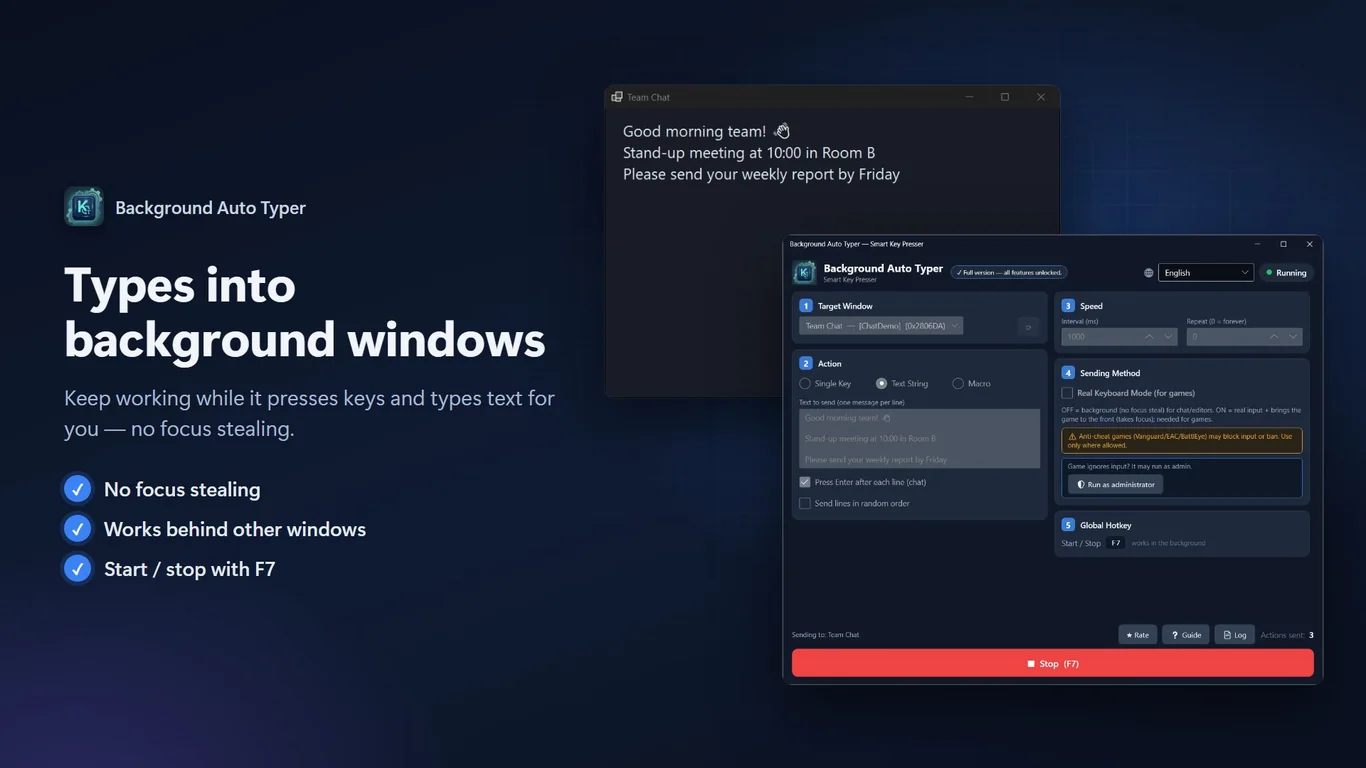
- Install Background Auto Typer from the Microsoft Store.
- Select your target application from the 'Target Window' dropdown list.
- Choose your mode: Single Key Presser, Text String Typer, or Macro Recorder.
- Select the key to automate (such as Space, Enter, Tab, F1–F12, or any letter).
- Set the interval in milliseconds (e.g., 1000 ms) and select repeat count or run forever.
- Click 'Start' or press F7. Keystrokes stream to the background window while your active screen stays free.
- Keeps your mouse and keyboard active for normal work while automating background windows.
- Includes hold-key mode for continuous game movement actions.
- Text mode sends sequential chat lines or random messages with automatic Enter key presses.
How to hold down a key in the background or use Real Keyboard Mode
Certain workflows require holding a key continuously rather than tapping it. Background Auto Typer features a 'Hold Key Mode' that keeps a specific key depressed in the background process until toggled off.
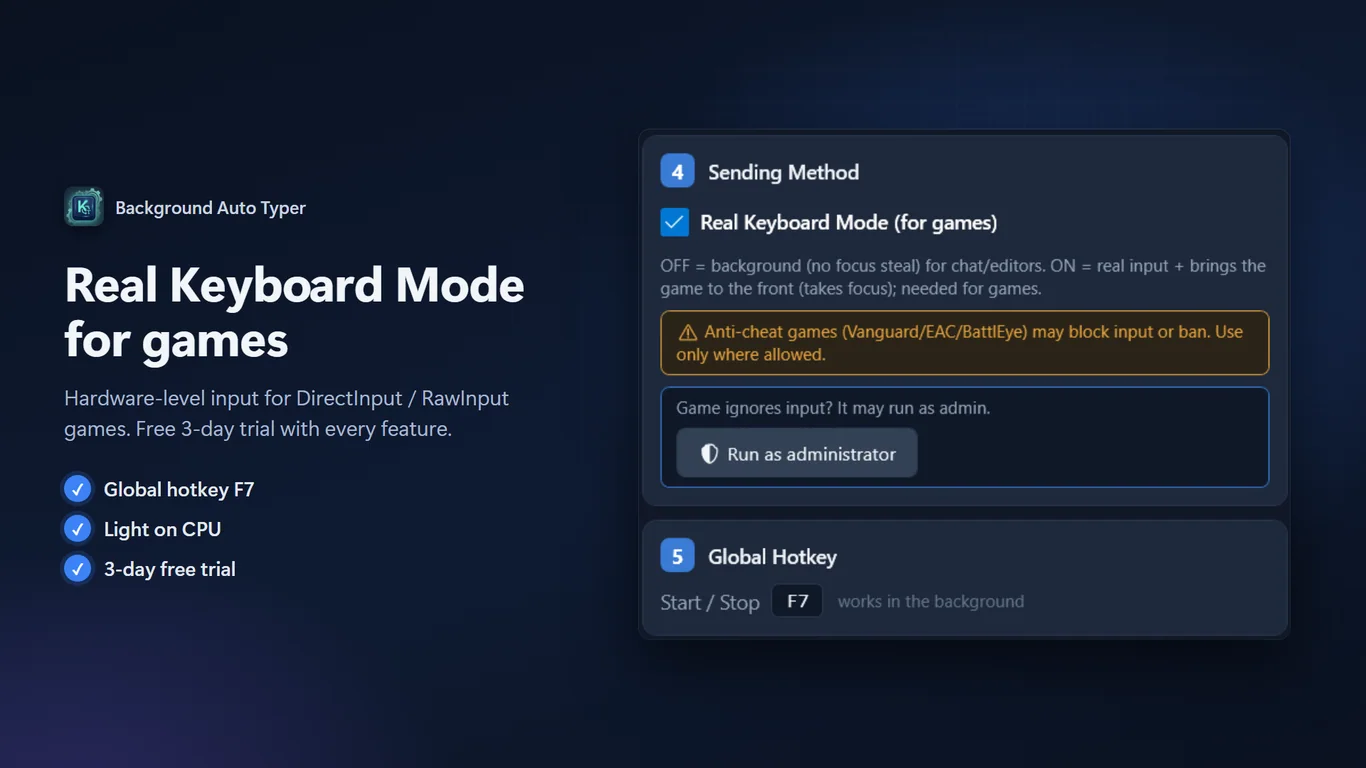
When automating games that reject message injection, toggle 'Real Keyboard Mode'. This mode coordinates hardware-level virtual input for DirectInput and RawInput titles, ensuring keystrokes register reliably.
- Switch to the 'Hold Key' tab in Background Auto Typer.
- Select the key to hold (e.g., Shift, Ctrl, W, or Space).
- If the target game ignores background messages, enable 'Real Keyboard Mode'.
- Use the global F7 hotkey to engage or disengage the hold action from anywhere.
- Hold Key Mode eliminates weighing down physical keyboard keys.
- Real Keyboard Mode bridges compatibility with DirectInput and RawInput games.
Troubleshooting background keystroke issues on Windows 11
If keystrokes fail to register in your background window, check these common causes and fixes:
- Match Administrator Privileges: If the target app runs as Admin, run your automation utility as Admin to satisfy Windows UIPI restrictions.
- Avoid Minimized Suspensions: Some Windows 11 apps pause when minimized. Keep the target window restored in the background behind other open windows.
- Adjust Millisecond Intervals: Increase repeat delays to 50–100 ms to give legacy message queues time to process.
- Check Anti-Cheat Software: Games with kernel anti-cheat (such as Vanguard or Easy Anti-Cheat) block synthetic keystrokes.
- Windows UIPI blocks un-elevated processes from sending messages to elevated windows.
- Unfocused background windows are more reliable than minimized windows.
- Increasing repeat delays prevents buffer overflows.
Tools for this
Background Auto Typer - Smart Key Presser
Send keystrokes, text, and macros to background windows without taking your keyboard or mouse focus.
FAQ
Can I type into a minimized window on Windows 11?
Yes, as long as the background application continues processing its Windows message loop while minimized. However, some games and GPU-accelerated applications pause execution when minimized; keeping them in an unfocused background window behind other apps ensures consistent input.
Why does AutoHotkey ControlSend fail on some applications?
ControlSend fails when an application uses nested custom child controls, runs with elevated Administrator privileges (blocking un-elevated scripts via Windows UIPI), or reads hardware inputs directly via DirectInput instead of the standard Win32 message queue.
Will sending background keystrokes interfere with my typing in Word or a browser?
Proper message-based background automation posts messages directly to the target handle without changing your active window focus, leaving your typing in Word or your browser uninterrupted. Only global SendInput scripts interfere with your typing.
Is Background Auto Typer free to use?
Yes. Background Auto Typer includes a 3-day trial of all features. After the trial, Single Key auto-pressing remains free forever for up to 1,000 actions per day. Unlimited repeats and additional modes are available as optional one-time purchases starting at 0.99 USD with no subscription.