
How to Save and Restore Tab Groups in Chrome and Edge
To save and restore tab groups in Chrome or Edge, turn on Chrome's Save group option on the group label, create an Edge Workspace, or capture the window with a local session extension. Built-in browser recovery handles accidental closes well, while a dedicated workspace saver preserves group names, colors, and pinned tabs offline without a cloud account.
Why do built-in browser sessions lose tab groups?
Both Google Chrome and Microsoft Edge remember your last window when you enable Continue where you left off in Settings. However, that setting tracks only the final window you closed.
If you close a window full of project tab groups first and then close a smaller window with one search tab, restarting the browser reopens only the smaller window. Bookmarks also flatten the structure unless you manage nested folders by hand.
- Closing multiple windows in the wrong order overwrites the active session.
- Chrome's built-in tab group sync stores saved groups in your Google account, not as portable local files.
- Bookmarking all tabs with Ctrl+Shift+D saves URLs in a folder, but loses group colors, collapsed state, and pinned tabs.
How do you save tab groups with built-in Chrome and Edge tools?
Before adding any extension, try the native tools already built into Chrome and Edge. They work well when you stay signed into one browser profile and want basic group persistence.
- In Google Chrome, right-click the colored tab group label and toggle Save group so the group stays pinned on your bookmarks bar.
- In both Chrome and Edge, open Settings, go to On startup, and select Continue where you left off (or Open tabs from the previous session in Edge).
- In Microsoft Edge, click the Workspaces icon in the top-left corner to create a shared or personal Edge Workspace backed by your Microsoft account.
- To keep a simple link backup without sync, press Ctrl+Shift+D in any window to save all open tabs into a dated bookmark folder.
How do you recover a closed tab group right away?
If you closed a tab group or an entire browser window by mistake, Chromium browsers keep a short-term undo list in History. Acting before you open many new windows gives you the best chance of restoring the group intact.
- Press Ctrl+Shift+T (Command+Shift+T on macOS) immediately to reopen the most recently closed tab, group, or window.
- Repeat Ctrl+Shift+T if you closed several items in a row and want earlier windows back.
- If the shortcut does not reach the right window, open the browser menu, hover over History, and look under Recently closed for an entry labeled with a tab count (such as 12 tabs).
How do you save tab groups locally as project workspaces?
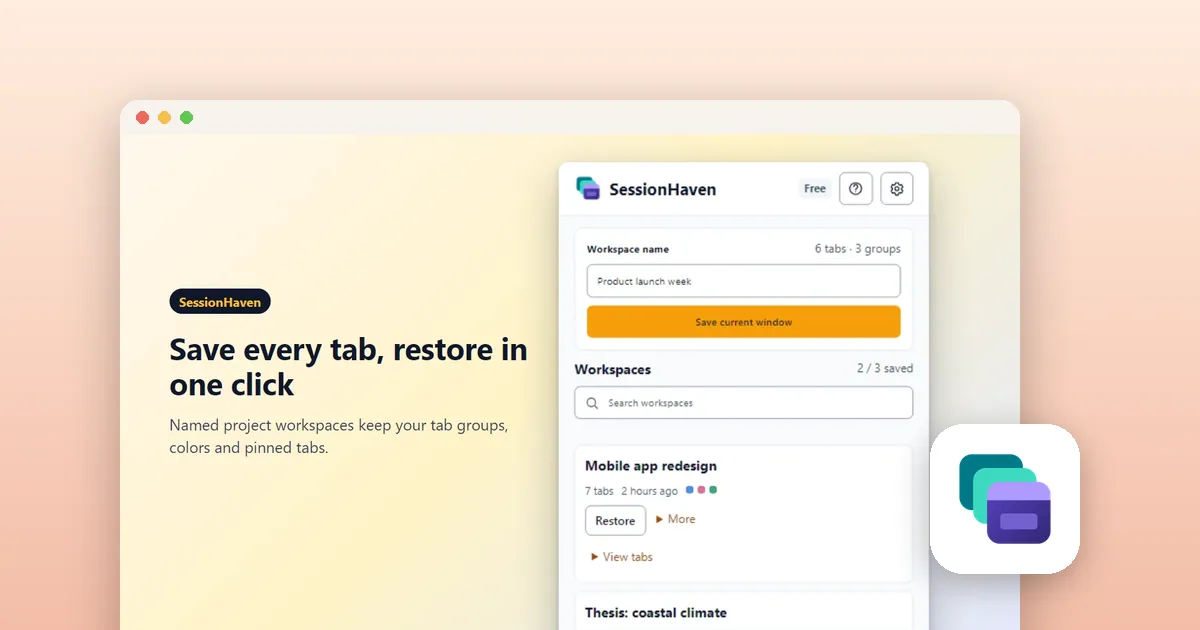
When you juggle separate projects and want to close browser windows to free memory without trusting cloud sync, a local workspace extension keeps each window isolated. SessionHaven from LoopOtter uses Chromium tab group APIs to record tab titles, URLs, group names, group colors, and pinned tabs on your device.
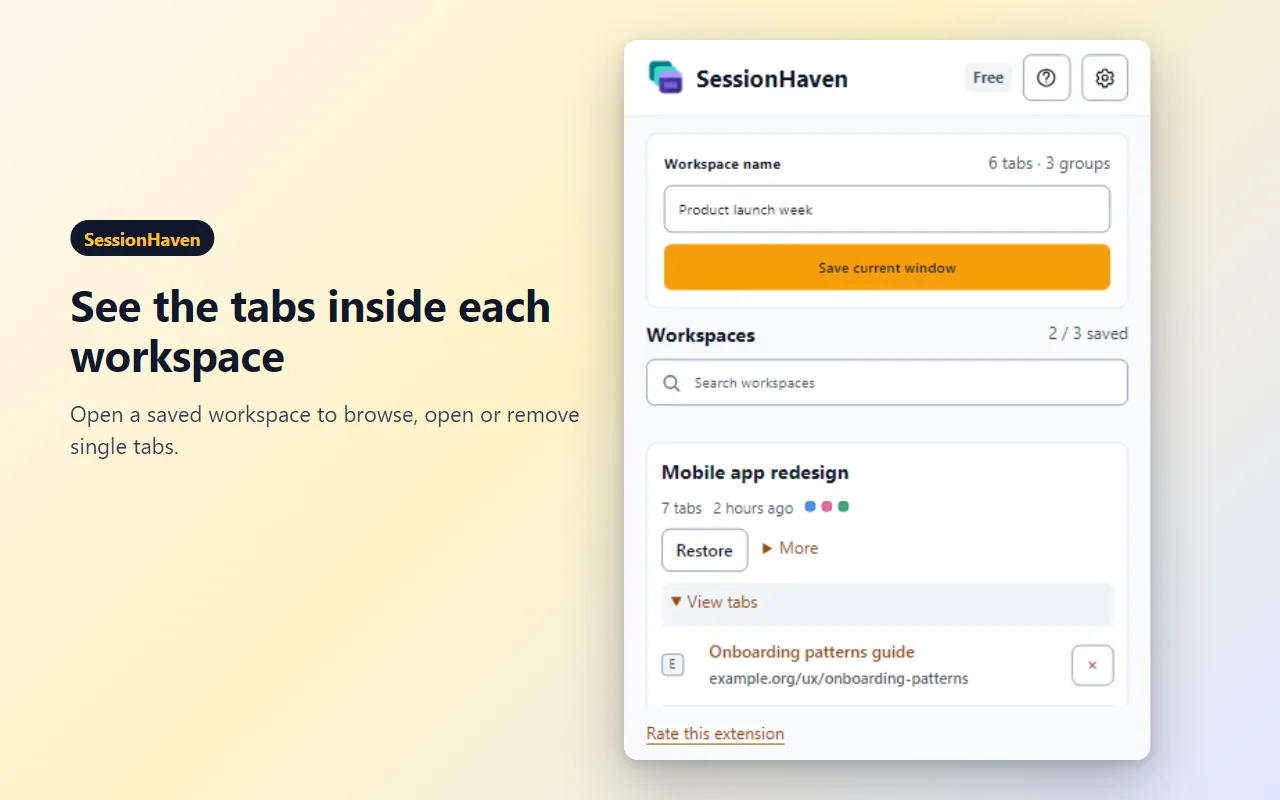
Instead of collapsing everything into one flat list, each saved project sits as a card with colored dots showing its tab groups. You can reopen the full window in one click or expand View tabs inside the popup to launch a single page.
- Add SessionHaven to Microsoft Edge, Google Chrome, or Brave.
- Organize your project tabs into colored browser tab groups and pin any reference tabs.
- Click the SessionHaven toolbar icon or press Alt+Shift+S (Command+Shift+S on macOS).
- Enter a project name in the Workspace name field and click Save current window.
- Close the browser window when you finish that task, then click Restore on the workspace card whenever you want the full window and tab groups back.
- Free tier: save and restore up to 3 workspaces with unlimited tabs, native tab group colors, and offline JSON export.
- Optional Pro ($4.99 USD one-time via PayPal): adds unlimited workspaces, scheduled local auto-backups, and search across tab titles and URLs.
How do you back up and move saved tab sessions between PCs?
Browser updates, profile corruption, and switching to a new laptop are common ways people lose years of saved tabs. Keeping an offline JSON copy outside the browser profile protects your project links even if you reinstall Chrome or Edge.
In SessionHaven's Options page, Backup & restore lets you save a local JSON file and later import it using either Merge with existing workspaces or Replace.
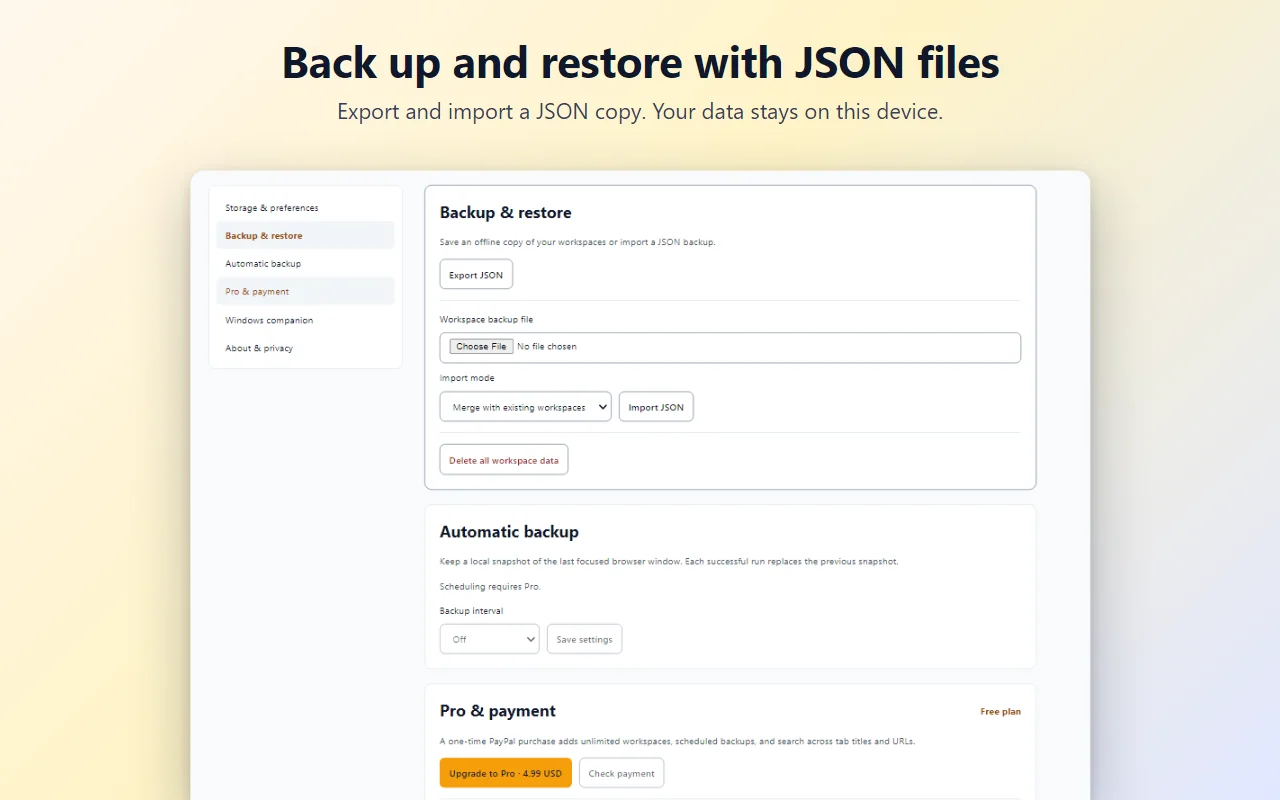
- Open SessionHaven and click the gear icon to open Options.
- Select Backup & restore in the left menu.
- Click Export JSON and store the backup file in your Documents folder or an encrypted drive.
- On another PC or browser profile, open Backup & restore, click Choose File, pick your JSON file, choose Merge or Replace, and click Import JSON.
Tools for this
SessionHaven: Project Workspace Saver
Save, organize, and restore browser tabs and tab groups into named project workspaces. Crash-proof and 100% local.
FAQ
Does Ctrl+Shift+T restore an entire closed tab group?
Usually yes, if you closed the group or window recently in the same session. Once the browser restarts or you clear browsing history, Chrome and Edge may no longer hold that group in the recently closed list.
Can I save tab groups in Chrome and Edge without signing into an account?
Chrome's native Save group toggle syncs through a Google account, and Edge Workspaces require a Microsoft account. To save tab groups strictly on your local computer without an account, use Ctrl+Shift+D bookmarks for basic links or a local extension such as SessionHaven.
Will SessionHaven restore tab group names, colors, and pinned tabs?
Yes. SessionHaven reads and restores native Chromium tab group labels, group colors, and pinned tabs when you restore a saved workspace.
Does SessionHaven send my open URLs to a remote server?
No. Tab titles, URLs, and group structures are written to local browser storage on your device. The extension has no tracking scripts or ads, and only contacts the payment server if you choose to verify an optional Pro purchase.