
How to Get Mac Finder Column View on Windows 11
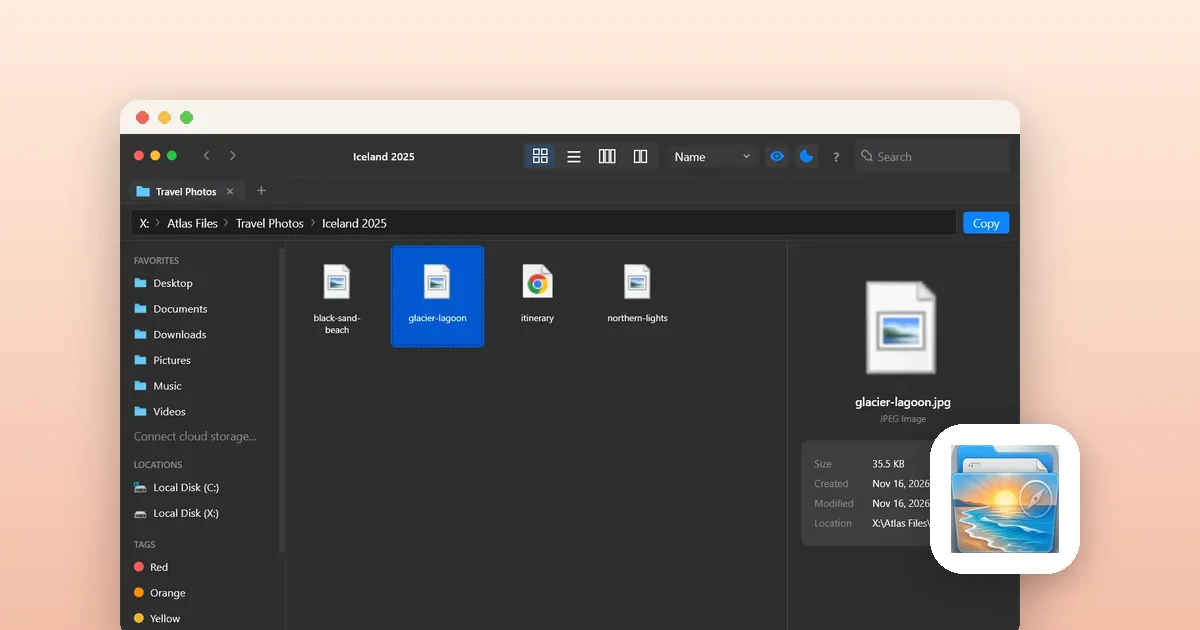
To get Mac Finder column view on Windows 11, install a desktop file manager that supports Miller columns, such as Horizon Explorer. Windows 11 File Explorer includes tabs and a vertical details list, but it cannot unfold nested folders horizontally across side-by-side columns.
Can Windows 11 File Explorer display folders in Miller columns?
Windows 11 File Explorer offers Details, List, Tiles, and several icon sizes. While Details view shows metadata columns such as Date modified, Type, and File size, it opens only one folder per tab.
Mac Finder uses Miller columns instead: clicking any subfolder opens its contents in a new column immediately to the right. Your full path from drive to file remains visible, so you can jump back to any parent folder in one click instead of relying on address-bar dropdowns.
- File Explorer Details view: lists files vertically with metadata columns, hiding parent folder contents.
- Miller column view: unfolds nested folders horizontally side by side so your directory hierarchy stays in sight.
- Address-bar breadcrumbs: standard File Explorer requires opening dropdown menus or pressing Alt+Up to step back.
How can you preview files quickly in built-in Windows File Explorer?
Before switching file managers, check whether File Explorer's built-in Preview pane or Microsoft PowerToys Peek covers your workflow. File Explorer can show images, text files, and PDFs in a fixed right-hand pane without launching another app.
If you install Microsoft PowerToys, its Peek utility adds a Ctrl+Space floating preview window. Still, neither File Explorer's Preview pane nor PowerToys Peek displays parent and child folders side by side across horizontal columns.
- Open Windows 11 File Explorer by pressing Win+E.
- Click View on the top toolbar, hover over Show, and select Preview pane (or press Alt+P).
- Click any image, text document, or PDF to inspect it in the right-side pane.
- Press Alt+P again to close the pane and reclaim window width.
- If you want a pop-up preview in File Explorer, install Microsoft PowerToys, enable Peek in its settings, select a file, and press Ctrl+Space.
How do you browse folders using Miller columns in Horizon Explorer?
Horizon Explorer is a Finder-style file manager for Windows 10 and Windows 11 on the Microsoft Store. It runs offline with no ads or analytics, and offers a free trial managed by the Microsoft Store before a paid purchase (with no in-app purchases).
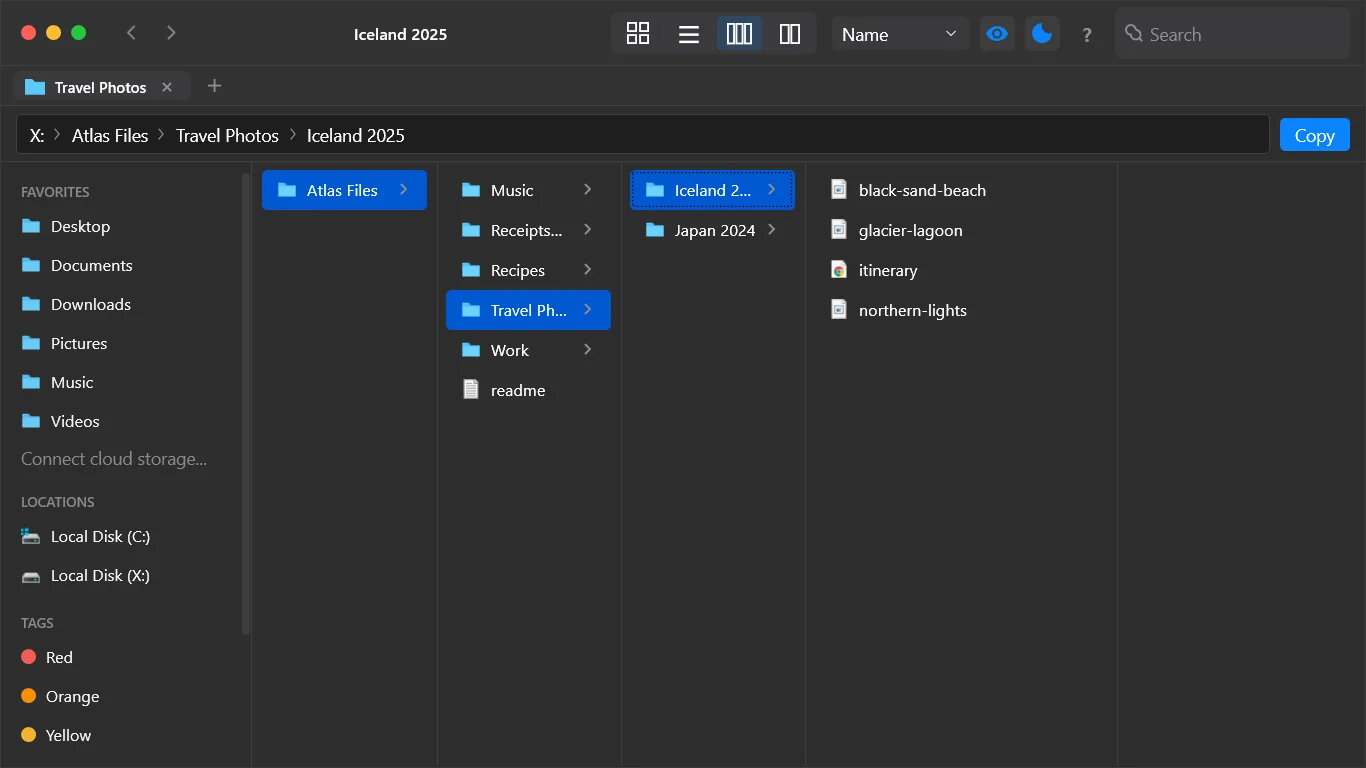
In column view, clicking any folder adds its contents in a fresh column to the right while keeping earlier levels visible in the same window.
- Install Horizon Explorer from the Microsoft Store and start the free trial.
- Click the Column view button in the top toolbar.
- Pick a drive or library folder such as Desktop, Documents, or Pictures from the left sidebar.
- Click any subfolder (or navigate with keyboard arrow keys) to unfold its contents in a new column to the right.
- Keep drilling down through nested project folders without losing sight of earlier directories.
- Click any parent folder in an earlier column to jump straight back up the tree.
- Optional Win+E replacement: in settings, you can set Horizon Explorer as your default folder handler so Win+E opens it.
How do you preview files with Spacebar Quick Look?
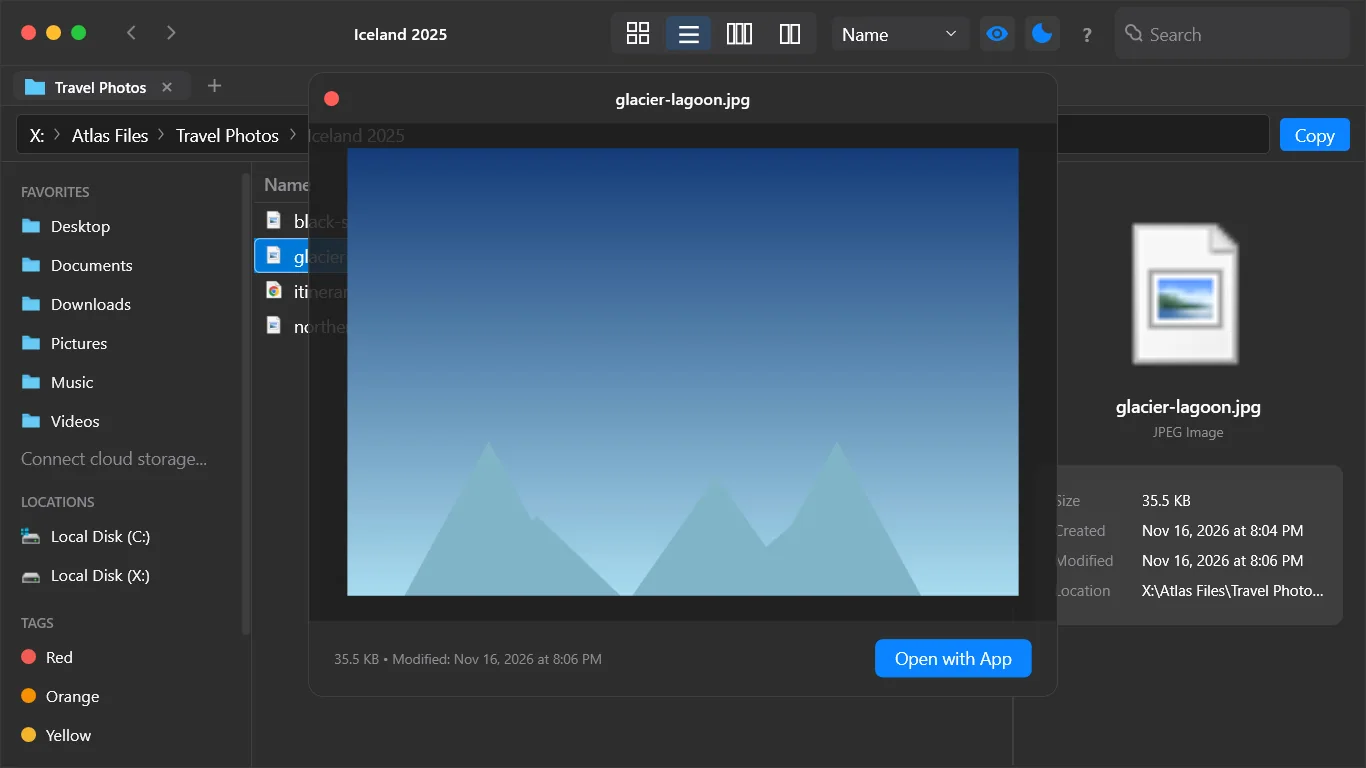
Spacebar Quick Look lets you check photos, documents, and file metadata without waiting for a separate viewer to launch. In Horizon Explorer, pressing Space opens a floating preview card right over your folder view.
- Select any photo or document inside Horizon Explorer.
- Press Space on your keyboard to open the floating Quick Look window.
- Check the file preview along with its size and modified timestamp at the bottom of the popup, or click Open with App to edit it.
- Press Space again or Esc to close Quick Look.
- A persistent right-side preview pane also displays file size, created and modified dates, and full folder path.
How do you move files faster with dual-pane view, tabs, and color tags?
When you organize photos or clean up project folders, switching between two separate File Explorer windows slows you down. Horizon Explorer combines browser-style tabs (Ctrl+T to open, Ctrl+W to close), a F3 dual-pane split view, and sidebar color tags.
Deletes go to the Recycle Bin by default and can be undone with Ctrl+Z, while Shift+Delete removes a file permanently.
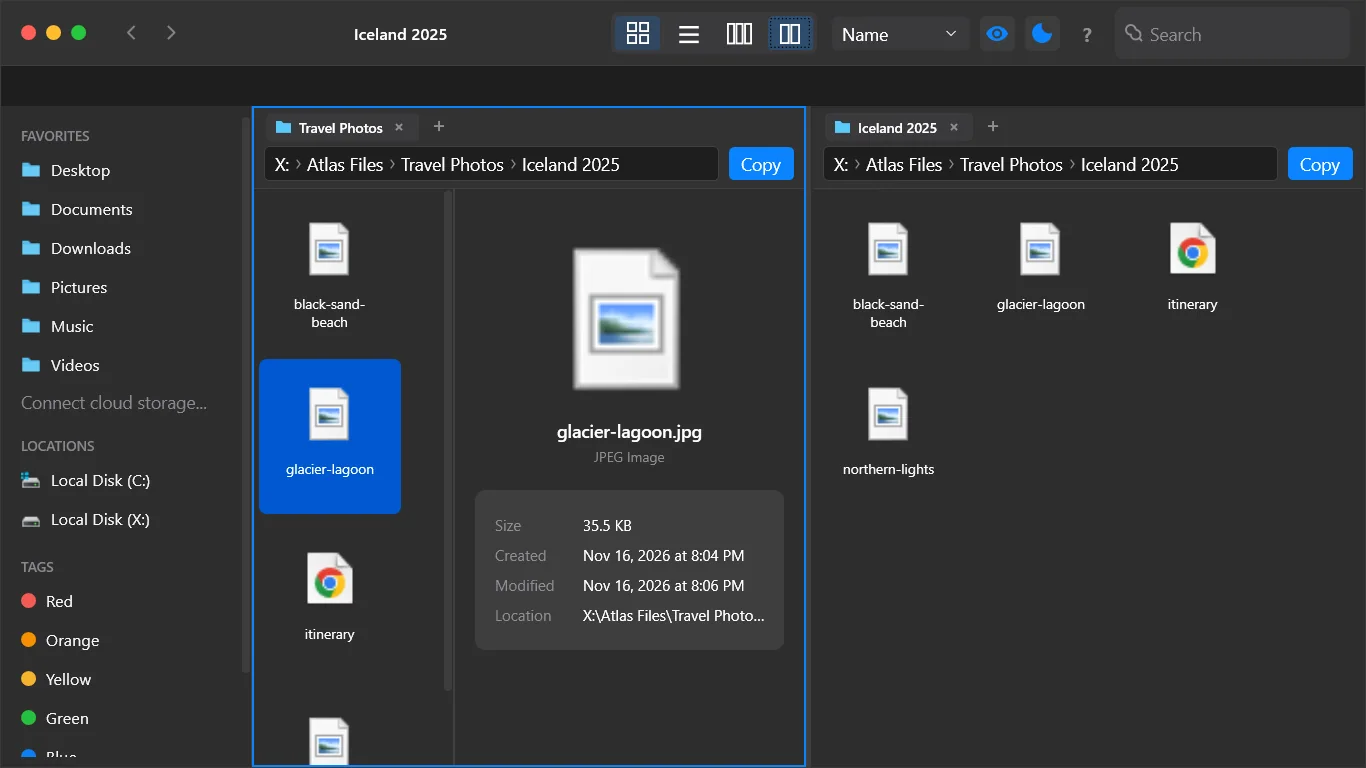
- Press F3 in Horizon Explorer to split the window into two independent folder panes.
- Open your source folder on the left and your destination folder on the right, then drag files across or use Ctrl+C and Ctrl+V.
- Press Ctrl+T whenever you want to keep another folder open in a tab inside the same pane.
- Right-click important files to assign color tags (red, orange, yellow, green, blue, purple, or gray).
- Click a color tag in the left sidebar to gather matching files from across different folders.
Tools for this
Horizon Explorer
A Finder-style file manager for Windows with Miller columns, tabs, Quick Look and color tags.
FAQ
Does Windows 11 natively support Mac-style column view?
No. Windows 11 File Explorer supports tabs and a vertical Details view, but it cannot display nested directories side by side in Miller columns.
Is Horizon Explorer free?
Horizon Explorer is a paid Microsoft Store app with a free trial managed by the Store. There are no in-app purchases or subscriptions.
Can I open Horizon Explorer with Win+E?
Yes. Horizon Explorer has an optional setting to register as your default folder handler so pressing Win+E opens it.
Does Horizon Explorer require an Apple ID or internet connection?
No. It is an independent Windows utility that works offline with your local files; connecting OneDrive or Google Drive is optional.