
How to Get a Mac-Style Menu Bar on Windows 11
To get a Mac-style menu bar on Windows 11, install a desktop utility like Horizon Bar that docks a status and control panel to the top of your screen. Windows 11 locks the taskbar to the bottom, so a dedicated top bar provides instant access to system toggles, system stats, and quick search without registry hacks.
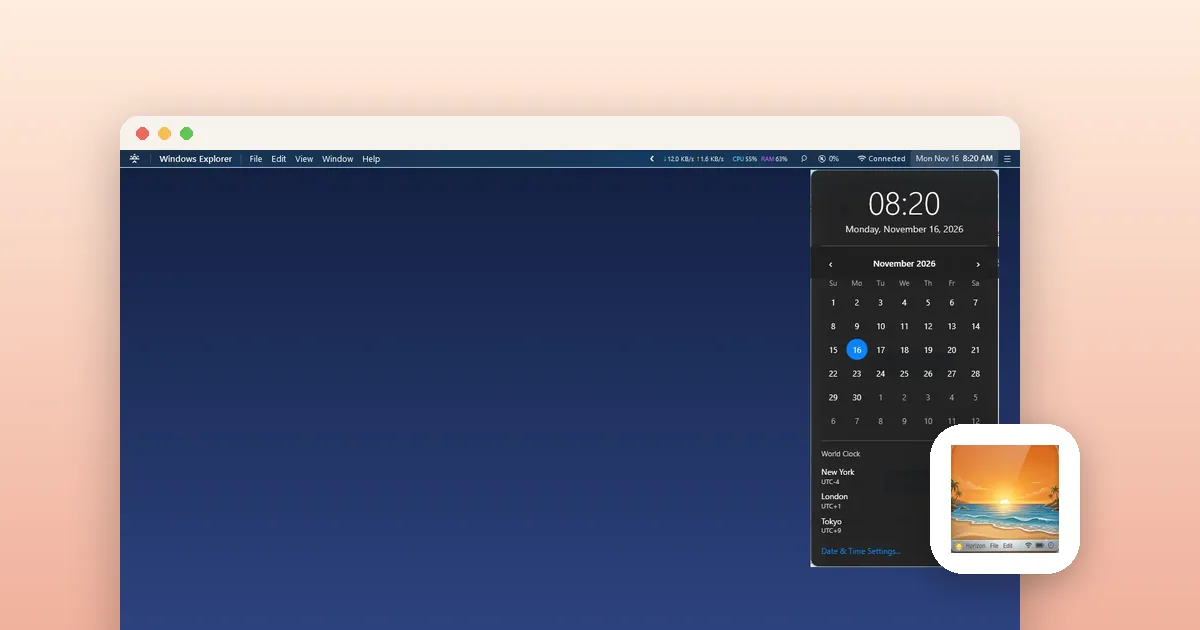
Can you move the default Windows 11 taskbar to the top of your screen?
In earlier Windows versions like Windows 10, users could drag the taskbar to the top, left, or right edges of their display. Windows 11 removed this functionality entirely, locking the taskbar permanently to the bottom edge.
While registry modifications or third-party patchers claim to reposition the Windows 11 taskbar, they often introduce instability, break Start menu alignment, or cause system tray icons to render incorrectly after system updates. Windows 11 does provide Quick Settings (Win+A) and notifications (Win+N), but these require explicit clicks and disappear when not in use.
- Windows 11 taskbar is locked to the bottom: native settings offer no option to dock it to the top.
- Registry tweaks are unstable: modifying explorer shell keys frequently glitches Start menu animations.
- Quick Settings (Win+A): useful for quick toggles, but lacks persistent hardware monitoring and top menus.
What key features does a macOS-style top menu bar provide?
A dedicated top menu bar changes how you interact with your desktop by keeping essential system metrics and controls in view without cluttering your main taskbar.
It separates task switching (handled at the bottom of the screen) from system control, application menus, and quick search at the top.
- Screen edge docking: docks firmly to the top edge while ensuring maximized windows stop neatly below it.
- Active app menu: shows the frontmost application with quick dropdown access to preferences and close options.
- Integrated Control Center: toggle Wi-Fi, Bluetooth, Dark Mode, volume, and display brightness from one flyout.
- Live system telemetry: monitors real-time CPU percentage, RAM consumption, network speed, and battery.
- Spotlight-style search: a floating instant search bar to find programs, files, and settings with minimal keystrokes.
How do you install and configure Horizon Bar on Windows 11?
Horizon Bar is a lightweight Windows desktop utility available from the Microsoft Store. It operates completely offline, requires no account, and docks cleanly across your monitor.
Maximized windows recognize the menu bar and adjust their margins automatically, ensuring no application buttons or title bars are obscured.
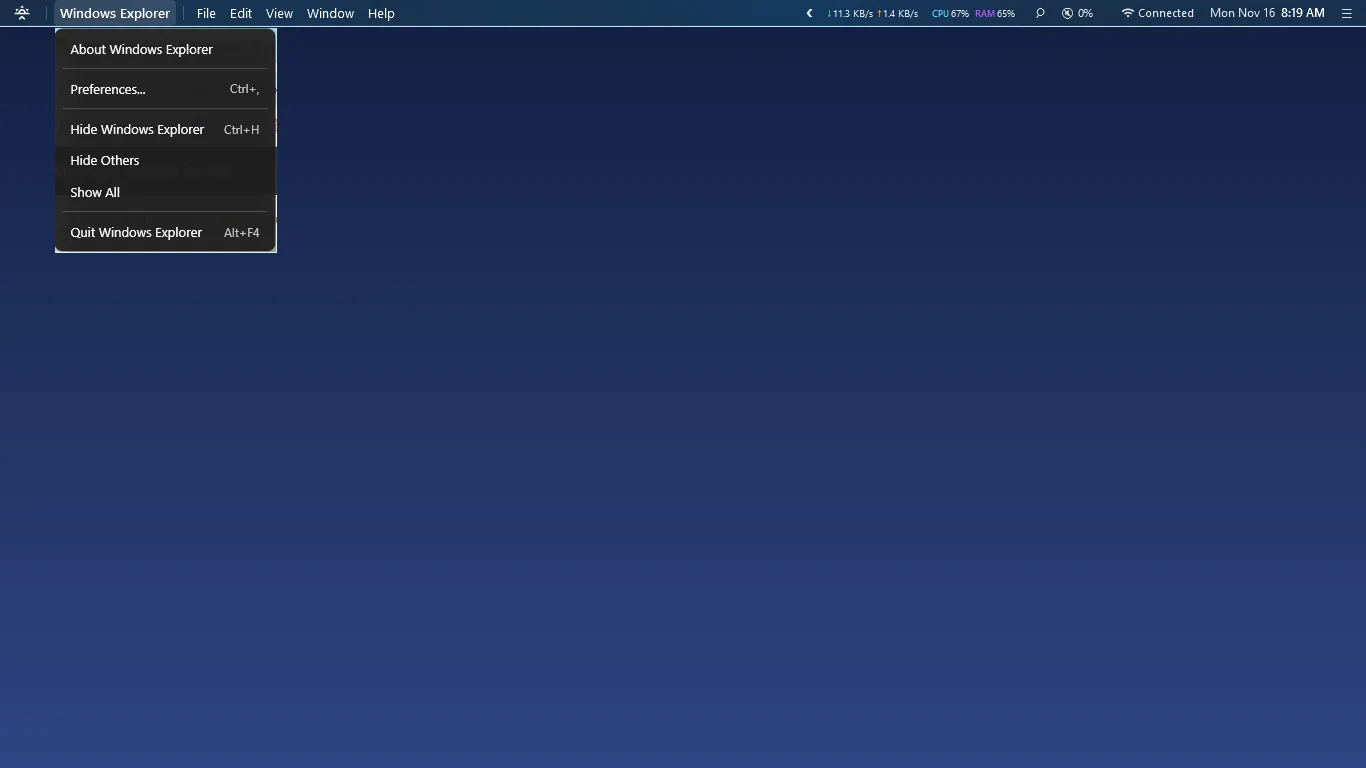
- Download and install Horizon Bar from the Microsoft Store.
- Launch the application; the menu bar automatically docks across the top edge of your desktop.
- Click the active application name or menu icon to open Settings.
- Choose your preferred theme: Light Mode, Dark Mode, or match your Windows system preference.
- Adjust the background transparency slider to blend the top bar seamlessly into your desktop wallpaper.
- Enable Start with Windows in preferences so the top menu bar launches automatically at login.
How do you use the top Control Center and live system monitors?
The right side of Horizon Bar functions as a unified status hub, replacing multiple scattered tray icons with a tidy Control Center panel.
You can monitor system resources in real time and adjust hardware settings without digging through the Windows Settings app.
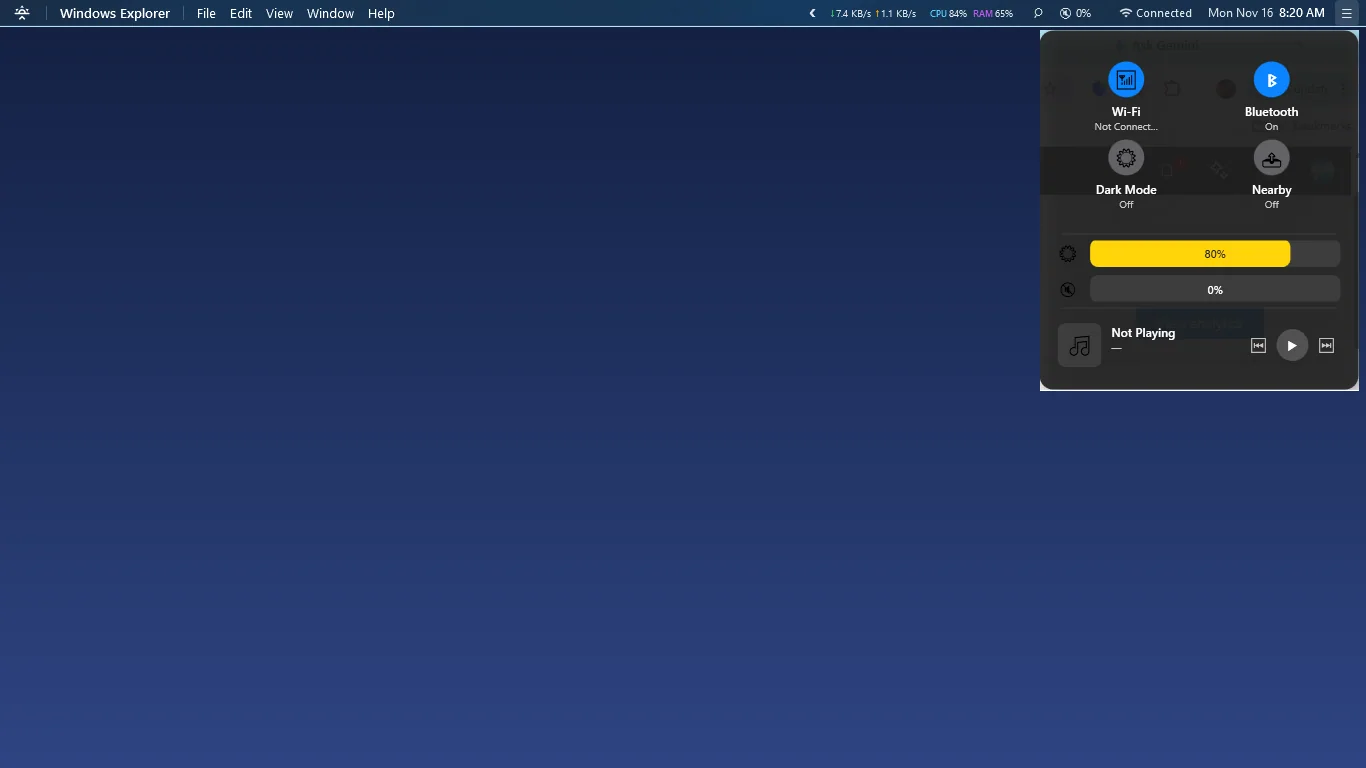
- Click the Control Center icon in the upper-right corner of the menu bar.
- Click the Wi-Fi or Bluetooth toggles to manage wireless connections quickly.
- Drag the brightness or volume sliders to make immediate audio and screen adjustments.
- Click the Dark Mode button to switch your Windows desktop theme instantly.
- Glance at the live stats to check real-time CPU percentage, RAM usage, and active network speeds.
- Click the digital clock to open a monthly calendar and view configured world clocks.
How do you find apps and documents with Spotlight-style search?
Opening the Windows Start menu to search can feel heavy when you only need to launch a quick utility or locate a recent document.
Horizon Bar includes a Spotlight-inspired search bar that appears centered on your screen, finding applications and files instantly as you type.
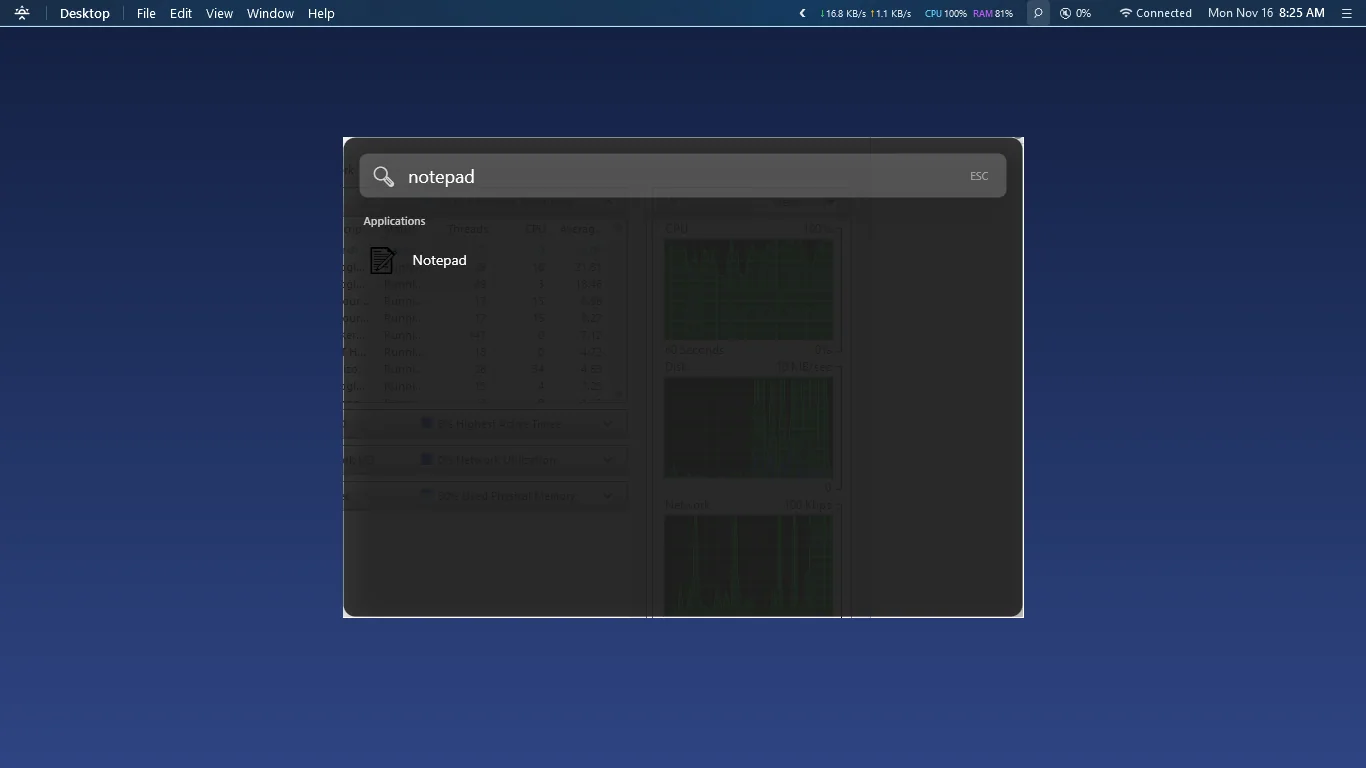
- Click the search icon on the top menu bar or use the configured global search shortcut.
- Type the name of the application, document, or Windows setting you want to open.
- Browse the instant search results list displayed in the centered floating window.
- Press Enter to launch the highlighted application, or hit Esc to dismiss the search bar.
Tools for this
Horizon Bar
A macOS-style top menu bar for Windows with clock, Wi-Fi, battery, CPU stats and search. Offline, no account.
FAQ
Will Horizon Bar cover or hide maximized application windows?
No. Horizon Bar reserves desktop space at the top of your display, so maximized windows stop neatly below the bar without hiding window controls.
What happens when you play full-screen games or stream videos?
Horizon Bar detects full-screen applications, video players, and games, automatically hiding itself so it never interrupts gaming or media viewing.
Can you use Horizon Bar together with the standard Windows taskbar?
Yes. Horizon Bar complements the Windows taskbar. You can keep your taskbar at the bottom for open apps while using the top bar for menus, system stats, and quick toggles.
Does Horizon Bar collect telemetry or require an internet connection?
No. Horizon Bar works 100% offline on your PC with zero data collection, no telemetry, and no account requirements.