
How to Free Up Disk Space on Windows 11 Without Deleting Anything Important
Updated 2026-11-15
The fastest way to free up disk space on Windows 11 is to open Settings > System > Storage, run Cleanup recommendations or Storage Sense, and then remove large leftovers such as the Windows.old folder, old downloads and unused apps. This guide walks through the built-in tools in order, shows how to find what is actually using your space, and explains which items are safe to delete.
How do I see what is using my disk space?
Before deleting anything, find out where the space went. Guessing leads to deleting the wrong things and still being short of room.
Windows 11 has a basic breakdown built in. It groups usage into categories such as Apps, Temporary files, Documents and System, and it shows how much each one takes.
- Open Settings (Win + I) and go to System > Storage.
- Wait for the bar to finish calculating, then select Show more categories.
- Click the largest category and look at what it lists.
- Note the big ones: Temporary files, Apps and features, and your own Documents, Pictures and Videos.
How do I use Storage Sense and Cleanup recommendations?
Storage Sense is the built-in automatic cleaner. It removes temporary files and can empty the Recycle Bin and old Downloads items on a schedule that you choose.
Cleanup recommendations is the manual version. It lists items Windows thinks you can remove and lets you tick the ones you want gone.
- Go to Settings > System > Storage.
- Select Cleanup recommendations and review each group. Tick only what you recognize.
- Click Clean up to remove the selected items.
- Turn on Storage Sense on the same Storage page and choose how often it runs (for example, every month).
- Open the Storage Sense settings to decide whether it should clear Recycle Bin and Downloads items after a set number of days. Leave Downloads on Never if you keep files there.
Can I delete the Windows.old folder?
Windows.old appears after a major Windows upgrade. It holds your previous Windows installation so you can roll back. It can be many gigabytes, and it is one of the largest single items you can safely remove.
The trade-off is simple: once it is gone you can no longer roll back to the previous version. Windows may also delete it by itself after a period of time. If your PC works fine after the upgrade, removing it is usually reasonable.
Do not delete the folder by hand in File Explorer. Use Disk Cleanup or the Temporary files page so Windows removes it properly.
- Press the Windows key, type Disk Cleanup and open it.
- Choose your C: drive and click Clean up system files.
- Tick Previous Windows installation(s) if it is listed, along with items such as Windows Update Cleanup.
- Click OK and confirm.
What else takes up a lot of space on Windows 11?
Beyond temporary files, a few other things commonly grow large: the hibernation file, old crash dumps, browser caches and unused apps.
The hibernation file (hiberfil.sys) is created so Windows can hibernate and use fast startup. If you never hibernate, you can turn it off from an elevated Command Prompt with powercfg /h off. This also disables hibernate and fast startup, so skip it if you rely on them.
Apps are worth checking too. Go to Settings > Apps > Installed apps, sort by size, and uninstall anything you no longer use.
If you write code, project folders can quietly hold gigabytes of rebuildable files such as node_modules and build output. Those are safe to remove because the next install or build recreates them, but they are easy to miss with the built-in tools.
- Temporary files and the Windows Update cache: safe to clean through Storage settings.
- Browser caches: safe, but you will be signed out of nothing; pages just reload more slowly the first time.
- Crash dumps and error reports: safe if you are not debugging a crash.
- Documents, Pictures, Videos and Desktop: yours. Review manually or move to an external drive.
How can I clean up with safety labels and an undo option?
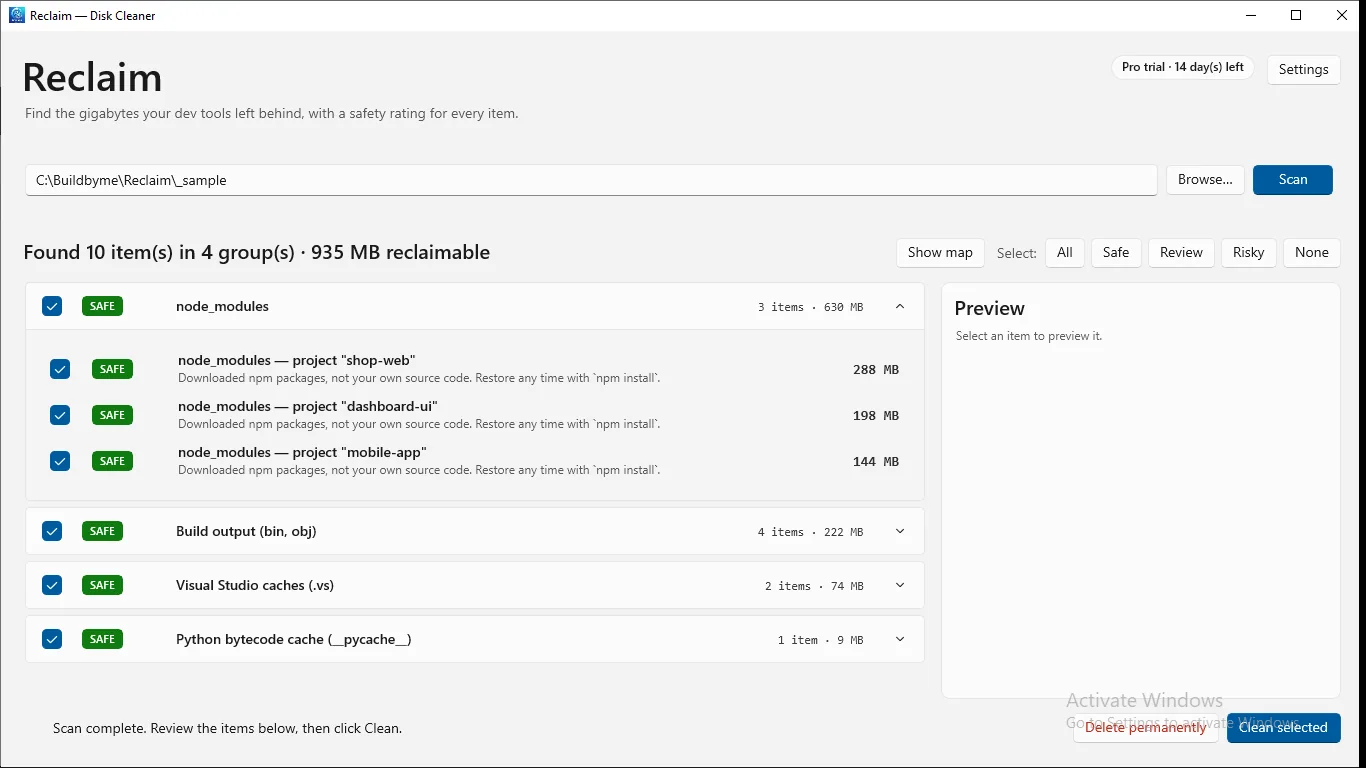
The built-in tools are fine, but they do not show you where a specific folder is hiding gigabytes, and they do not rank items by risk. Reclaim is a free disk cleaner for Windows that scans a drive or folder and lists what it finds sorted by size.
Every item gets a Safe, Review or Risky label with a plain-language explanation. Cleaned items go to the Recycle Bin, and Undo still works after a restart. Risky items and system areas are never deleted.
The free version covers temp files, browser caches, Windows.old, the Windows Update cache and crash dumps. Pro adds developer clean-up rules for things like node_modules and build output.
How do I find the biggest folders at a glance?
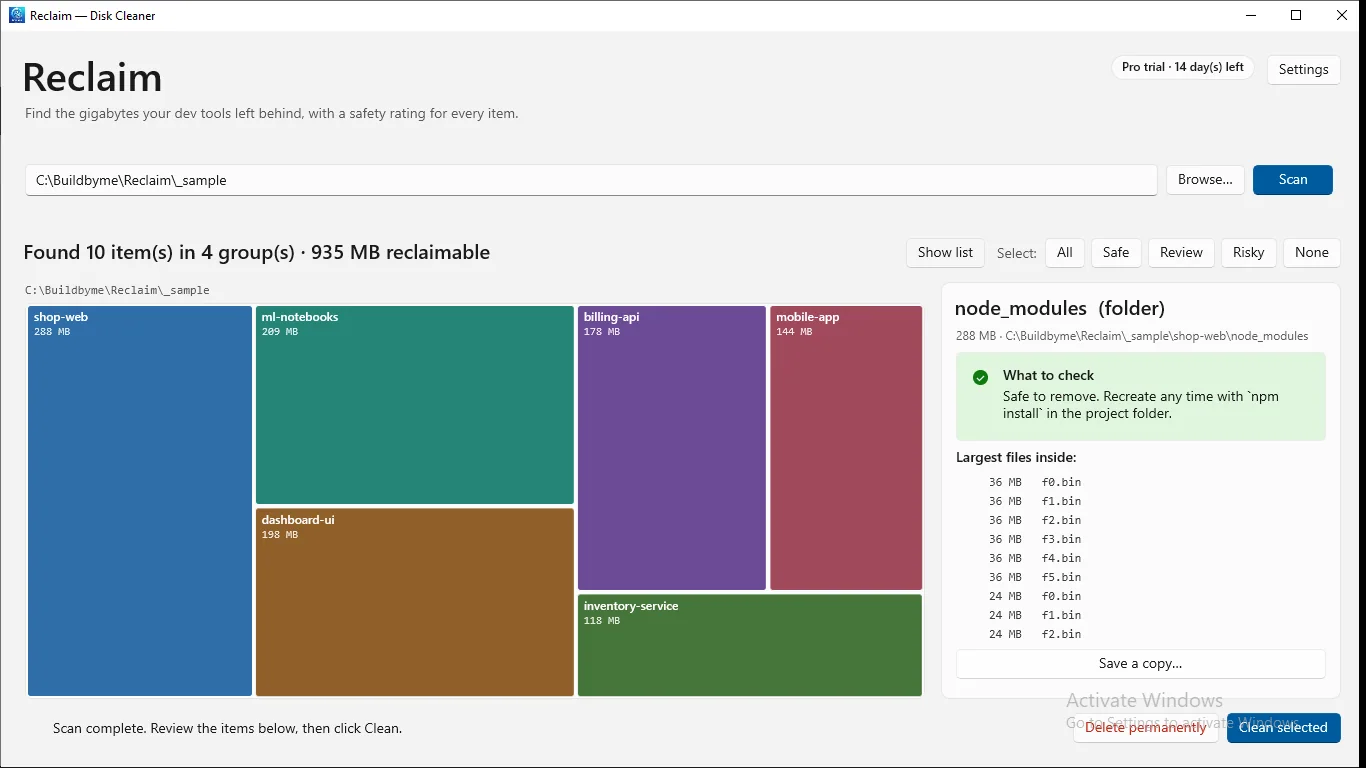
A treemap draws each folder as a rectangle sized by how much space it uses, so the biggest offenders stand out immediately. Reclaim includes a treemap view you can drill into, and selecting an item shows what it is, what to check before removing it and its largest files.
Use it to decide where to look first. Large rectangles you do not recognize deserve a closer look before you delete anything.
Tools for this
Reclaim — Disk Cleaner
Free disk cleaner for Windows. See what takes space, clean it safely, and undo if you change your mind.
FAQ
Is it safe to run Disk Cleanup on Windows 11?
Yes. Disk Cleanup still ships with Windows 11 and only offers items Windows considers removable. Read the description of each checkbox, and remember that removing Previous Windows installation(s) means you can no longer roll back to the older version.
Will Storage Sense delete my personal files?
Not by default. It targets temporary files and, if you enable those options, Recycle Bin and Downloads items older than the number of days you set. Leave the Downloads option on Never if you keep files in that folder.
How much space can I expect to free?
It varies a lot between PCs. A machine that was recently upgraded may free a large amount through Windows.old, while a clean install may free very little. Check Settings > System > Storage first to see which categories are big.
Is it safe to delete node_modules?
Yes. node_modules holds downloaded npm packages, not your own source code, and running npm install in the project folder recreates it. Only delete it in projects you can rebuild.
Should I use a third-party cleaner?
You do not have to. The built-in tools handle the common cases. A separate tool is useful if you want to see which folders are large, get safety labels, or reach items the built-in tools do not list.