
How to Create an Invoice Offline on Windows (Free PDF Templates)
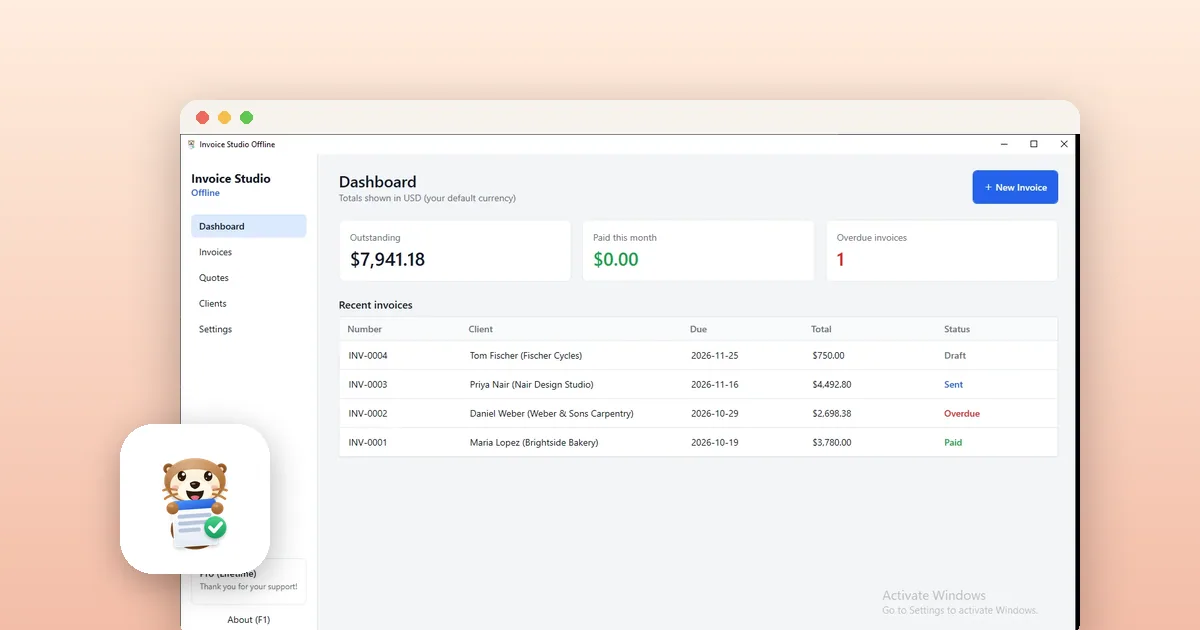
To create an invoice offline on Windows, you can fill out a spreadsheet template in Excel or use an offline invoice maker that calculates taxes and saves PDFs locally. Both methods keep sensitive billing and client data entirely on your computer without monthly subscriptions or cloud storage.
Why create invoices offline instead of using cloud billing services?
Cloud billing software often charges monthly subscription fees that add up quickly for freelancers, contractors, and occasional sellers. Many web tools also lock your historical client data and invoice records behind active paid tiers, making access uncertain if you cancel your plan.
Offline invoicing gives you total control over your business data. Every document and client record stays on your local hard drive, eliminating the risk of data leaks from third-party server breaches. You can also generate, edit, and print invoices when traveling or working without an internet connection.
- No monthly subscription fees: you avoid recurring software charges for basic PDF billing.
- Complete privacy: customer addresses, contact numbers, and payment details never leave your PC.
- Offline reliability: create invoices anywhere, even without Wi-Fi or active mobile hotspot coverage.
- Direct file ownership: your documents exist as standard PDF files stored directly in your local folders.
How do you create an invoice using Microsoft Excel or Word?
Microsoft Office includes pre-built invoice templates that work offline. If you already have Word or Excel installed, this is the most common starting point.
Spreadsheets offer flexibility, but they require manual care. Formula errors can miscalculate tax rates or invoice totals, and spreadsheets lack built-in client address books or automated invoice numbering.
- Open Microsoft Excel or Word on your Windows desktop.
- Click New in the left sidebar and type invoice into the online template search bar.
- Select a clean layout such as Simple Invoice or Service Invoice with Tax.
- Replace the placeholder text with your company name, contact info, client address, and invoice date.
- Enter your line items, item descriptions, hourly rates or quantities, and applicable sales tax.
- Review the formulas in the subtotal and total cells to ensure discounts and taxes calculate correctly.
- Click File, select Export or Save As, choose PDF (*.pdf) as the file type, and save it to your folder.
How do you create and export PDF invoices using Invoice Studio Offline?
Invoice Studio Offline is a dedicated Windows desktop application available from the Microsoft Store. It runs 100% locally on your computer, requires no account registration, and stores all documents in your local app data directory.
The core application is free and includes up to 3 invoices and 3 quotes per month using the Clean PDF template. A one-time Pro upgrade removes monthly limits and adds custom logo support.
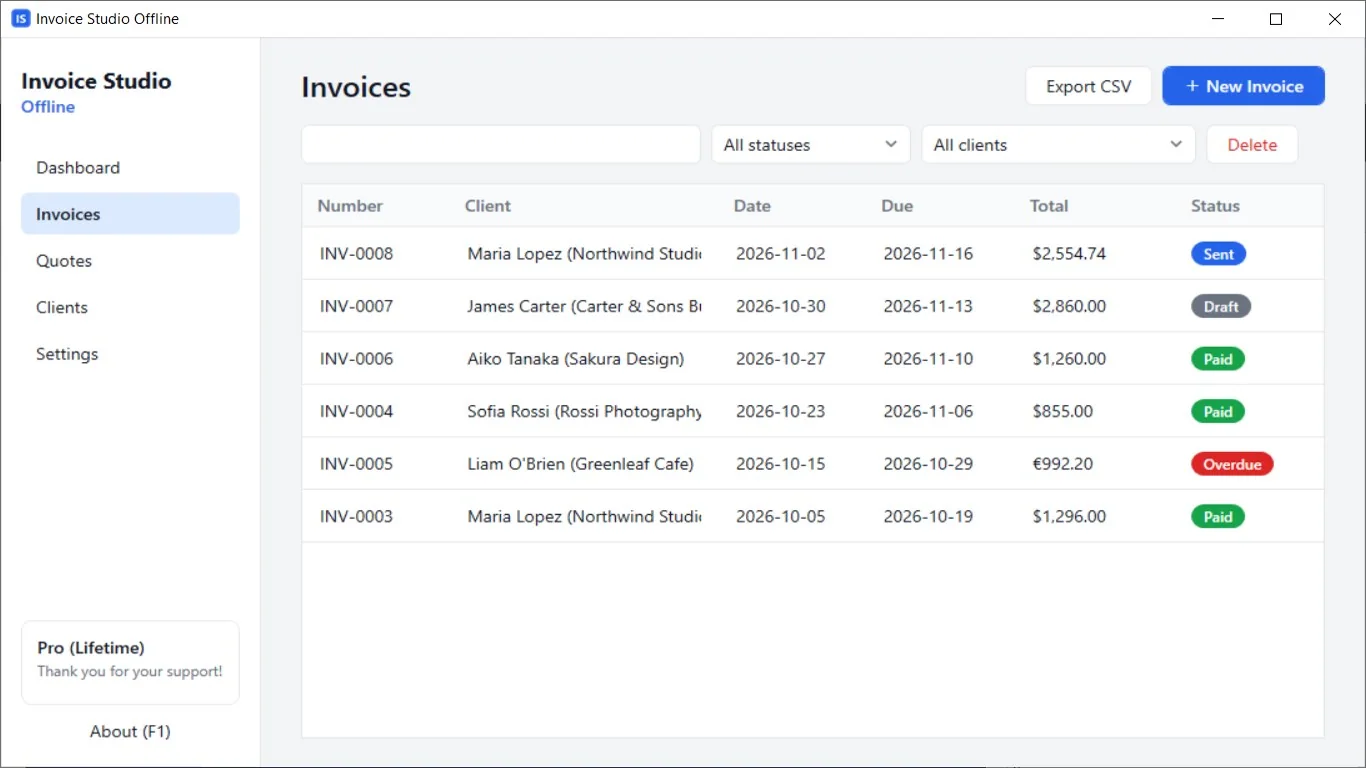
- Install Invoice Studio Offline from the Microsoft Store and open the app.
- Open the Settings tab to enter your business name, address, contact email, default tax percentage, and currency.
- Click New Invoice on the dashboard to open the invoice editor.
- Select an existing client from your local address book or click Add Client to enter new details.
- Add your billable items, specifying descriptions, quantities, unit prices, and optional discounts.
- Inspect the real-time live PDF preview panel on the right side of the screen to confirm layout and spacing.
- Click Export PDF to save the finished document directly to your PC, or print it immediately.
How do you track unpaid and overdue invoices on your PC?
Tracking payments is where plain spreadsheets often fail. When you manage dozens of separate spreadsheet files, remembering which client has paid and which invoice is overdue takes unnecessary effort.
Invoice Studio Offline maintains a local document index that tracks payment statuses automatically. The dashboard categorizes documents by due date, highlighting overdue balances so you can follow up with clients promptly.
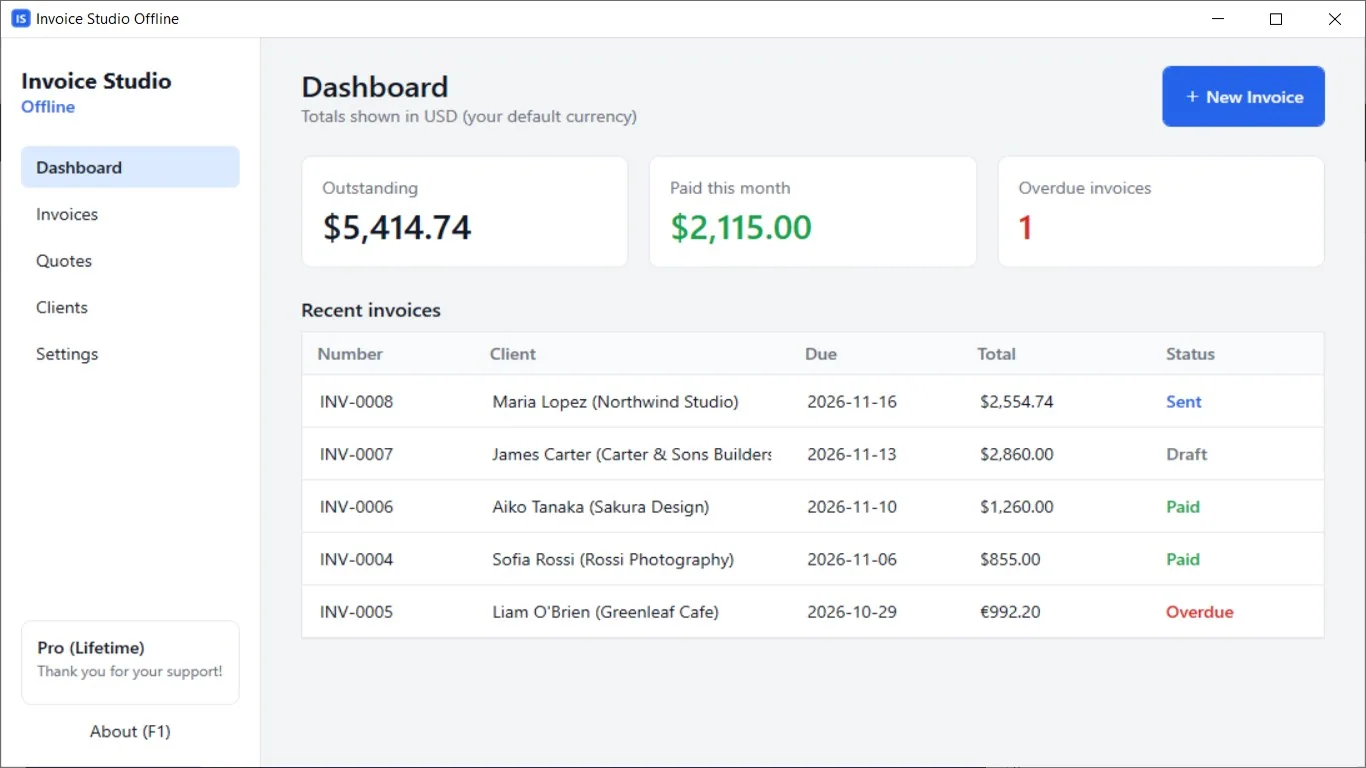
- Status overview: view outstanding, paid, and overdue totals at a glance on the main dashboard.
- Due date tracking: the software marks invoices as overdue automatically based on payment terms.
- Client address book: keep customer contact information saved locally for single-click selection on future jobs.
- Quote conversion: convert an approved price quote into a finalized billing invoice with one click.
What essential details should every professional invoice include?
Whether you use a spreadsheet template or dedicated desktop software, professional invoices must meet standard accounting requirements to prevent payment delays or tax complications.
Ensure every document contains explicit payment instructions and unambiguous terms before sending it to your client.
- Your business details: legal business name, physical or mailing address, phone number, and email.
- Client information: recipient name, client company name, billing address, and contact details.
- Identification numbers: a distinct sequential invoice number (such as INV-0104) and document issue date.
- Payment timeline: clear payment terms (such as Net 14 or Net 30 days) and explicit due date.
- Itemized breakdown: clear descriptions for each product or service, hourly rates, quantities, and line subtotals.
- Adjustments and taxes: itemized tax percentages, flat or percentage discounts, and the final bolded balance due.
- Remittance instructions: accepted payment methods, local bank account transfer details, or routing numbers.
Tools for this
Invoice Studio Offline
Make invoices and quotes as PDF on your PC. No account, no subscription. Track what is paid or overdue.
FAQ
Can I create an invoice on Windows without an internet connection?
Yes. Microsoft Word, Excel, and desktop apps like Invoice Studio Offline run completely offline. You can create, calculate, preview, and export PDF invoices with no active network connection.
Do I need to pay a monthly subscription to make invoices on Windows?
No. Built-in spreadsheet templates carry no extra software cost, and Invoice Studio Offline provides a free plan for up to 3 invoices per month with an optional one-time Pro purchase rather than a subscription.
Where is my client and billing data stored?
When using offline invoicing tools, all client profiles, invoice drafts, and generated PDFs reside strictly on your local PC storage and are never uploaded to remote servers.
What is the best format for sending an invoice to a client?
Always export and send your invoices as a standardized PDF file. PDF documents preserve your formatting, fonts, and layout across all operating systems and prevent accidental edits by recipients.