
How to Compare Two Text Files on Windows (Built-in Tools and a Side-by-Side Diff)
Updated 2026-11-15
To compare two text files on Windows, run fc file1.txt file2.txt in Command Prompt, use Compare-Object in PowerShell, or open both files in a diff viewer that highlights the changes side by side. This guide shows each method, what its output looks like and when to pick which one.
How do I compare two text files with the fc command?
fc.exe is built into Windows and prints the lines that differ between two files. It is quick for a one-off check and needs no installation.
Run it in Command Prompt. If you use PowerShell, type fc.exe with the extension, because plain fc is an alias for a different PowerShell command.
- Open Command Prompt or Windows Terminal.
- Type: fc.exe /N old.txt new.txt
- Read the output. It shows the blocks of lines that differ, and /N adds line numbers.
- Add /C if you want the comparison to ignore upper and lower case.
- Good for: a fast yes/no answer and a list of changed lines.
- Limits: plain text output, no color, and it does not highlight which words changed inside a line.
How do I compare two files with PowerShell?
Compare-Object compares two collections. For text files, read each file with Get-Content so each line becomes an item.
The output has a SideIndicator column. The => arrow marks a line only in the second file and <= marks a line only in the first. Lines that appear in both are hidden unless you add -IncludeEqual.
- Open PowerShell.
- Run: Compare-Object (Get-Content .\old.txt) (Get-Content .\new.txt)
- Read the SideIndicator column to see which file each differing line belongs to.
- Add -IncludeEqual if you also want to see matching lines.
- Good for: scripts and automation, since the results are objects you can filter.
- Limits: it compares lines as a set, so it is weak at showing where in the file a change happened or that the same line moved.
Can VS Code or Word compare files?
Yes. In Visual Studio Code, right-click one file in the Explorer and choose Select for Compare, then right-click the other and choose Compare with Selected. You get a side-by-side view with changes highlighted.
In Microsoft Word, the Review tab has a Compare command for two versions of a document. It is built for documents with formatting and tracked changes, which makes it heavier than needed for plain text or code.
What is the easiest way to see exactly what changed, word by word?
When two versions differ by a few words, line-level output is hard to read. A dedicated diff view highlights the exact words or characters that changed inside each line.
Compare Text & Folders is a free Windows app for this. You paste two texts or drop in two files, and it shows them side by side with word-level highlights and live counts of added, removed and changed lines. It is offline, with no account or ads.
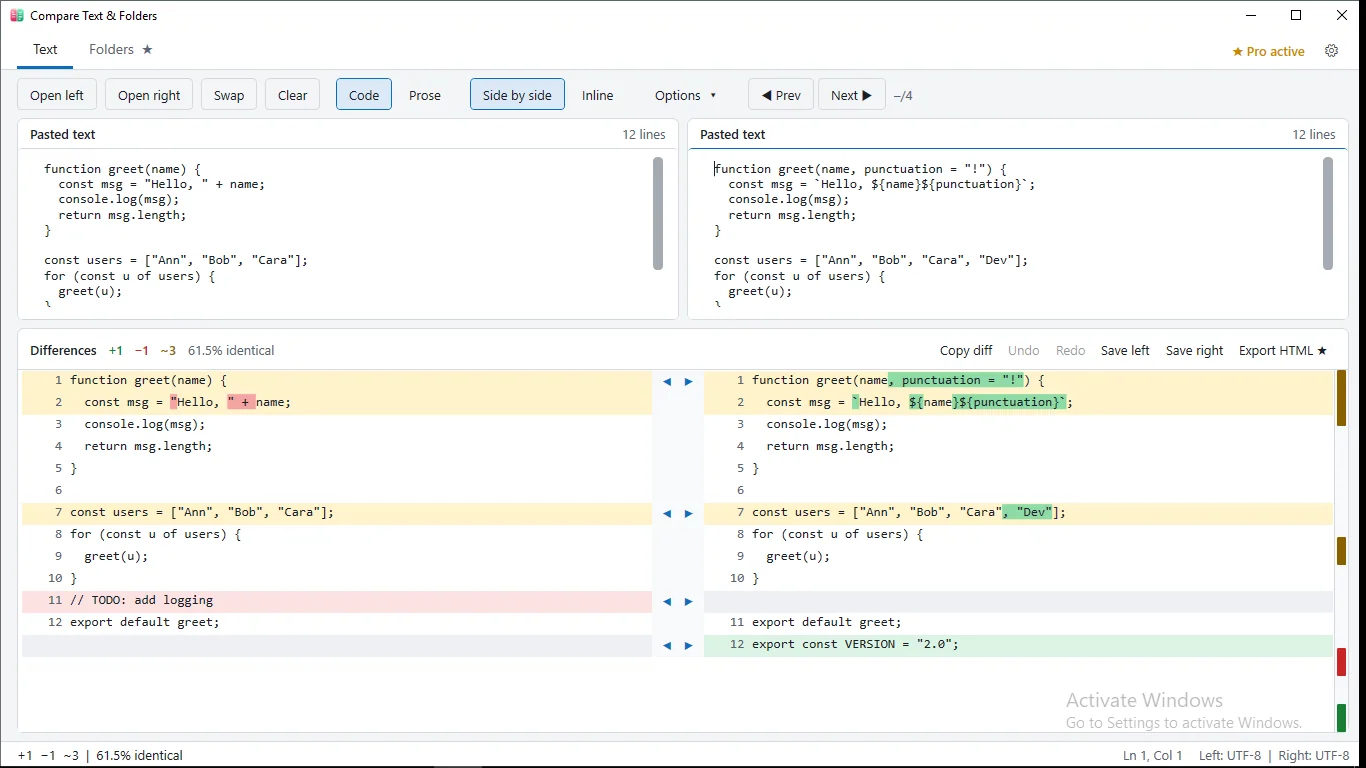
- Open Compare Text & Folders.
- Paste your original text on the left and the new text on the right, or use Open left and Open right to load files.
- Choose Code mode to compare by line, or Prose mode to compare by paragraph.
- Use Next and Prev (or F7 and F8) to jump between differences.
- Use Options to ignore whitespace, letter case or blank lines if those changes are just noise.
How do I get a compact list of changes to share?
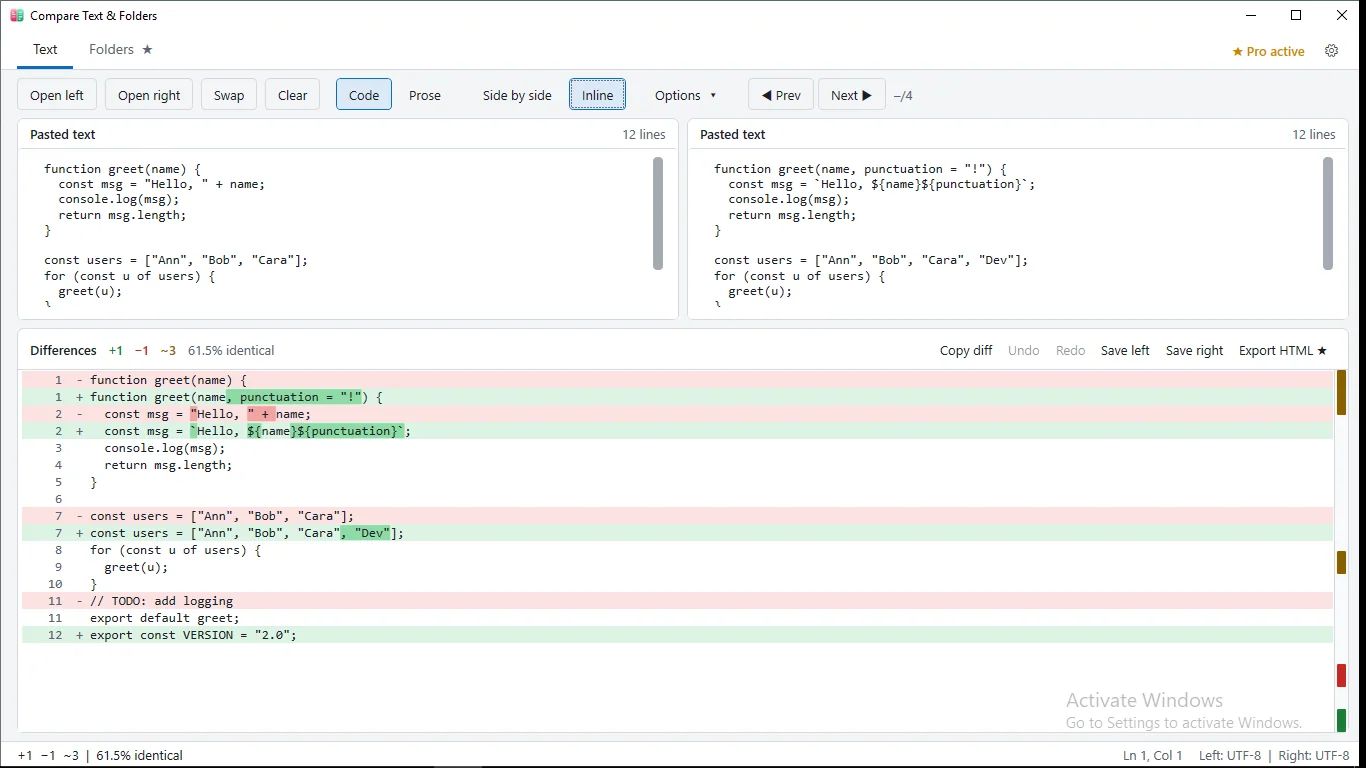
If you want to send the differences to someone, an inline view puts removed and added lines one after another in a single column. That is closer to what code review tools show.
Compare Text & Folders has an Inline view, and Copy diff copies the result as a unified diff. Exporting an HTML report, and comparing whole folders, are Pro features.
Tools for this
Compare Text & Folders
Compare two texts or files side by side with word-level highlights. Free, private and offline.
FAQ
What is the fc command in Windows?
fc (file compare) is a built-in command-line tool that compares two files and prints the differences. Use fc.exe in PowerShell, because fc alone is an alias for Format-Custom there.
How do I compare two files in PowerShell?
Use Compare-Object with Get-Content, for example: Compare-Object (Get-Content old.txt) (Get-Content new.txt). The SideIndicator column shows which file each differing line came from.
How do I ignore whitespace or case when comparing?
With fc, the /C switch ignores case, and with Compare-Object you can normalize the text first. In Compare Text & Folders, the Options menu lets you ignore whitespace, letter case and blank lines.
Can I compare two folders?
Yes. You can script it with PowerShell by hashing or listing the files in each folder, or use a folder-compare feature. Folder compare in Compare Text & Folders is a Pro feature.
Is it safe to paste private text into an online diff site?
It depends on the site. Many online tools process the text on their servers. An offline app such as Compare Text & Folders, or a built-in command, keeps the text on your PC.