
How to Combine Images Side by Side on Windows 11 (Without Uploading)
To combine images side by side on Windows 11, expand the canvas in Microsoft Paint and import your second picture, or use an offline combiner like MergeShot for automatic alignment. While Paint works for basic two-image comparisons, dedicated offline tools handle different image heights, margins, and borders without manual pixel adjustments.
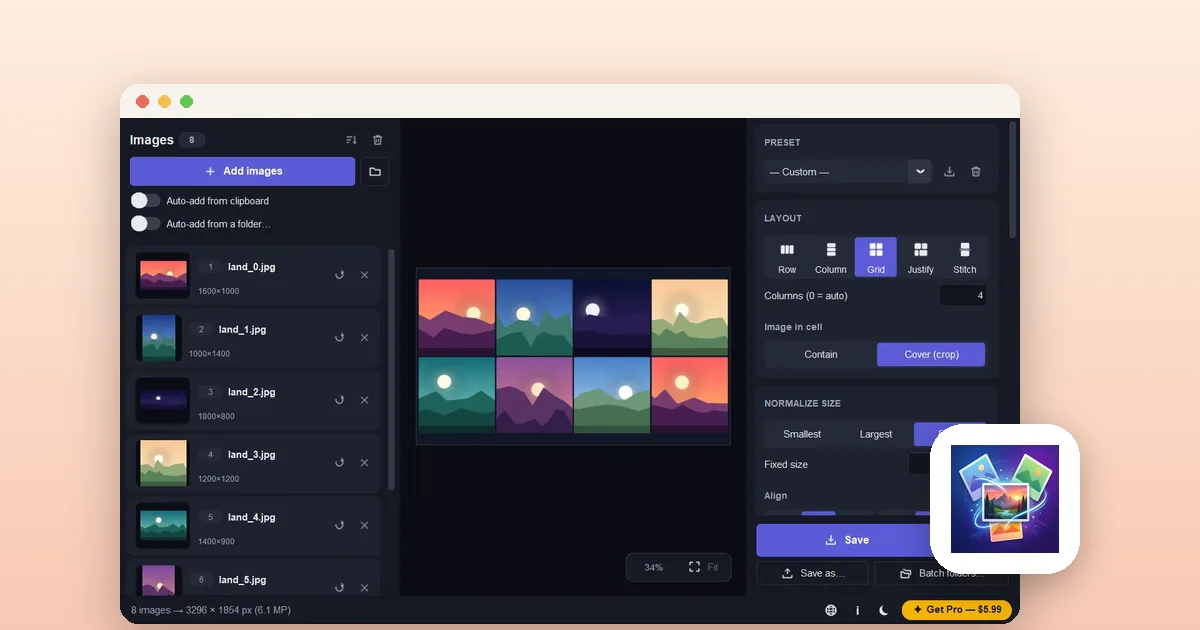
When should you combine images side by side?
Placing images side by side is common for before-and-after visual comparisons, software bug documentation, product showcases, and social media collages.
Many web services offer quick collage generators, but uploading screenshots or private photos exposes your files to third-party cloud servers and often adds watermarks.
Windows 11 provides built-in tools to merge images manually, while specialized desktop utilities can automate alignment completely offline.
- Common for technical documentation, design reviews, and comparison collages.
- Offline processing ensures sensitive screenshots and private photos never leave your machine.
- Dedicated combiners resolve uneven image heights without stretching or distortion.
Method 1: How to combine two images using Microsoft Paint
Windows 11 includes an updated version of Microsoft Paint that supports canvas expansion and importing secondary images directly onto the canvas.
This method is convenient for a quick one-time merge without downloading additional software.
- Right-click your first image in File Explorer and choose Open with > Paint.
- Zoom out slightly (Ctrl+Minus or bottom-right zoom slider) so the entire canvas is visible.
- Click and drag the small white square handle on the right edge of the canvas to extend the white workspace to the right.
- In the top menu, click File > Import to canvas > From file (or click the arrow below Paste and choose 'Paste from').
- Select your second image file. Paint places it on the canvas as an active selection.
- Drag the second image to sit flush against the right side of the first image.
- Drag the right canvas handle inward to crop any remaining empty white margin.
- Click File > Save as and select PNG or JPEG to save your combined file.
- Best for: Quick two-image comparisons when no third-party tools are installed.
- Limitation: Does not auto-scale images of different vertical resolutions.
- Limitation: Cannot generate equal padding, rounded corners, or consistent borders automatically.
Method 2: How to combine photos offline with MergeShot
When you have images of varying dimensions or need to merge three or more pictures, Microsoft Paint requires tedious manual cropping and scaling.
MergeShot is an offline Windows utility designed to join photos horizontally, vertically, or in structured grids. It auto-aligns different image heights without distortion and requires no account or cloud uploads.
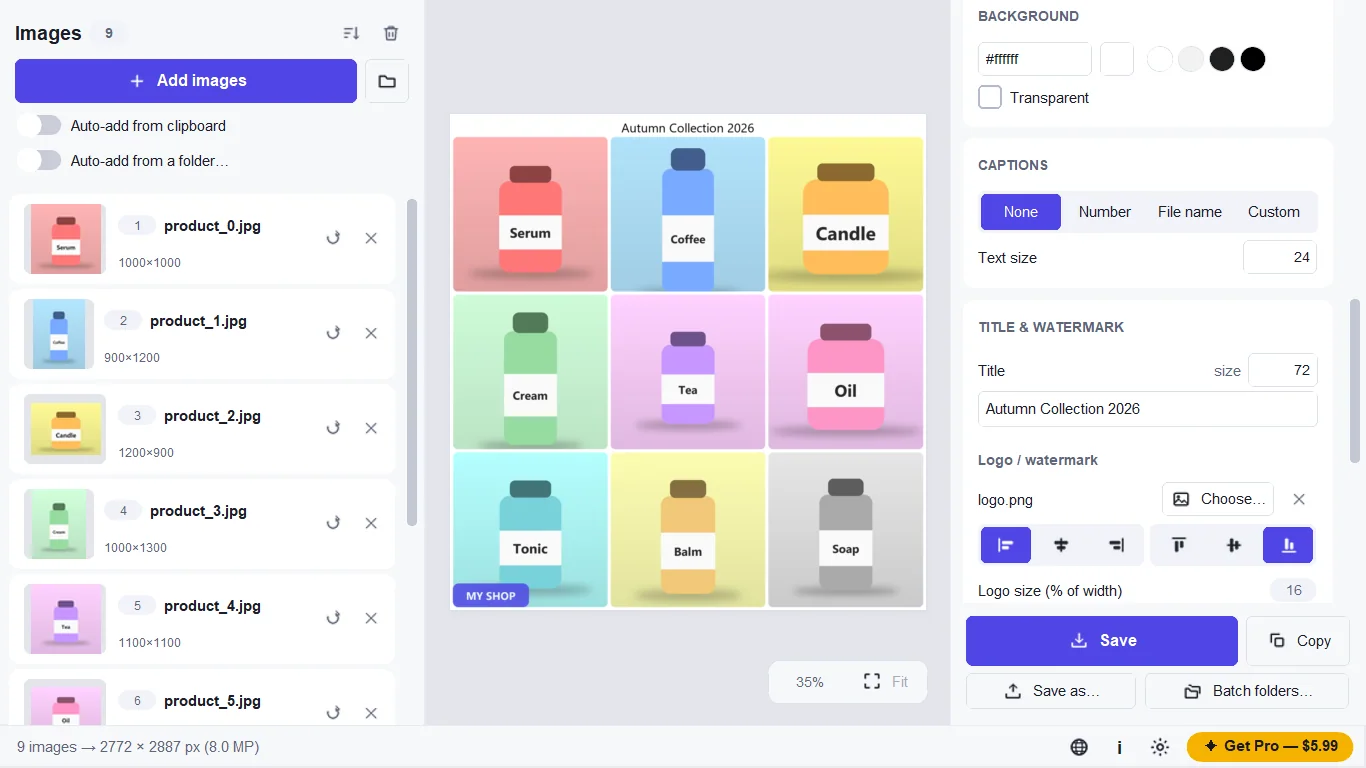
- Install MergeShot free from the Microsoft Store and launch the application.
- Drag and drop your images into the application window, or click Add Images.
- Select the 'Side by Side' (Horizontal) layout preset from the top bar.
- MergeShot instantly calculates matching dimensions, scaling images proportionally so tops and bottoms align evenly.
- Adjust gap spacing, outer padding, and corner radius using the right-hand adjustment sliders.
- Choose a background color (transparent, white, dark, or custom hex).
- Click Export and choose PNG, JPG, WebP, or PDF.
- Auto-alignment: images with different dimensions scale automatically without distortion.
- No watermarks: clean export on the free edition without branding overlays.
- Styling controls: customize borders, drop shadows, gap widths, and rounded corners.
- 100% offline: photos remain on your local storage throughout processing.
How to create multi-image grids and scrolling stitches
Beyond basic two-picture comparisons, MergeShot supports advanced layouts including multi-column photo grids, justified photo walls, and vertical scrolling screenshot stitching.
You can arrange images in aspect ratios optimized for specific social channels (1:1, 4:5, 16:9, or A4 printable sheets) or combine sequential captures into a single continuous document.
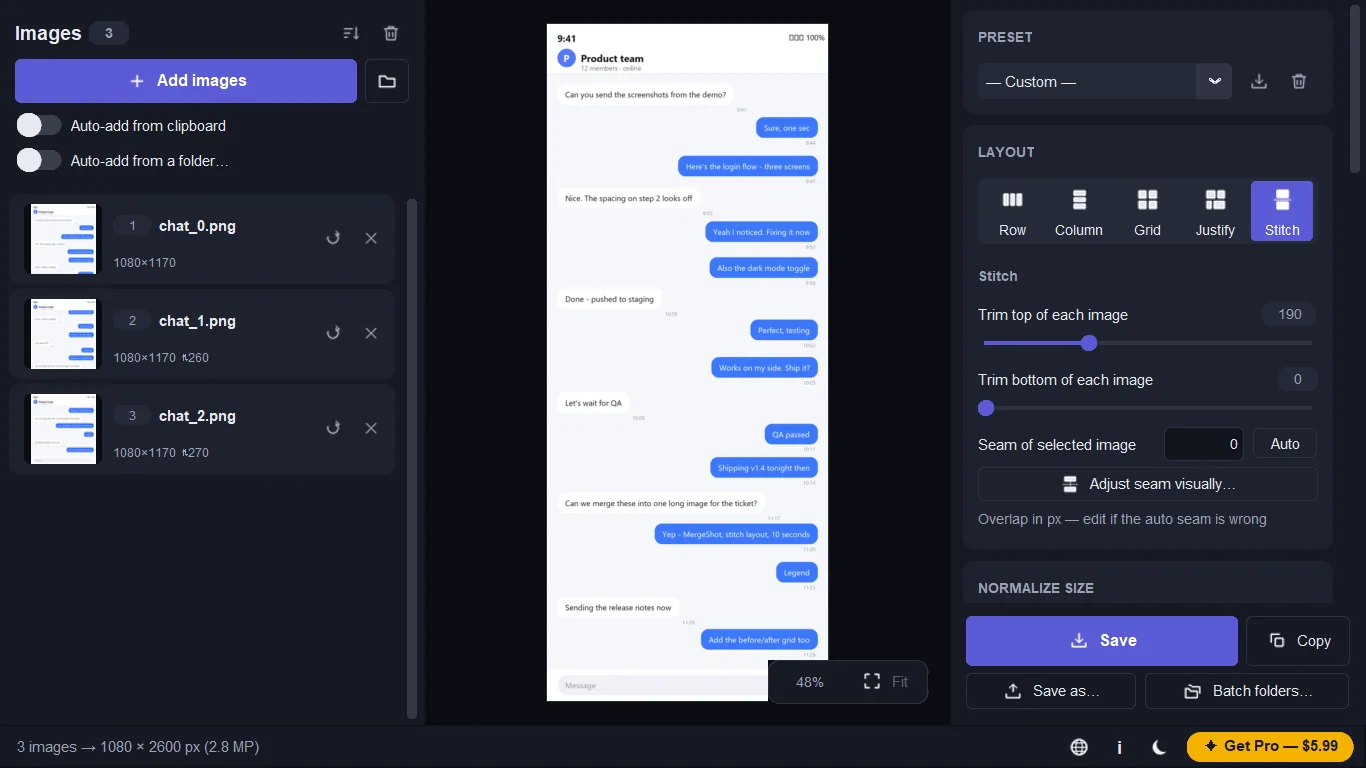
- Add three or more images to MergeShot.
- Switch the layout option from 'Side by Side' to 'Grid' or 'Stitch'.
- Drag images in the tray to reorder their sequence.
- For scrolling screenshots, use the seam editor to overlap redundant headers or footers.
- Export your completed collage directly to your Pictures folder.
- Grid presets support custom column counts and justify alignment.
- Stitch mode merges overlapping application screenshots into one tall image.
How to merge images directly from File Explorer
To save time when working with batches of images, MergeShot integrates into the Windows File Explorer context menu.
You can highlight multiple photos in any folder, right-click, and open them directly into the combiner layout without opening the app first.
- Open any folder containing your photos in File Explorer.
- Hold Ctrl or Shift and click to select two or more images.
- Right-click the highlighted files.
- Select 'Merge with MergeShot' from the context menu (or under 'Show more options' on Windows 11).
- MergeShot launches with your selected files pre-loaded in side-by-side order, ready to export.
- Direct context menu integration bypasses manual file browsing.
- Reorder files inside the app using simple drag-and-drop handles.
Tools for this
MergeShot
Combine images side by side, build photo grids, and stitch scrolling screenshots. 100% offline with no watermark.
FAQ
Can Windows 11 combine images side by side without third-party software?
Yes. Microsoft Paint allows you to expand the canvas horizontally and use 'Import to canvas' or 'Paste from' to place a second image next to the first. It requires manual repositioning and canvas cropping.
Will combining photos reduce their image quality?
No, provided you export to a lossless format like PNG. MergeShot preserves original pixel fidelity and renders the combined canvas at full native resolution without compression artifacts.
Is it safe to use free online image combiners?
Free web-based image combiners upload your pictures to remote servers, which creates privacy risks for confidential work documents, personal photos, or financial screenshots. An offline desktop tool processes files locally on your PC.
What export formats are supported when combining photos?
MergeShot supports exporting merged layouts as PNG, JPG, WebP, PDF, and animated GIF formats.