
How to Clean node_modules and Build Folders Safely on Windows
To clean node_modules and build folders on Windows without deleting source code, list project artifact directories such as node_modules, bin, obj, .vs, and __pycache__ first, verify those projects are not open in an editor, and remove them to the Recycle Bin or run package-manager cleanup commands. This guide covers safe PowerShell commands, package cache limits, and how to inspect folder sizes visually before cleaning.
Which developer folders are safe to delete, and which ones are not?
Build outputs and downloaded dependency directories take up tens of gigabytes on a Windows development machine, yet your compiler or package manager can recreate them from your lockfile and source code. Deleting them does not remove your project files, provided you target only generated folders.
Be careful not to delete folders with similar names inside system directories, or active virtual environments where you did not save a requirements file or lockfile.
- Generally safe to remove on inactive projects: node_modules (recreated with npm install or pnpm install), .NET bin and obj folders (recreated on the next build), Visual Studio .vs caches, Rust target, Gradle .gradle, and Python __pycache__.
- Review before removing: Python .venv or conda environments if the project has no pinned requirements.txt or lockfile, and custom local .env files that never sit inside node_modules or obj.
- Do not touch: C:\Windows, Program Files, or active projects currently open in VS Code or Visual Studio.
How do I find and clean node_modules, bin, and obj using PowerShell?
PowerShell lets you scan your code folder (for example C:\Projects) and measure every node_modules, bin, or obj directory before deleting anything. Running a listing step first prevents accidentally wiping a folder inside an unrelated tool directory.
Always close your IDE and terminal servers running in those projects first so file locks do not leave half-deleted folders behind.
- Open Windows Terminal or PowerShell in your root projects directory, such as cd C:\Projects.
- List all node_modules folders and their sizes without deleting them yet: Get-ChildItem -Directory -Recurse -Filter node_modules | ForEach-Object { $size = (Get-ChildItem $_.FullName -Recurse -File -ErrorAction SilentlyContinue | Measure-Object Length -Sum).Sum / 1MB; [PSCustomObject]@{ Path=$_.FullN
- Inspect the list and delete only stale folders you recognize, or remove package caches separately with npm cache clean --force and dotnet nuget locals all --clear.
- On WSL2 setups, compact reclaimed virtual disk space only after shutting down WSL with wsl --shutdown.
- Limit: PowerShell Remove-Item deletes permanently rather than moving files to the Recycle Bin, so double-check paths before running any removal command.
How can I scan, preview, and undo developer folder cleanup on Windows?
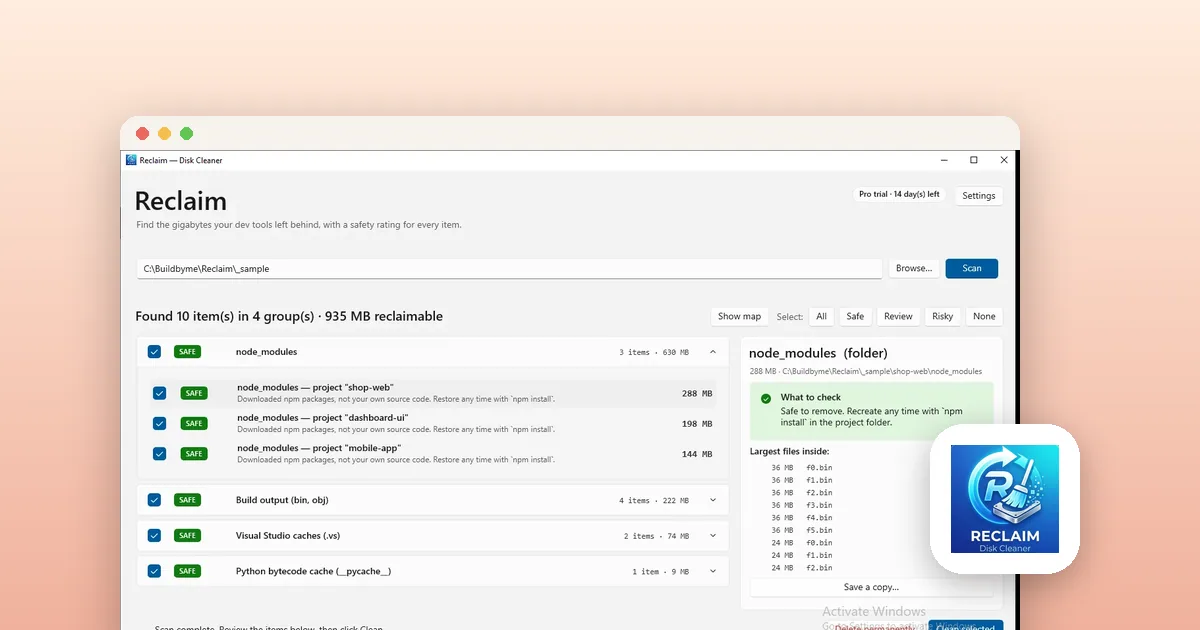
If you maintain many repositories across different drives, scanning with a visual disk cleaner avoids permanent command-line deletions. Reclaim — Disk Cleaner scans a drive or specific projects folder and groups findings by type, labeling each item Safe, Review, or Risky with a plain explanation.
In Reclaim, every cleaned item goes to the Windows Recycle Bin rather than disappearing permanently, and a local journal lets you undo the cleanup even after restarting Windows. It also checks for projects currently open in VS Code or Visual Studio so active workspaces are skipped.
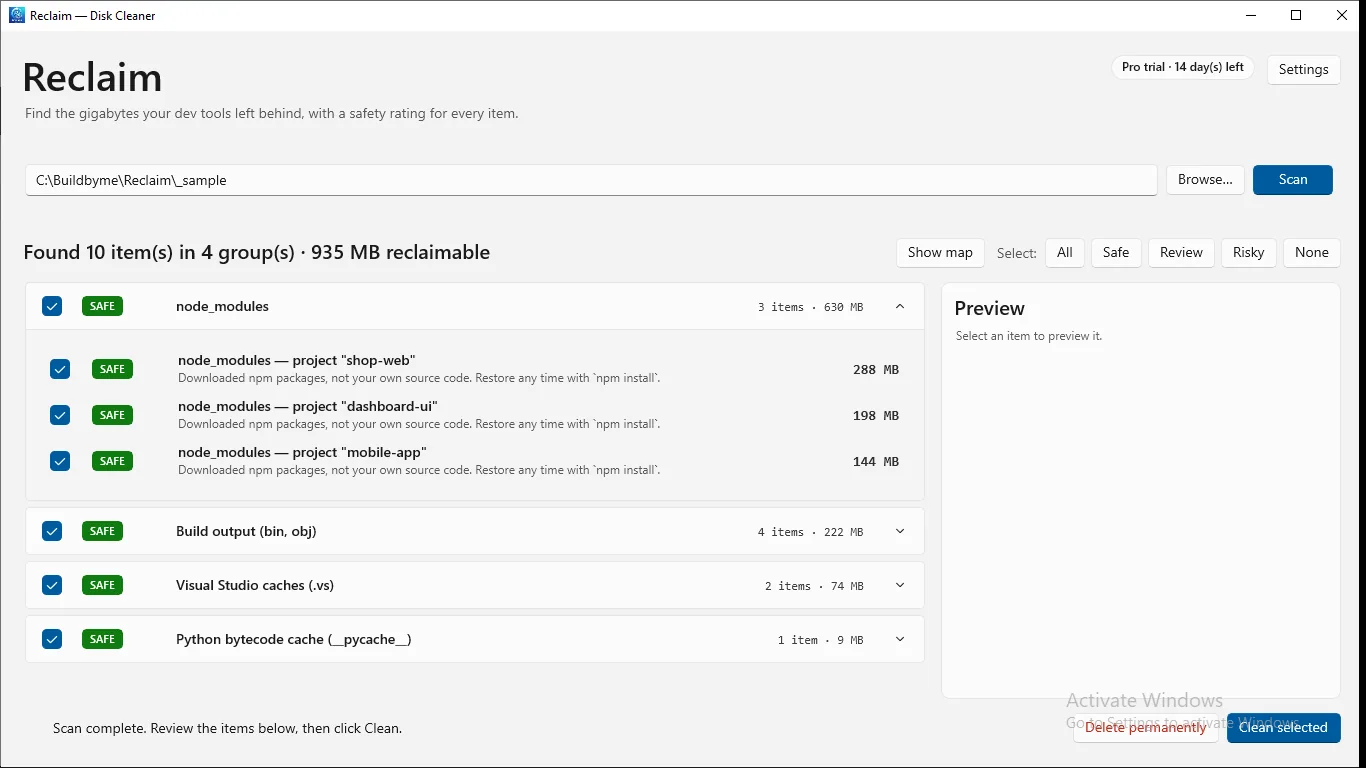
- Open Reclaim and click Browse to select your code folder or full drive, then click Scan.
- Expand groups such as node_modules, Build output (bin, obj), Visual Studio caches (.vs), or Python bytecode cache (__pycache__).
- Click an item to check the Preview pane on the right, which lists the folder path, a What to check note, and the largest files inside.
- Click Clean selected to move the checked items to the Recycle Bin.
- Free vs Pro: Reclaim's free core cleans Windows temp files, browser caches, Windows.old, Update caches, and crash dumps. Developer rules (node_modules, bin/obj, .vs, target, .gradle), package cache cleanup, Docker/WSL compaction, and duplicate finding are part of Reclaim Pro ($9.99 one-time, with a
How do I spot which repository is taking the most space?
Sometimes a single forgotten prototype or machine-learning folder holds more data than ten small web apps combined. Looking at a flat list of subfolders makes it hard to compare project totals at a glance.
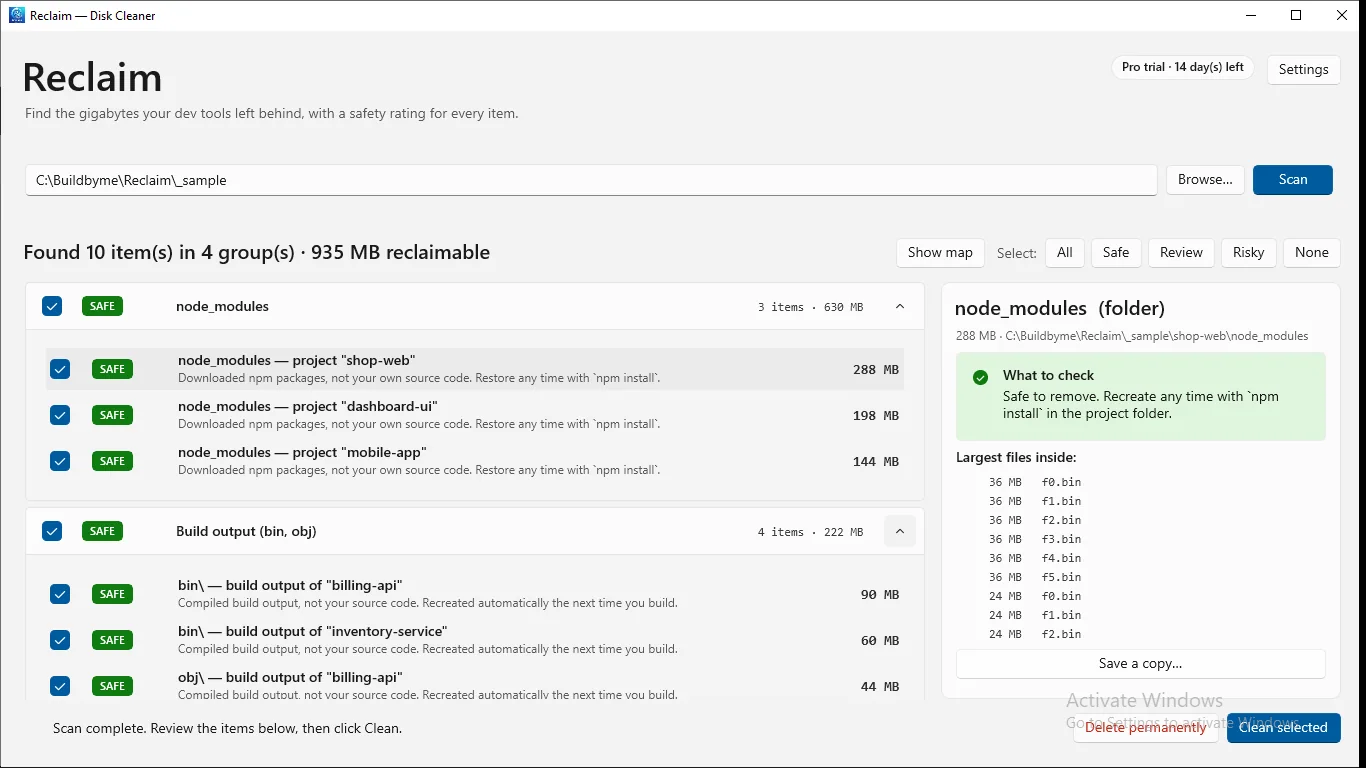
Reclaim includes a treemap view (Show map) that draws each folder as a rectangle sized by disk usage, plus a per-item preview of bin and obj outputs so you can confirm nothing important sits inside before cleaning.
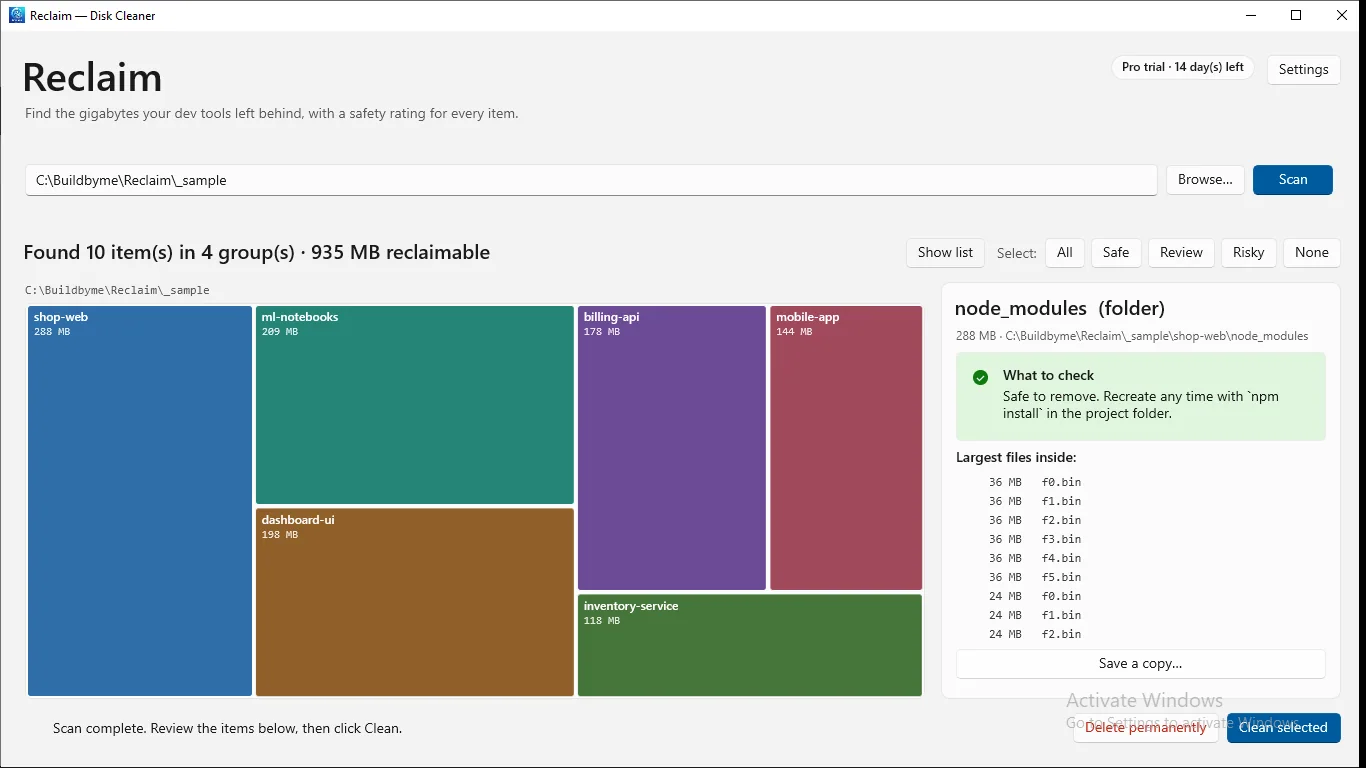
- After a scan completes in Reclaim, click Show map in the results bar to switch to the treemap.
- Click the largest project block to inspect its subfolder size and largest files on the right.
- Switch back with Show list to review individual bin\ and obj\ folders by project before clicking Clean selected.
What should I verify inside bin and obj before cleaning?
In .NET and C# repositories, bin\ and obj\ folders store compiled binaries and intermediate build files that MSBuild or dotnet build regenerates automatically. Occasionally, teams drop manual config files or local SQLite test databases into a bin\Debug folder without tracking them in Git.
Review the largest files inside any build output folder before deleting it, especially on old projects that are not backed up in version control.
- Run git status in older repositories first so you know whether anything inside bin or local folders is untracked and needed.
- Prefer tools that send cleaned folders to the Recycle Bin until you confirm your next build passes.
Tools for this
Reclaim — Disk Cleaner
Scan drives fast, spot large folders on a treemap, and remove junk safely with plain explanations and instant undo.
FAQ
Is it safe to delete node_modules and bin/obj folders?
Yes, for inactive projects whose dependencies and source code are intact. Running npm install (or your package manager) restores node_modules, and building the solution recreates bin and obj.
How do I restore deleted node_modules if I cleaned an active project?
Open a terminal in that project folder and run npm install, pnpm install, or yarn depending on your lockfile. If you used Reclaim, you can also restore the deleted folder directly from the Recycle Bin or Reclaim's undo journal.
Why does deleting node_modules in File Explorer take so long on Windows?
Node dependency trees contain thousands of small nested files, and Windows Explorer updates progress UI and NTFS metadata for every file. PowerShell, npm/rimraf, or a dedicated scanner handles deep trees faster.
Are Reclaim's developer cleanup rules free?
Reclaim's core cleaner for temp files, browser caches, Windows Update caches, and crash dumps is free. Developer rules for node_modules, bin/obj, .vs, target, and .gradle are part of Reclaim Pro ($9.99 one-time), which includes a 14-day free trial.