
How to Check NPU Usage on Windows 11 (Task Manager and Tray Monitor)
On Windows 11, open Task Manager with Ctrl+Shift+Esc, go to the Performance tab and select NPU to see its load. If NPU is not listed, your PC may not have one, or Windows and the NPU driver may need updating. This guide covers the Task Manager method, how to confirm your PC has an NPU, and a tray monitor for a constant view.
How do I see NPU usage in Task Manager?
Recent Windows 11 updates show the NPU (neural processing unit) in Task Manager next to CPU, GPU and memory. It only appears on PCs that have an NPU and a working driver.
An NPU sits near 0% most of the time. It only rises when an app runs AI work on it, such as background blur or live captions on some PCs.
- Press Ctrl+Shift+Esc to open Task Manager.
- Select Performance in the left pane. On a narrow window, use the menu icon at the top left.
- Click NPU in the list. The graph shows current utilization, and the page lists NPU memory and driver details where Windows reports them.
- To see which apps use it, open the Processes tab, right-click a column header and add an NPU column if your build offers one.
Why is there no NPU in Task Manager?
Three causes are common. The PC has no NPU, Windows is missing the update that adds NPU graphs, or the NPU driver is not installed.
- Run Windows Update (Settings > Windows Update) and install everything offered, then restart.
- Open Device Manager and look for a Neural processors category. Newer PCs with an NPU usually list it there. If it shows a warning icon, install the driver from your PC or chip maker.
- Check your processor name in Settings > System > About, then look up whether that model includes an NPU on the maker's spec page.
- Many laptops and all desktops without an NPU will never show one. That is normal, not a fault.
- A graph stuck at 0% does not mean the NPU is broken. It means nothing is using it right now.
Can I keep NPU usage visible without opening Task Manager?
Task Manager works for a quick look, but it is a full window you have to open each time. If you want to watch the NPU while an app runs, a small always-available widget is easier.
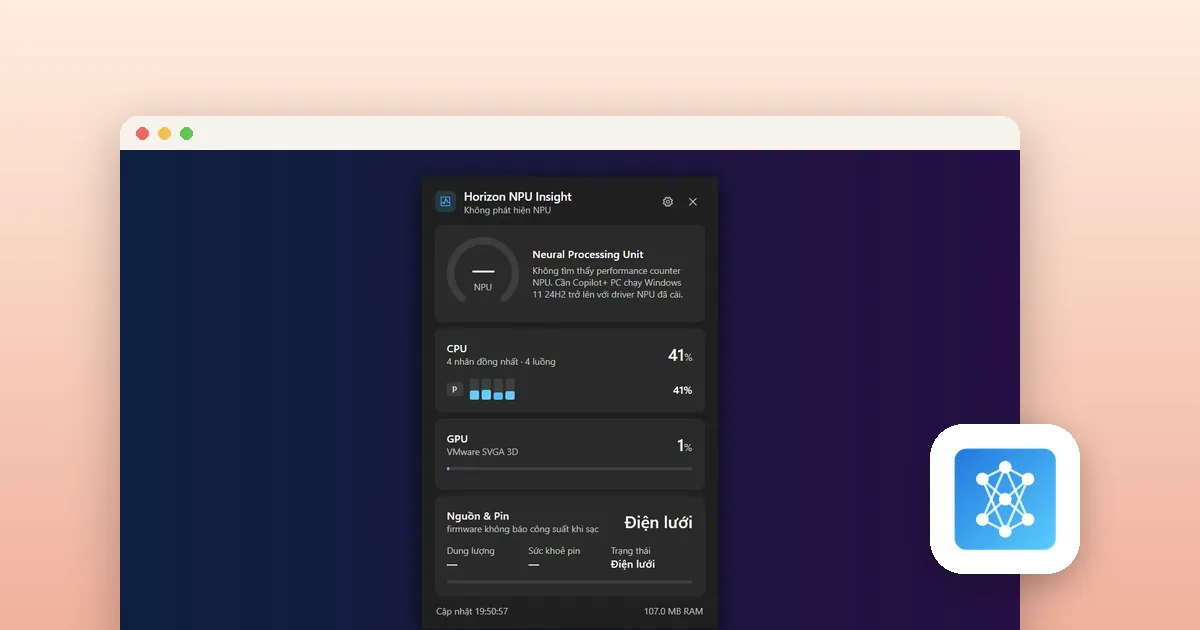
Horizon NPU Insight is a tray monitor from LoopOtter. It shows a live NPU load gauge, a CPU card with per-core load, a GPU card and a power and battery card in one small widget. The tray icon tooltip shows live numbers too.
It reads Windows performance counters. If no NPU counter exists, it says so instead of showing made-up numbers. The screenshot below was taken on a virtual machine without an NPU, so the NPU card reports that none was found.
The app's interface is in Vietnamese at the moment. The numbers and card names are easy to follow, but expect Vietnamese labels in settings.
How do I record NPU usage over time?
Task Manager shows about a minute of history and nothing after you close it. To check whether an app used the NPU overnight or during a long job, you need stored history.
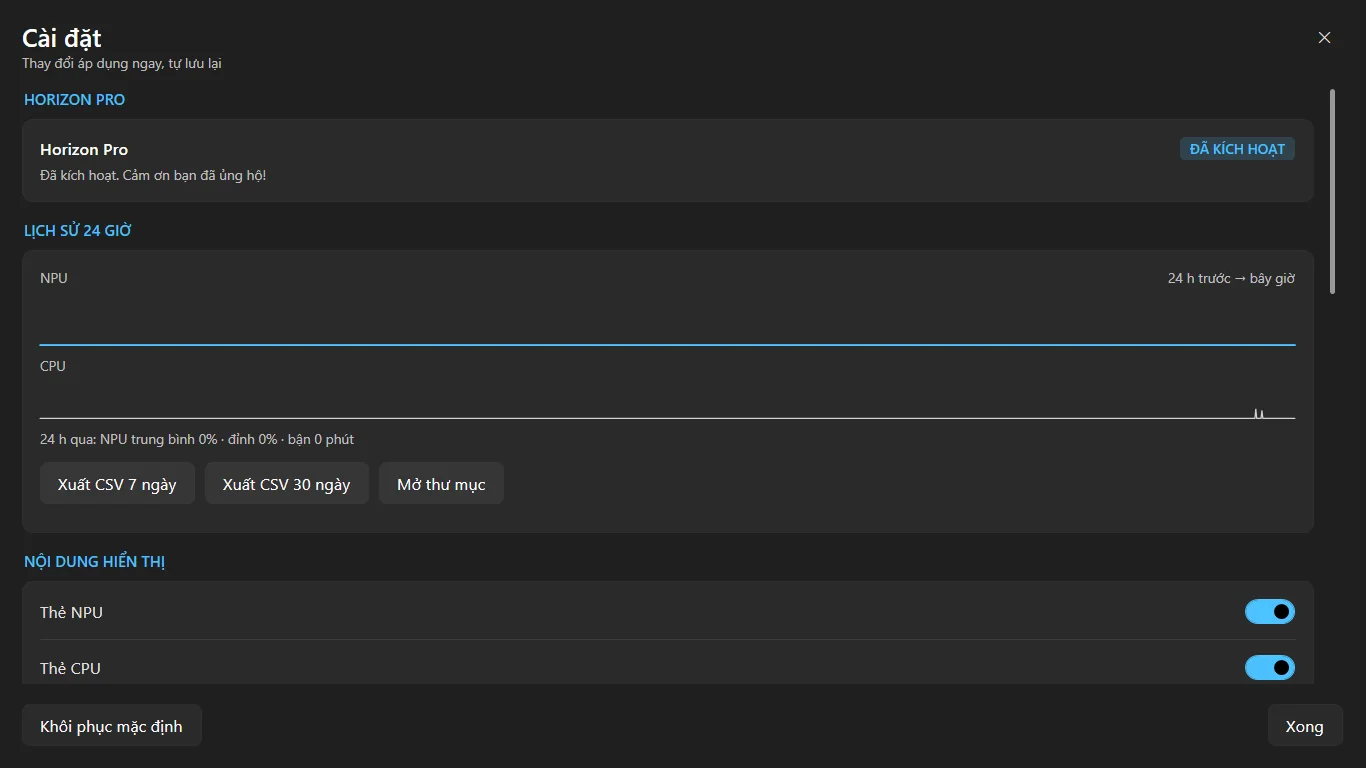
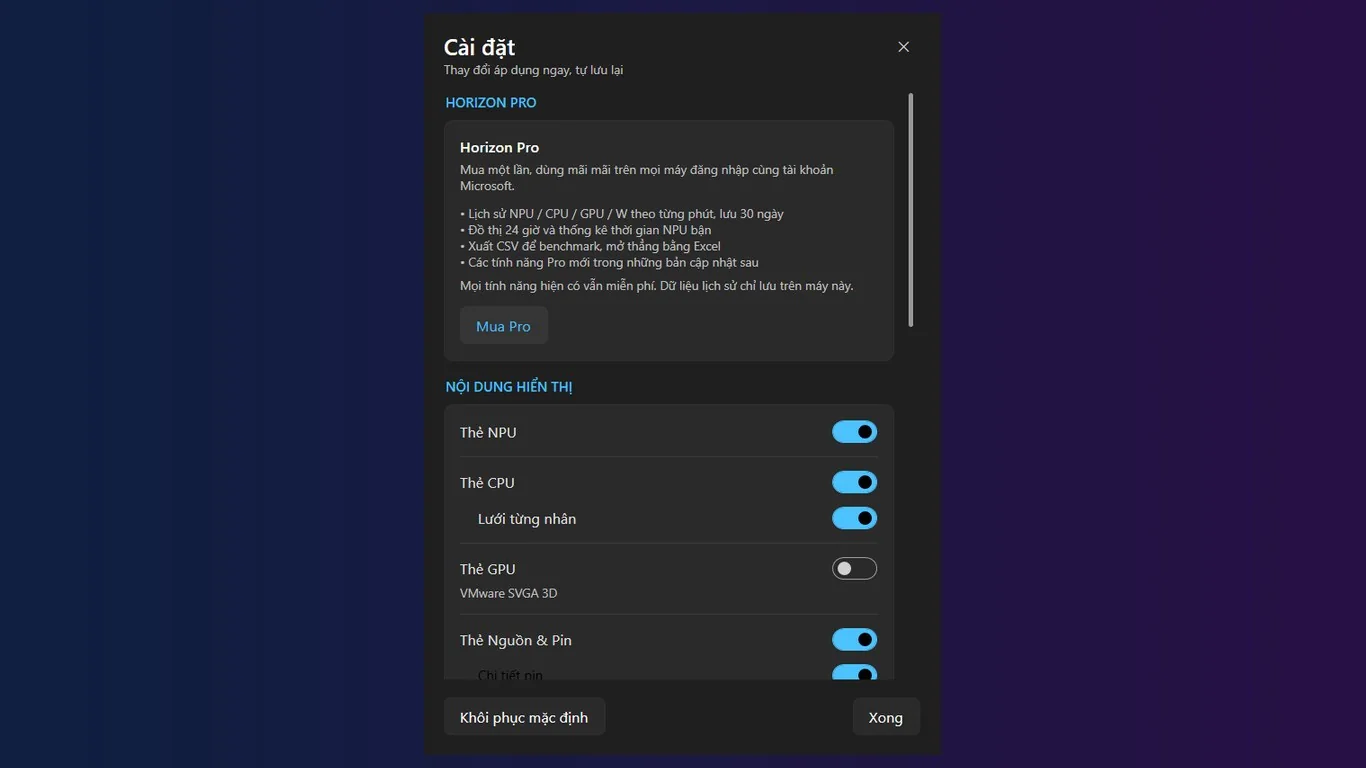
Horizon NPU Insight Pro adds a 24-hour local history chart with NPU busy-time stats and CSV export, which opens in Excel. The core monitor is free; Pro is an optional one-time purchase from the Microsoft Store.
What do the numbers mean?
Read the NPU value together with CPU and GPU load. The same task can run on any of the three, so the combination tells you where the work went.
- NPU 0%: nothing is running on the NPU. This is the usual idle state.
- NPU spikes while you use a camera, voice or AI feature: that feature is using the NPU instead of the CPU.
- High CPU with 0% NPU during an AI task: the task is running on the CPU or GPU, or the app does not support your NPU.
- Battery power draw: only shown when the firmware reports it, so some PCs show a dash.
Tools for this
Horizon NPU Insight
Lightweight tray widget for live NPU, CPU (P/E cores), GPU, and battery stats on Windows 11.
FAQ
How do I know if my PC has an NPU?
Open Device Manager and look for a Neural processors category, or check Task Manager > Performance for an NPU entry. You can also look up your processor model in Settings > System > About on the chip maker's spec page.
Is 0% NPU usage normal?
Yes. The NPU is only used when an app sends AI work to it. At idle, 0% is expected.
Does a Copilot+ PC always show NPU in Task Manager?
Not always. You need current Windows updates and the NPU driver installed. Run Windows Update and check Device Manager if it is missing.
Does Horizon NPU Insight work on PCs without an NPU?
It still shows CPU, GPU and battery data, but the NPU card will say no NPU counter was found.