
 MergeShot: Capture & Stitch ScreenshotsBrowser extension
Screenshot Stitcher: Merge Screenshots into One Long Image
Capture a tab or a selected area, collect your shots in a tray and stitch them into one long image. Everything stays on your device: no account, no uploads.
Everything you need to merge screenshots
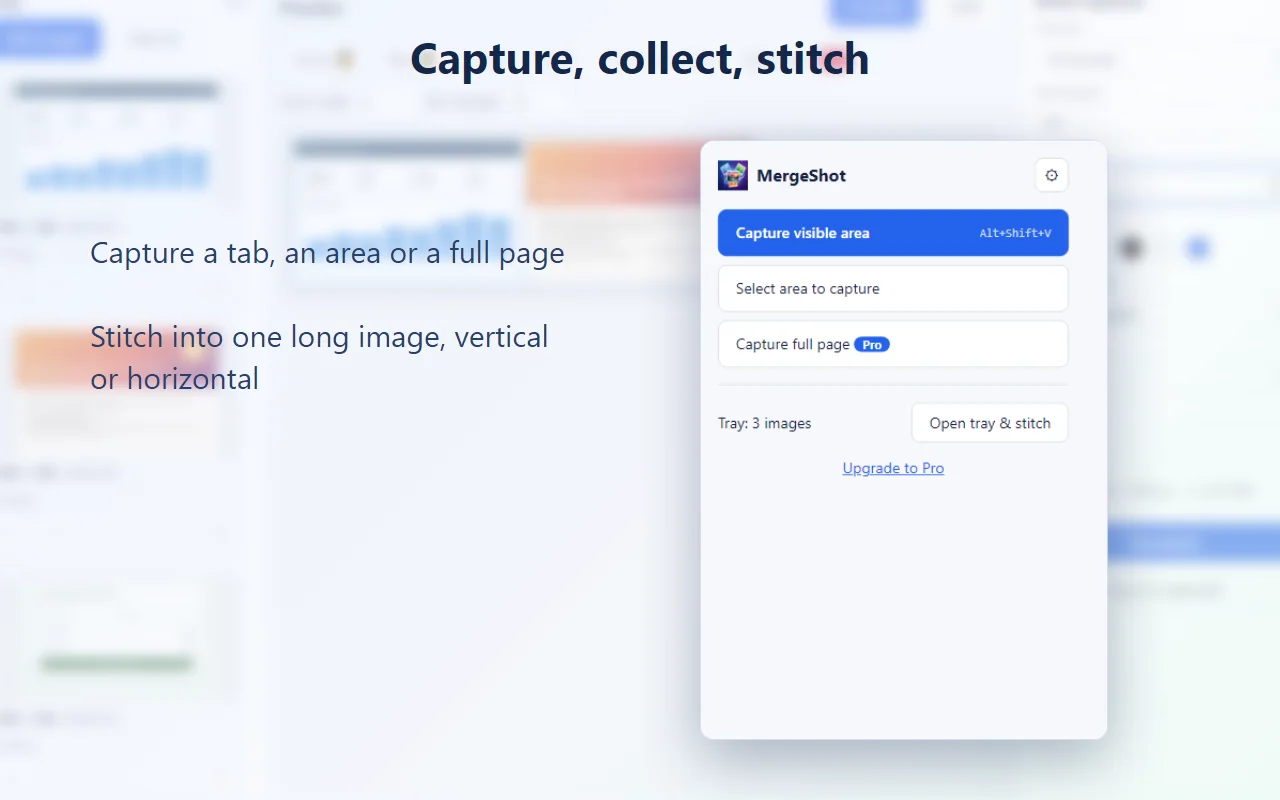
Capture a tab or an area
Grab the visible part of the current tab, or drag to select just the area you need. Press Esc to cancel.
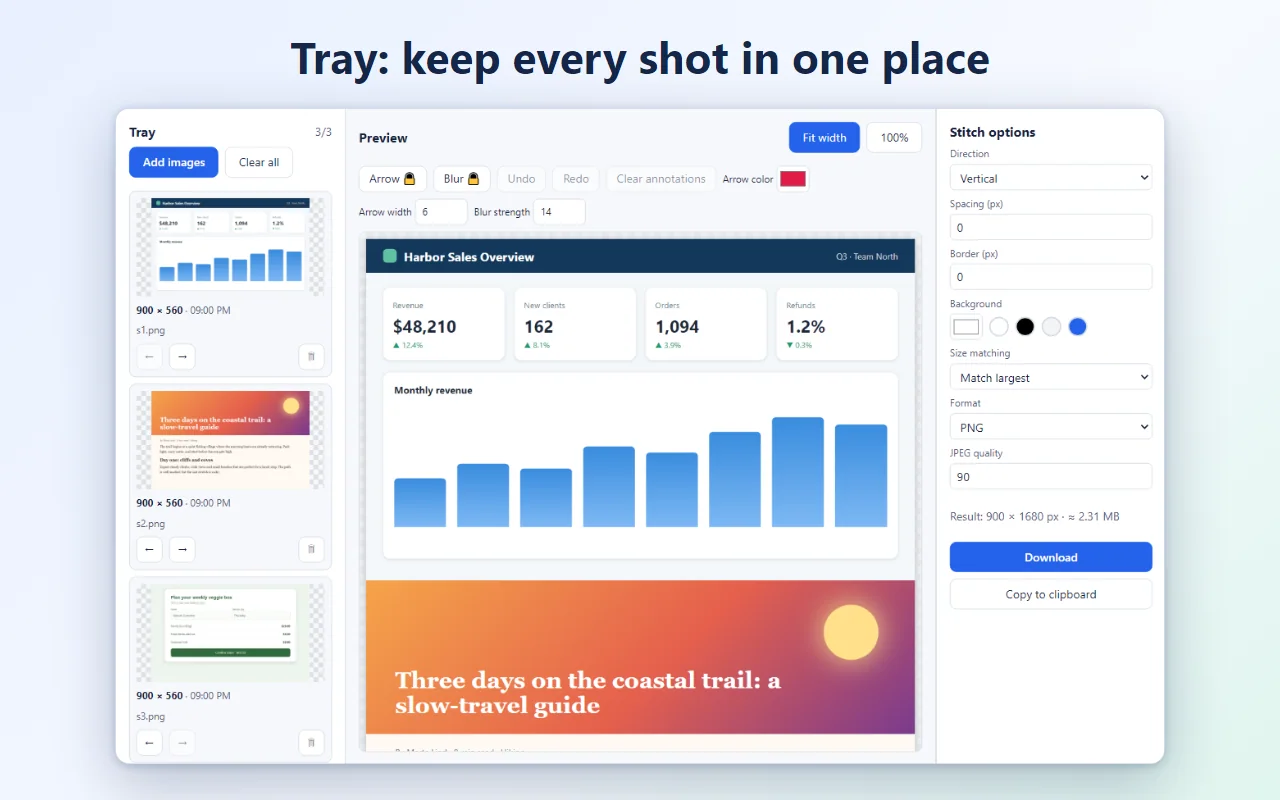
A tray for your shots
Collect captures in a tray, then reorder them by drag and drop or with the arrow buttons. A toolbar badge shows the count.
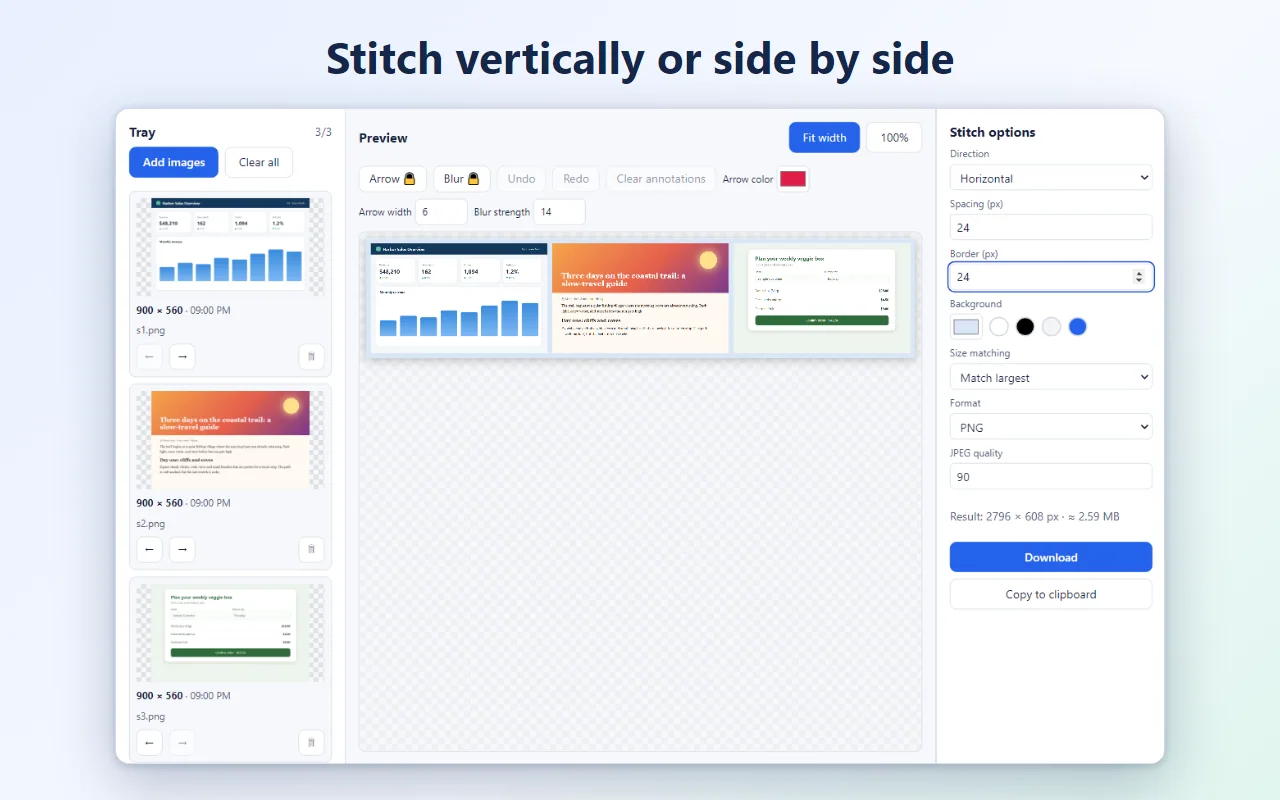
Stitch vertically or horizontally
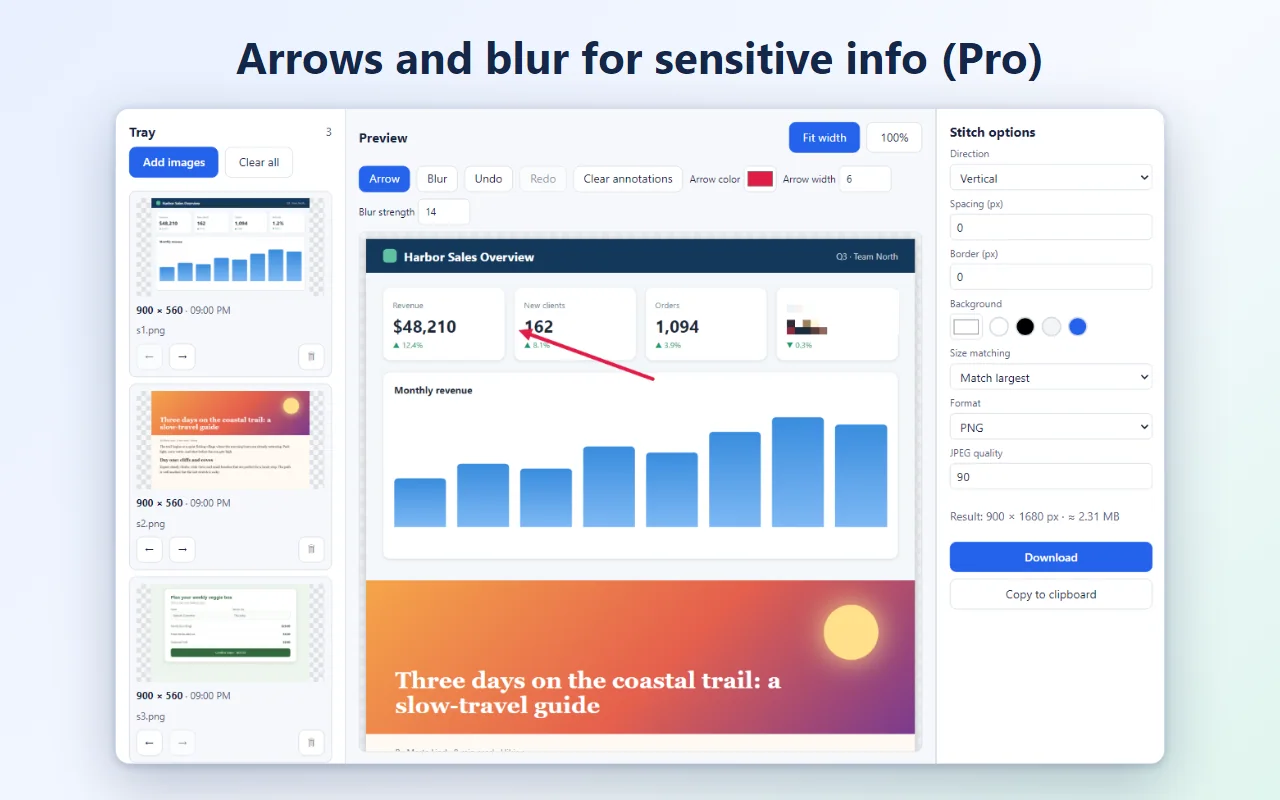
Combine images into one long screenshot. Set spacing, border, background color and size matching.
Add images you already have
Bring in existing images by choosing files, dragging them in or pasting. Mix them with new captures.
Export PNG or JPEG
Download the result or copy it to the clipboard. Keyboard shortcuts and saved defaults speed up repeat jobs.
Private by design
Screenshots are created, stitched and saved on your device. No account, no ads, no analytics, no tracking.
How it works
- Add it to your browser from the Store, then click the MergeShot icon on any web page.
- Capture the visible area or drag to select an area. Repeat to fill the tray, and add or reorder images.
- Pick vertical or horizontal, adjust the look, then download or copy your stitched image.
Screenshots
Great for
Bug reports and support
Merge several steps or error screens into one image you can attach to a ticket or email.
Tutorials and guides
Line up screenshots side by side or top to bottom to show a whole workflow in one picture.
Chats and long pages
Combine screenshots of a long conversation or article into a single long screenshot to share or save.
FAQ
How do I merge screenshots into one image?
Capture each shot with MergeShot, or add existing images. Open the tray, set the order, choose vertical or horizontal, then download or copy the stitched image.
Is MergeShot safe and private?
Yes. Screenshots are created, stitched and saved only on your device and are never uploaded. There are no ads, analytics or tracking, and no account is needed.
Is MergeShot free?
Yes. Capturing, area selection, a tray of up to 3 images, stitching, PNG/JPEG export and copy to clipboard are free. An optional one-time Pro purchase ($4.99, no subscription) adds more.
Can it take a full page screenshot?
Full-page scrolling capture, a tray of up to 50 images, arrows and blur are part of the optional Pro upgrade. The free version captures the visible area or a selection.
Which browsers does it work in?
It is built for Chromium-based browsers such as Microsoft Edge and Google Chrome. It cannot capture browser-internal pages like chrome:// or Store pages.
Why does it ask for permissions?
It only captures the tab you are using, after you click a button or press a shortcut. It also saves your settings. The only network use is the optional Pro license check.