
How to Verify a SHA-256 Checksum on Windows (PowerShell, certutil and a Batch Checker)
To verify a SHA-256 checksum on Windows, run Get-FileHash in PowerShell on the downloaded file and compare the result with the hash the publisher lists. If the two strings match exactly, the file is the one the publisher released; if not, delete it and download again. This guide shows the PowerShell and certutil methods, how to read the result, and how to check many files in one pass.
How do I check a SHA-256 hash with PowerShell?
PowerShell ships with Windows 10 and 11, so nothing needs installing. The Get-FileHash cmdlet uses SHA-256 by default.
Find the hash the publisher posted first. It is usually on the download page or in a separate .sha256 or checksums file.
- Open the folder that holds the download in File Explorer.
- Click the address bar, type powershell and press Enter. A PowerShell window opens in that folder.
- Run: Get-FileHash .\setup.exe -Algorithm SHA256 (replace setup.exe with your file name).
- Read the Hash column in the output and compare it with the published value, character by character.
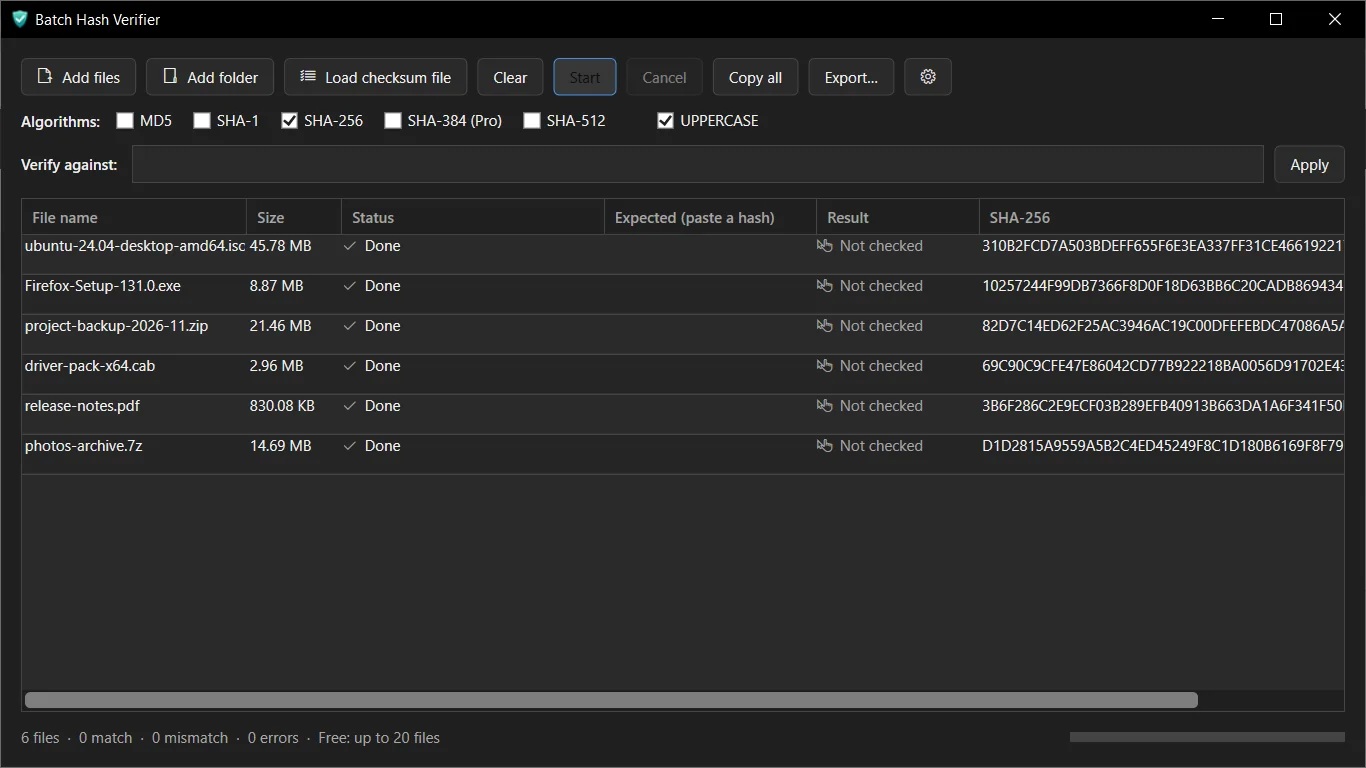
- Hex digits are not case sensitive. abcd and ABCD are the same hash.
- For MD5 or SHA-512, change the -Algorithm value to MD5 or SHA512.
How do I check a checksum with certutil in Command Prompt?
certutil is also built into Windows and works in Command Prompt, which helps on machines where PowerShell is restricted.
- Open Command Prompt in the file's folder (type cmd in the Explorer address bar).
- Run: certutil -hashfile setup.exe SHA256
- Compare the line of hex digits printed under the file name with the published hash.
- Ignore the spaces certutil may print between byte pairs on some Windows versions; the digits are what count.
What does a match or a mismatch tell me?
A match means the file you have is byte for byte the file the hash was calculated from. This catches corrupted and incomplete downloads, and files swapped after upload if the hash came from a different, trusted source.
A mismatch means the file differs. Common causes are an interrupted download, the wrong file version or a hash copied for a different file. Download it again from the official page and re-check before running it.
- A hash shown on the same page as the download only proves the file was not damaged in transit. If an attacker controls the page, they control both.
- A checksum is not a signature. For installers, also look at the file's Digital Signatures tab in Properties when the publisher signs releases.
How do I verify many files or a whole folder at once?
With the built-in tools you hash one file per command. For a folder in PowerShell you can run: Get-ChildItem -File | Get-FileHash. You then compare each line by eye or write your own comparison script.
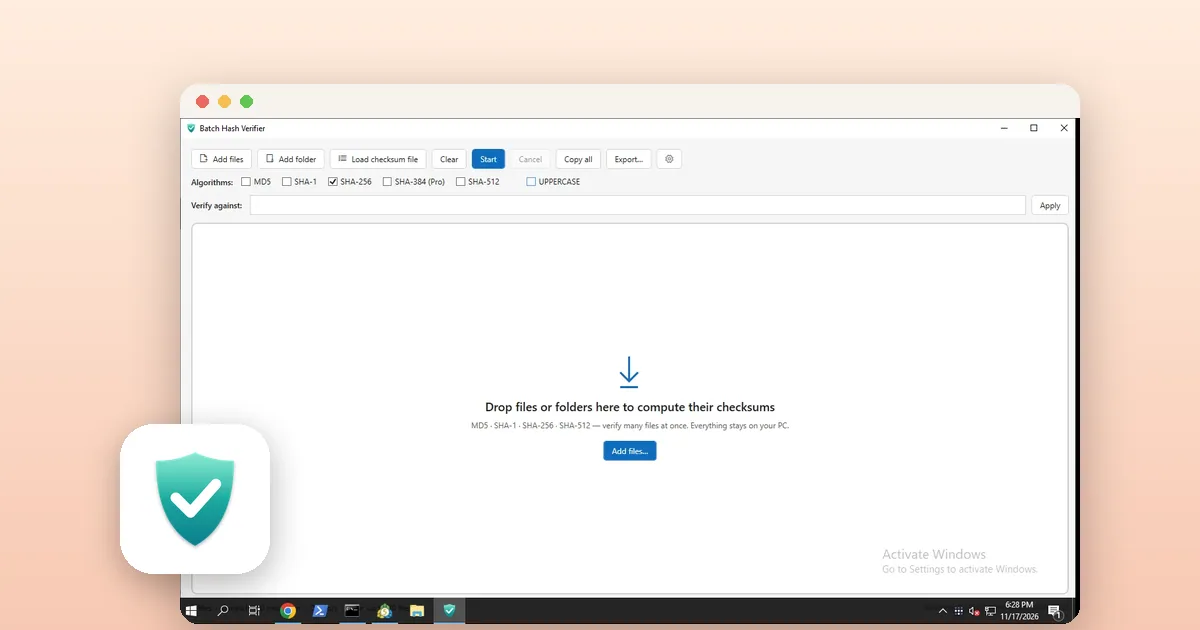
Batch Hash Verifier is a LoopOtter Windows app that does the comparison for you. You add files or a folder, tick the algorithms, paste the expected hash and read Match or Mismatch next to each file. It detects the algorithm from the length of the pasted hash and works offline.
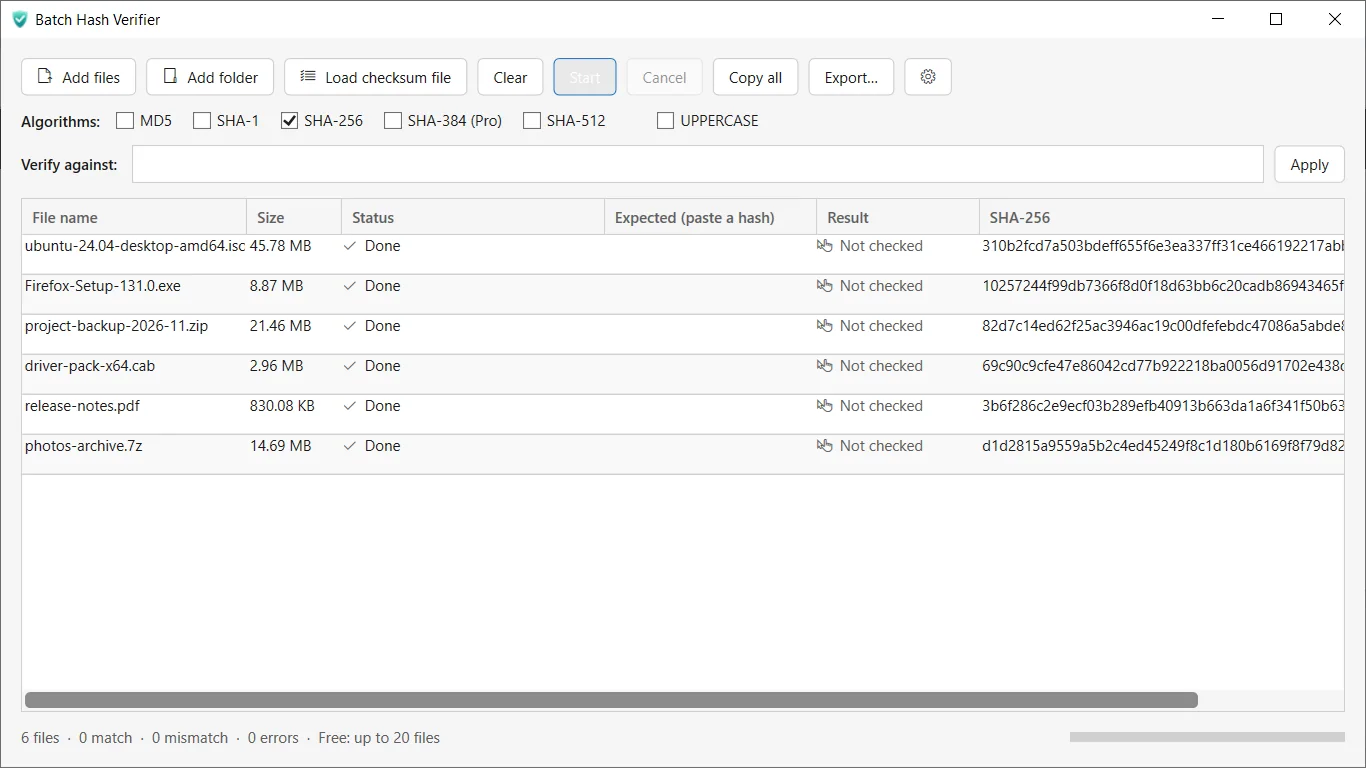
- Open Batch Hash Verifier and click Add files or Add folder, or drag items into the window.
- Tick the algorithm. MD5, SHA-1, SHA-256 and SHA-512 are available; SHA-384 is a Pro option.
- Click Start and wait for the files to finish. Large files are hashed as a stream, with progress and a Cancel button.
- Paste the published hash into Verify against and click Apply. Each row shows Match or Mismatch.
- Use Copy all or Export to save results as CSV or TXT. JSON and HTML export are Pro.
Which method should I use?
Use Get-FileHash for a single file when you are already in PowerShell. Use certutil on locked-down machines or in batch scripts. Use a graphical checker when you verify several downloads, want to keep a CSV record, or prefer pasting the hash over typing commands.
All three read the file locally. None of them upload it.
What if the hashes will not match even after a fresh download?
Check that you hashed the right file, not a copy inside a zip or a different version. Make sure the published hash is for the same algorithm; a 64-character value is SHA-256, a 32-character value is MD5.
If a clean second download from the official source still differs, do not run the file. Contact the publisher and tell them which hash you got.
Tools for this
Batch Hash Verifier
Calculate and check MD5, SHA-1, and SHA-256 hashes offline on Windows. Drop files, paste a hash, and export results.
FAQ
Is Get-FileHash SHA-256 by default?
Yes. If you omit -Algorithm, Get-FileHash calculates SHA-256. Add -Algorithm MD5, SHA1, SHA384 or SHA512 to use another algorithm.
Does the hash have to match in upper and lower case?
No. Hexadecimal digits are the same whether written in upper or lower case. Only the digits and their order matter.
Can I verify a checksum without installing anything?
Yes. PowerShell's Get-FileHash and Command Prompt's certutil -hashfile are both built into Windows 10 and 11.
Does Batch Hash Verifier upload my files?
No. It works offline on your PC and hashes files locally, according to its Microsoft Store listing.
Is a matching SHA-256 hash proof the file is safe?
It proves the file equals the one the hash was made from. It does not prove that file is harmless, so take the hash from the publisher's official page.