
How to Transfer Photos From Your Phone to Your PC Without a Cable or the Cloud
Updated 2026-11-15
You can move photos from a phone to a Windows PC over your home Wi-Fi without a cable or cloud upload by using a local transfer tool that pairs by QR code, or by using Phone Link or Quick Share on supported Android phones. This guide compares the main options, explains what each one needs, and shows the QR-code method step by step.
What are the ways to move photos from a phone to a PC?
There are four broad approaches. Each trades off speed, privacy and setup effort.
A USB cable is the most reliable for big batches. Cloud services such as OneDrive, Google Photos or iCloud work anywhere, but your photos go through a server and count against storage limits. Platform tools such as Phone Link or Quick Share are convenient on supported Android phones. Local Wi-Fi transfer tools send files directly between your devices on the same network.
- USB cable: no network needed. On a PC, the phone appears in File Explorer or the Photos app can import from it. iPhones may ask you to Trust the computer first.
- Cloud sync: automatic, but needs an account, an internet connection and enough storage. Photos are uploaded first, then downloaded.
- Phone Link or Quick Share: works with supported Android phones and needs a compatible setup on both sides. Check Microsoft's and your phone maker's pages for your model.
- Local Wi-Fi transfer: both devices stay on the same network and files go straight from one to the other, with no account.
How do I transfer photos over Wi-Fi with no cloud and no phone app?
Horizon Link takes the AirDrop-style approach for Windows. You install it on the PC, it shows a QR code, and you scan that code with your phone's camera. The phone opens a page in its browser, so there is nothing to install on the phone. It works with both iPhone and Android.
Your phone and PC need to be on the same Wi-Fi network. Files travel over that local connection rather than through a cloud service.
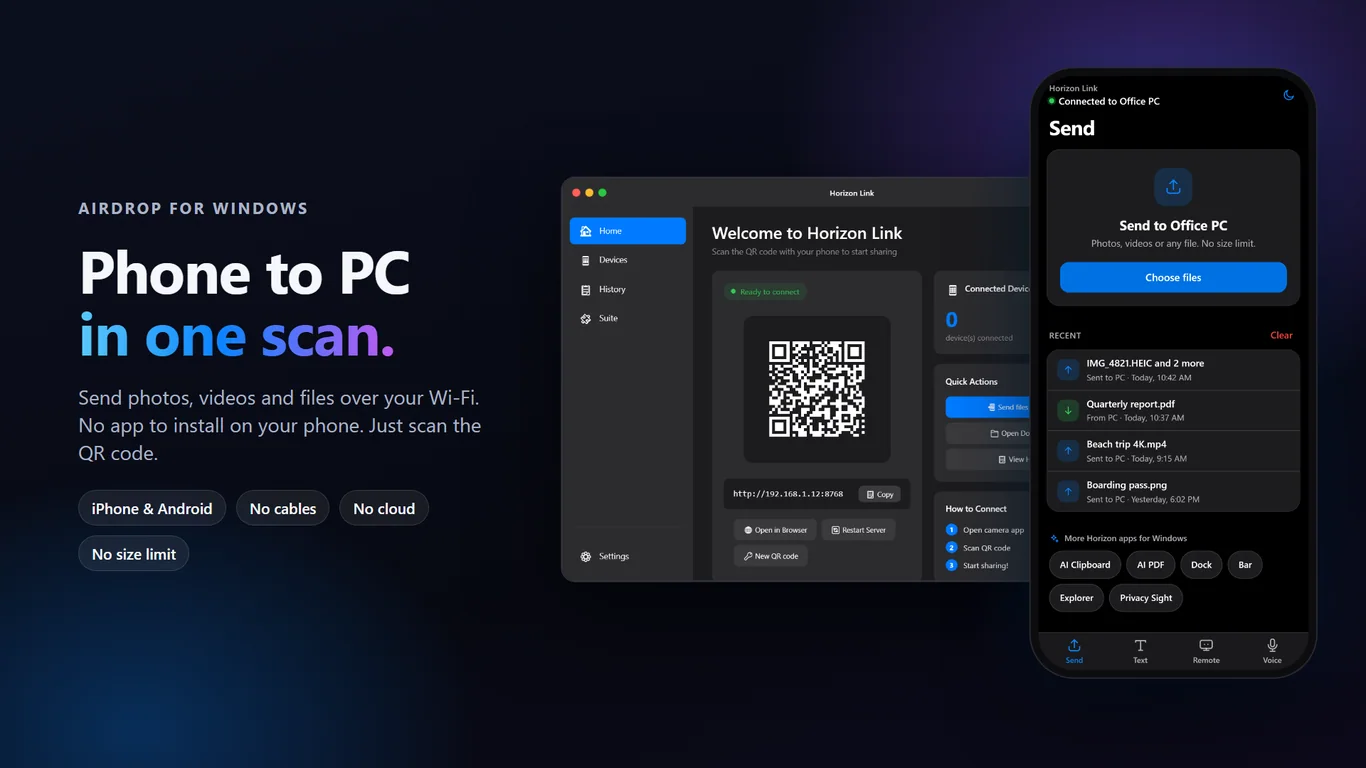
- Install Horizon Link from the Microsoft Store and open it on your PC.
- Connect your phone to the same Wi-Fi network as the PC.
- Open the phone camera and scan the QR code shown on the Home screen.
- Tap Choose files on the phone page and select photos, videos or any other files.
- Send them. They arrive on the PC, and the History tab lists what was transferred.
Can I copy text and links between my phone and PC too?
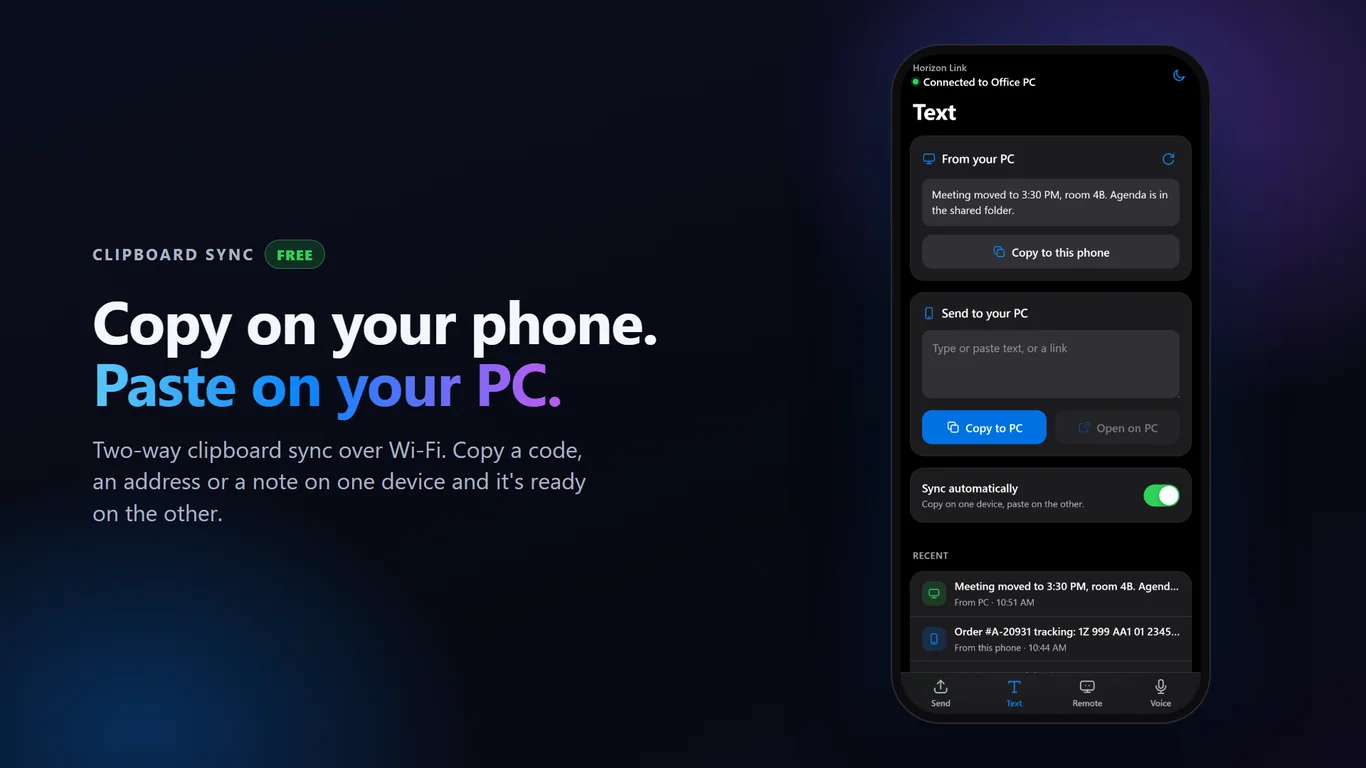
Yes. Moving a tracking number, an address or a link is often more annoying than moving a photo. Horizon Link includes two-way clipboard sync over Wi-Fi: copy on one device and it is ready to paste on the other. You can also send a web link from your phone so it opens in your PC browser.
These features are part of the free core. Screen mirroring, using the phone as a touchpad or keyboard, and voice-to-text notes are Pro features.
Why is my phone-to-PC transfer slow or not connecting?
Most problems with local transfers come from the network, not the app.
Check that both devices are on the same Wi-Fi network. A guest network, or a router with client isolation turned on, can stop devices from seeing each other. A phone using mobile data instead of Wi-Fi will not reach the PC either.
Check Windows Firewall too. The first time a transfer tool runs, Windows may ask whether to allow it on private networks. If you dismissed that prompt, the phone may not be able to connect.
For speed, a 5 GHz Wi-Fi connection is usually faster than 2.4 GHz. For a very large library, such as thousands of photos for the first time, a cable is still the more predictable choice.
Tools for this
Horizon Link
Send files and sync the clipboard between phone and PC over Wi-Fi. Scan a QR code, no phone app.
FAQ
Can I transfer photos from iPhone to Windows without iTunes or a cable?
Yes. Options include iCloud for Windows, which uses the cloud, or a local Wi-Fi tool. With Horizon Link you scan a QR code on the PC with the iPhone camera and send files from the page that opens, with no app installed on the phone.
Do my photos get uploaded to the internet?
Not with a local Wi-Fi transfer. The files move between your phone and PC over your own network. Cloud options such as OneDrive, Google Photos and iCloud do upload them to a server first.
Does Horizon Link need an app on my phone?
No. You connect by scanning the QR code with the phone's camera, and the transfer page opens in the phone's browser. It works with iPhone and Android.
Is there a file size limit?
Horizon Link's listing says no size limit. In practice, very large files take longer and depend on the speed of your Wi-Fi.
What is the best method for thousands of photos?
For a first-time bulk copy, a USB cable is typically the most predictable. For everyday sending of a few photos, files, links or text, a Wi-Fi method is quicker to set up.