
How to Restore Your Open Windows and Apps After a Restart on Windows 11
Windows 11 can reopen some apps after a restart if you turn on "Automatically save my restartable apps and restart them when I sign back in" in Settings > Accounts > Sign-in options. It only works for apps that support it, so for a full setup with browser tabs, folders and window positions you need a second approach. This guide covers both.
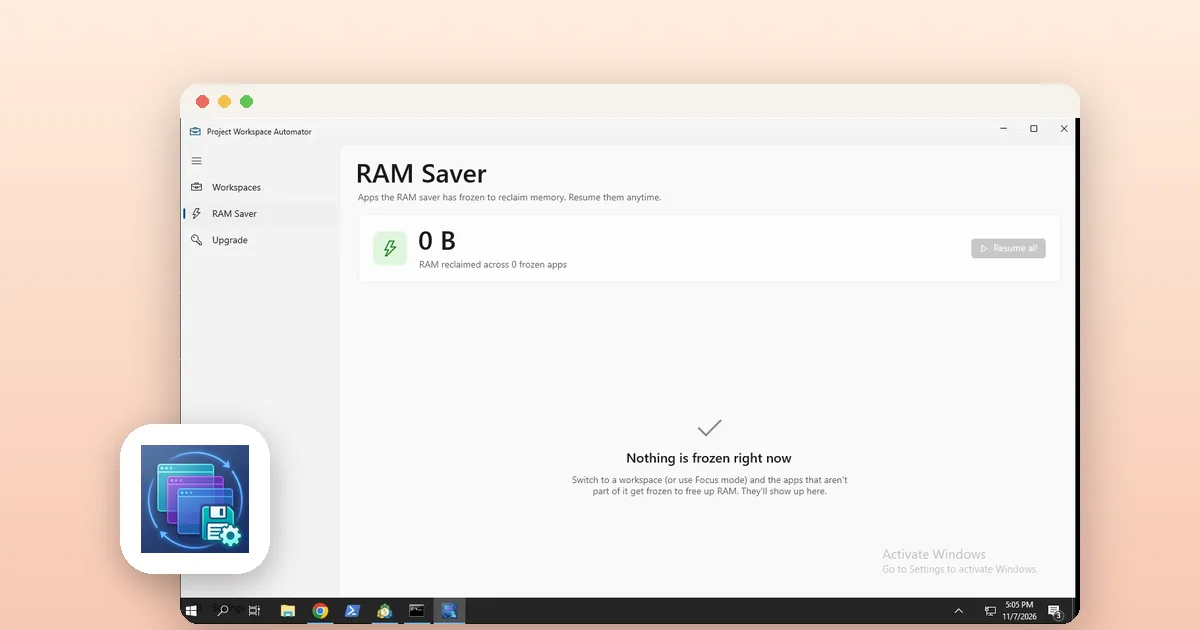
How do I make Windows 11 reopen my apps after a restart?
Only apps built to support restart will come back. Others will not, and Windows does not warn you which ones.
- Open Settings and go to Accounts, then Sign-in options.
- Find the setting to automatically save restartable apps and restart them when you sign back in. It may be under Additional settings, depending on your version.
- Turn it on.
- Restart from the Start menu to test it.
How do I get File Explorer folders back?
Folder windows use a separate option. Open File Explorer, choose the three-dot menu, then Options, and open the View tab. Under Advanced settings, tick "Restore previous folder windows at logon" and click OK.
If folders still do not reopen, a common fix is to turn the option off, restart, turn it back on and restart again.
What will Windows not restore?
- Apps that do not support the restart feature.
- Your exact window positions and sizes, especially across several monitors.
- Browser tabs, unless the browser's own startup setting (for example, continue where you left off) is on.
- A different set of windows for a different task. Windows remembers one session, not several.
How do I keep a separate setup for each kind of work?
If you switch between, for example, writing, coding and streaming, one remembered session is not enough. Windows 11 has Snap layouts and snap groups for arranging windows during the day, but they do not save a whole setup across a restart.
Project Workspace Automator (Session Saver) is a Windows app from LoopOtter built for this. You open your usual apps, folders and tabs, capture the desktop as a named workspace such as "Work" or "Study", and restore it later from the app, the tray menu or the Shift+` hotkey. Windows return to their saved position and size.
Its deep restore reopens browser tabs in Chrome, Edge, Brave and Firefox, plus Explorer folders, VS Code and documents. Capturing tabs uses an optional bundled Chromium extension that you load yourself. The free version keeps up to 3 workspaces.
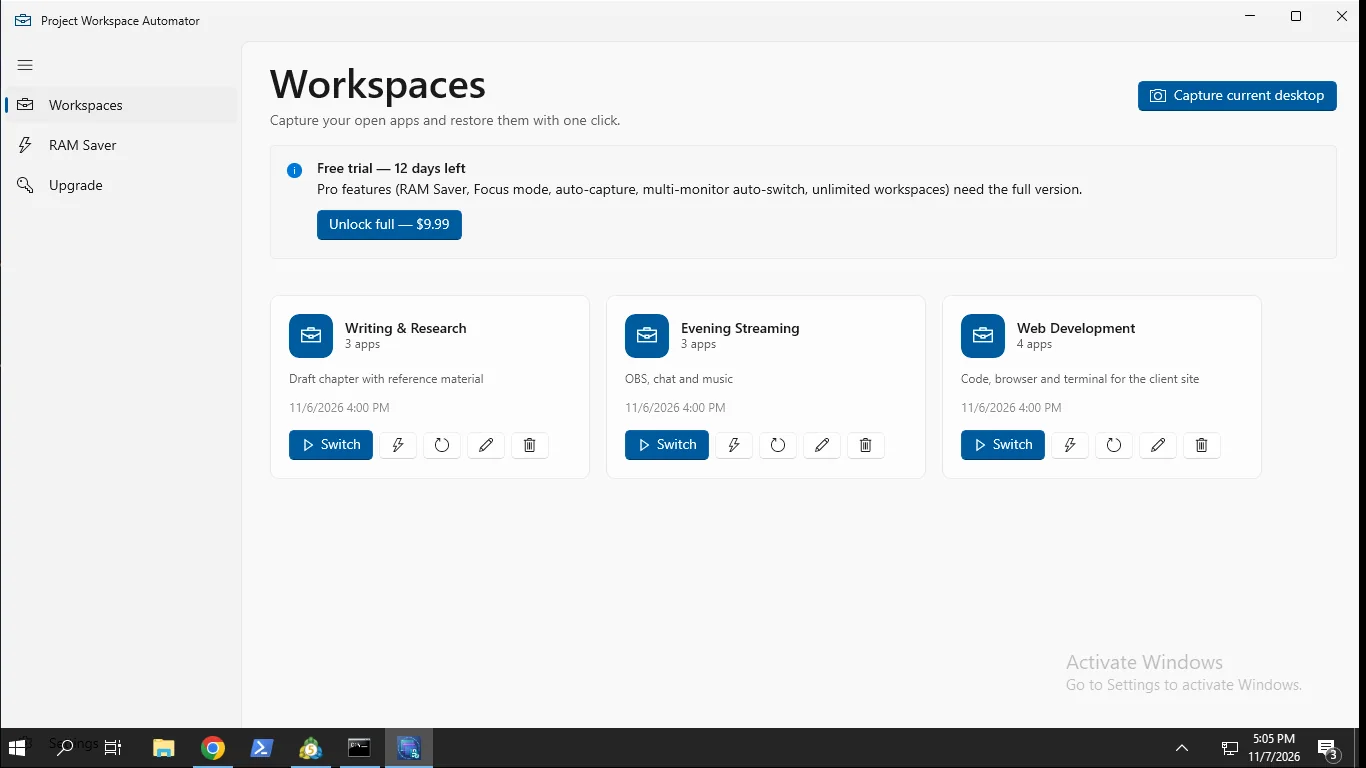
Does restoring a workspace free up memory?
Reopening everything uses RAM like any other session. The app's Pro version includes a RAM Saver that freezes or closes apps outside your current workspace and resumes them when you return, with a never-freeze list for apps you want left alone. This is optional; saving and restoring workspaces does not need it.
Quick checklist if apps still do not come back
- Confirm the sign-in setting is on and that you restart rather than shut down and cold boot.
- Check the folder option in File Explorer separately.
- Turn on your browser's own "continue where you left off" option.
- Close apps normally before restarting; an app that is force-closed may not save its state.
- Use a workspace tool if you need positions, several setups or tabs back reliably.
Tools for this
Project Workspace Automator: Session Saver
Save open windows, tabs, and folders as named workspaces and restore your entire desktop setup in one click.
FAQ
How do I reopen apps automatically after restart in Windows 11?
Go to Settings > Accounts > Sign-in options and turn on the setting that saves restartable apps and restarts them when you sign back in. Only apps that support it will reopen.
Why are my folder windows not reopening after a restart?
Folders use their own option: File Explorer Options > View > Restore previous folder windows at logon. Turn it on, and if it still fails, toggle it off, restart, then on again.
Can Windows restore my window positions?
Not reliably. The built-in restart feature reopens supported apps but does not guarantee their previous position or size. A workspace tool can save and restore positions.
Is Session Saver free?
The free version captures and restores up to 3 workspaces. Pro is a one-time purchase that adds unlimited workspaces, RAM Saver and auto-capture, with a 14-day trial.
Does Session Saver store my data online?
Workspaces are stored on your PC. The trial check sends only an anonymous hashed machine ID, the app name and license state.