
How to Remap or Disable Any Key on Windows 11 (Free Methods)
To remap or disable keys on Windows 11, use Microsoft PowerToys Keyboard Manager, modify the Windows Registry via scancode mapping, or use a visual remapper like Custom Keyboard. Double-clicking or pressing an accidental key like Caps Lock or the Windows key during work or gaming can disrupt your workflow, but Windows allows full key reassignments.
Why remap or disable keys on Windows 11?
Keyboards come in standard factory layouts, but everyday computing often demands adjustments. A gamer may want to disable the Windows key to prevent accidental Start menu popups in the middle of a match.
Programmers and writers frequently remap Caps Lock to Escape or Control to speed up navigation in text editors without straining their pinky finger.
Furthermore, if a physical key breaks on a laptop keyboard, remapping its function to an unused key (such as Scroll Lock or right Alt) keeps the computer fully usable without costly hardware repairs.
- Prevent accidental keystrokes (such as pressing the Windows key or Caps Lock while gaming).
- Ergonomic optimization: move frequently used modifiers closer to the home row.
- Hardware recovery: reassign dead or broken keys to spare keys on your keyboard.
Method 1: How to remap keys using Microsoft PowerToys
Microsoft provides a free utility suite called PowerToys that contains a dedicated Keyboard Manager module.
Keyboard Manager runs in the background and intercepts keystrokes in software before they reach your active applications.
- Install Microsoft PowerToys from the Microsoft Store or GitHub.
- Open PowerToys Settings and click 'Keyboard Manager' in the left sidebar.
- Turn on the toggle labeled 'Enable Keyboard Manager'.
- Click 'Remap a key' under the Keys section.
- Click the plus icon (+) to add a new remapping row.
- Under 'Select', click 'Type' and press the physical key you want to change (for example, Caps Lock).
- Under 'To send', choose the key you want it to trigger (for example, Escape), or choose 'Undefined' to disable it completely.
- Click OK and confirm the alert. The remapping takes effect immediately.
- Best for: Quick key swaps and simple shortcut reassignments.
- Limitation: PowerToys must remain running in the background for remappings to function.
- Limitation: User-level input hooks may be bypassed or blocked by certain anti-cheat engines.
Method 2: How to disable keys permanently via Windows Registry
Windows has native built-in support for remapping keys at the kernel level using a registry entry named 'Scancode Map'.
When scancodes are mapped in the Windows Registry, the changes work system-wide even before you log in, requiring zero background applications.
- Registry scancodes are stored at HKEY_LOCAL_MACHINE\SYSTEM\CurrentControlSet\Control\Keyboard Layout.
- Because manual binary hex editing in Regedit is error-prone, open-source utilities like SharpKeys generate these registry entries safely.
- Open SharpKeys, click 'Add', select the source key on the left, and choose the destination key (or 'Turn Key Off') on the right.
- Click 'Write to Registry'.
- Restart your PC or sign out and back in to apply the changes.
- Best for: Permanent changes that require zero RAM and zero background software.
- Limitation: Requires a full reboot or sign-out to apply or revert any changes.
- Limitation: Cannot create multi-key macros, layer keys, or per-application profiles.
Method 3: How to remap and disable keys visually with Custom Keyboard
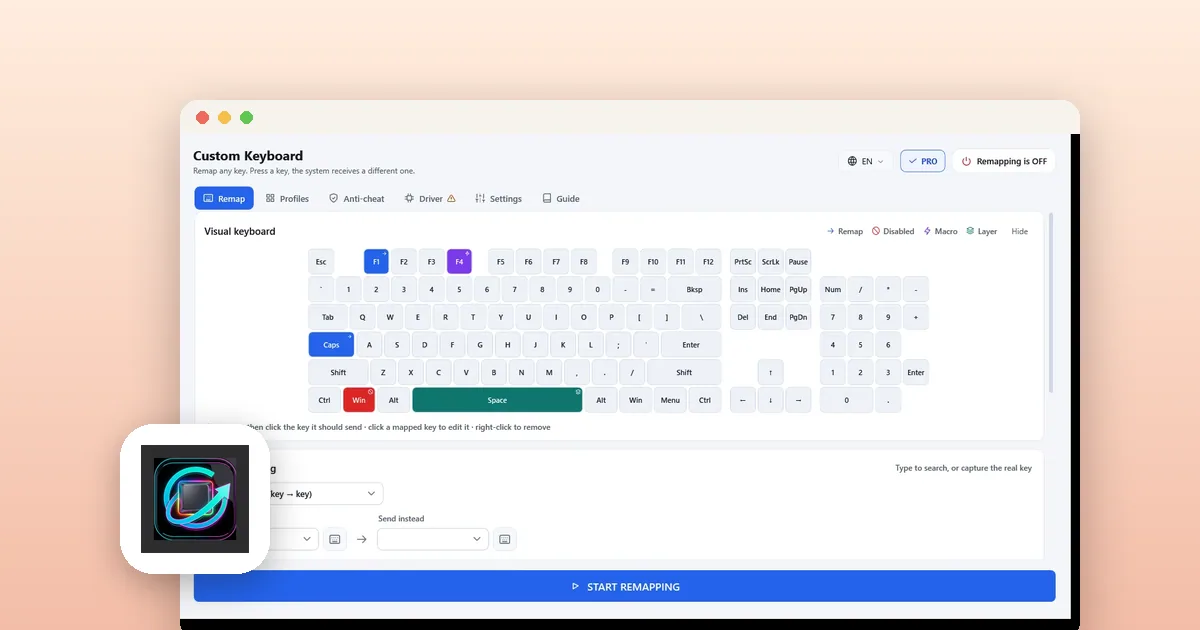
If you want visual key selection without memorizing key names or dealing with registry reboots, Custom Keyboard offers an interactive on-screen layout.
Custom Keyboard runs quietly in the system tray, uses near-zero CPU, and includes a built-in panic key (Ctrl+Alt+F12) to disable remappings instantly if needed.
- Install Custom Keyboard free from the Microsoft Store and launch it.
- Click any key directly on the visual on-screen keyboard.
- Select what the key should do: map it to another key, assign a shortcut, or click 'Disable' to silence it.
- Remapped, disabled, and macro keys appear in distinct colors for easy visual auditing.
- Remappings activate immediately without restarting your computer.
- Press Ctrl+Alt+F12 at any time to temporarily suspend all remappings.
- Visual keyboard interface: click the key you see on your physical desk.
- Instant toggle: changes apply live without rebooting or signing out.
- Panic shortcut: Ctrl+Alt+F12 immediately restores default keyboard behavior.
- Multi-language support: available in 15 localized interface languages.
How to set per-app profiles and macros for gaming and productivity
Different programs benefit from different key bindings. You might want the Caps Lock key disabled in first-person shooters, but functioning normally inside Microsoft Excel.
Custom Keyboard supports automatic profile switching, detecting when you alt-tab into a specific game or work application.
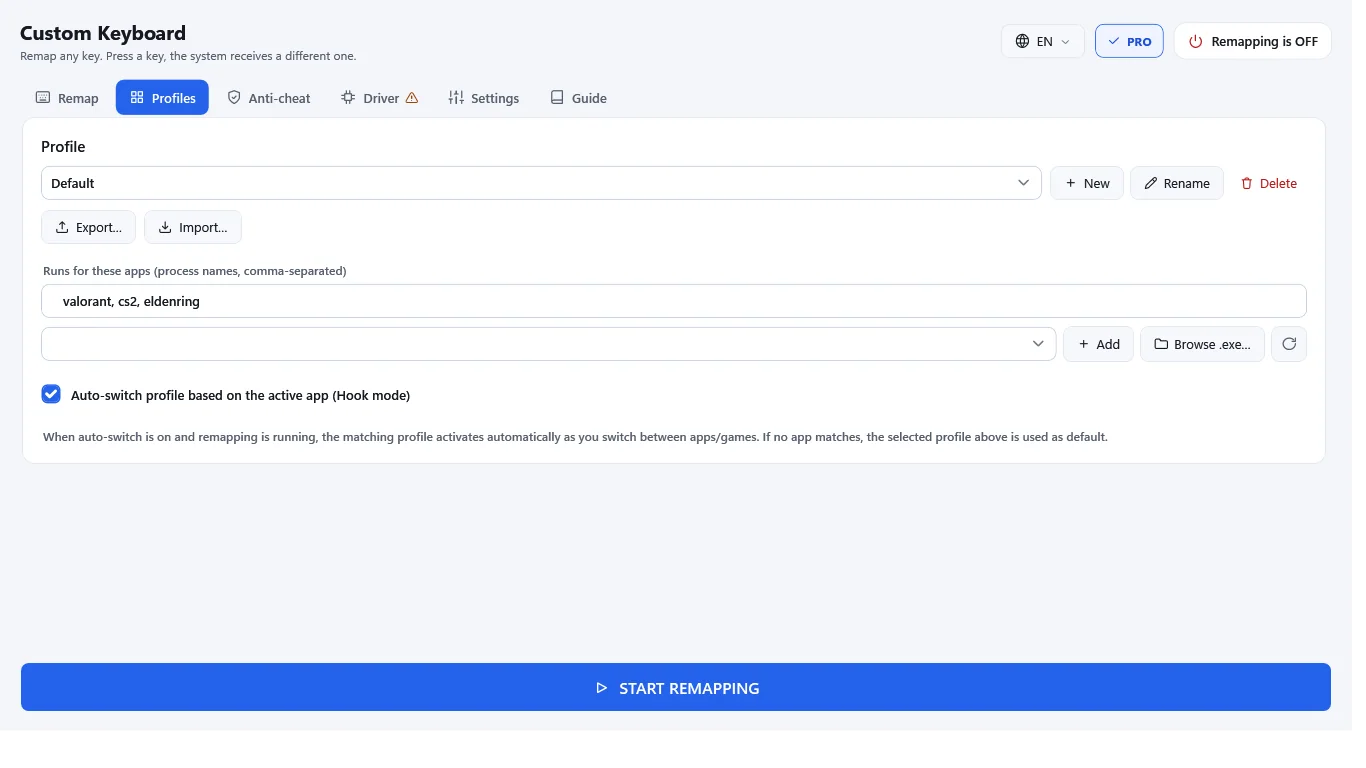
- In Custom Keyboard, create a new profile and name it after your target game or app.
- Associate the profile with the application's executable (.exe) file.
- Configure your custom bindings, key layers, or macro delays for that profile.
- When you focus the target game, Custom Keyboard automatically engages the profile.
- When you alt-tab back to your desktop or browser, normal keyboard bindings restore automatically.
- Per-app detection prevents gaming keybinds from interfering with everyday typing.
- Macro editor lets you chain keystroke sequences with custom millisecond delays.
Tools for this
Custom Keyboard - Remap any key
Visual key remapper for Windows to swap keys, disable keys, and trigger macros without accounts or telemetry.
FAQ
Will remapping keys get me banned in online games?
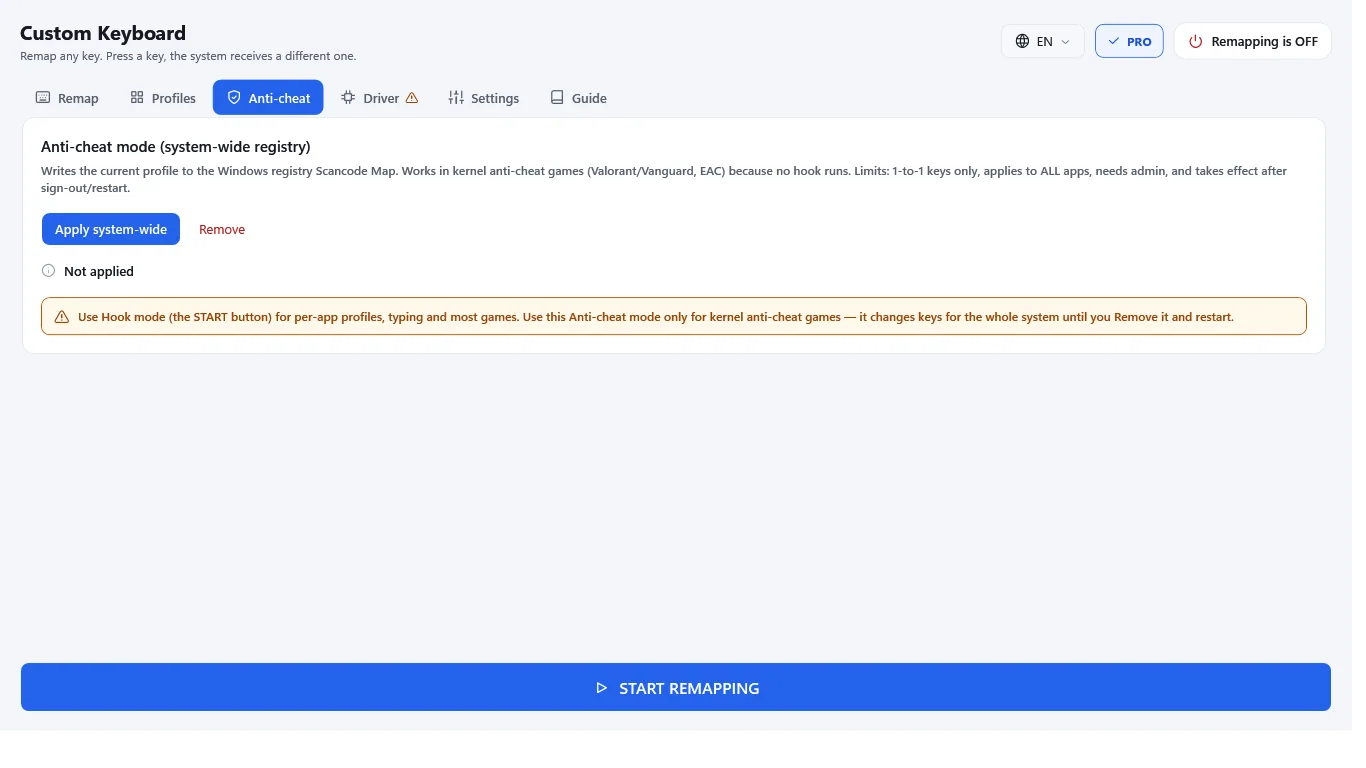
Standard 1-to-1 key swaps (such as swapping Caps Lock with Escape or disabling the Windows key) do not violate game rules. However, automated multi-action macros that perform multiple sequential inputs from a single keystroke may trigger anti-cheat bans in competitive multiplayer games. Custom Keyboard includes an anti-cheat mode that operates via native system remapping.
Can I disable the Windows key completely on Windows 11?
Yes. In Custom Keyboard, click the Windows key on the visual keyboard and select 'Disable'. In PowerToys Keyboard Manager, remap the Win key to 'Undefined'. Both methods prevent accidental Start menu popups while typing or gaming.
What is the Panic Key if I accidentally disable important keys?
Custom Keyboard features a built-in emergency panic shortcut: pressing Ctrl+Alt+F12 immediately suspends all active remappings and returns your keyboard to standard factory behavior.
Does key remapping work after restarting Windows?
Yes. If configured to start with Windows, utilities like Custom Keyboard and PowerToys launch quietly in your system tray upon user sign-in. Registry-based scancode mappings remain permanently active at the system kernel level.