
How to Read EPUB Books on Windows 11 (Free Offline Methods)
To read EPUB books on Windows 11, install a dedicated offline e-reader from the Microsoft Store, use Calibre, or open files in a web browser with an extension. Because Microsoft removed native EPUB support from Edge, Windows 11 no longer opens .epub files out of the box. This tutorial explains why Windows lacks default EPUB support, compares the best free offline options, and walks through setting your default reading app.
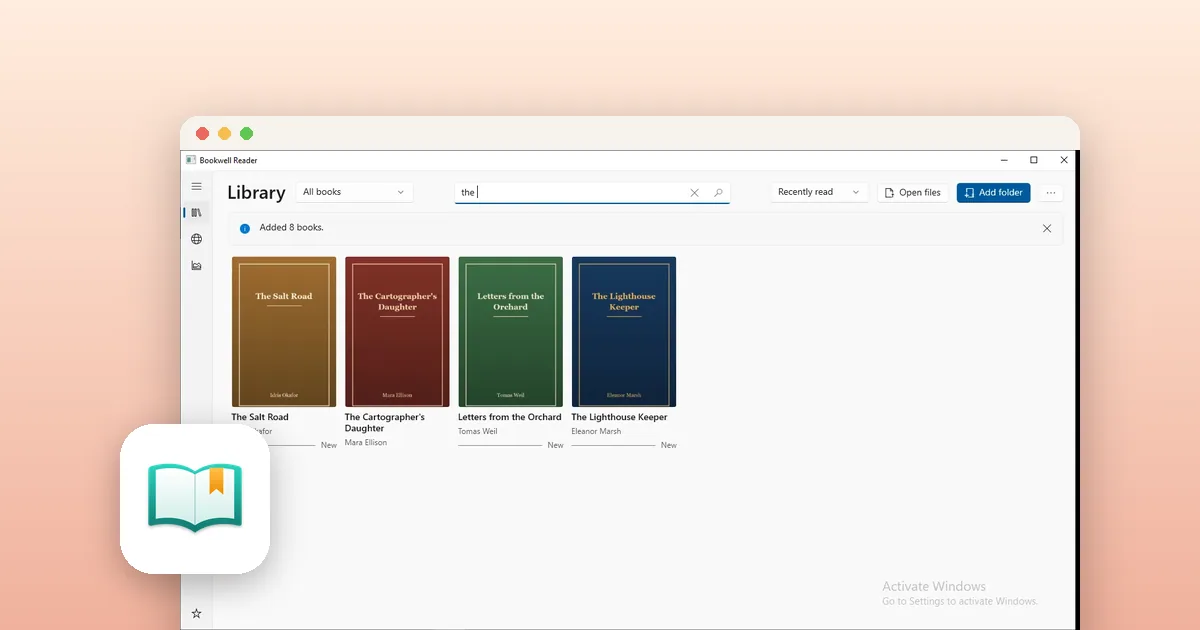
Why does Windows 11 not open EPUB files by default?
Double-clicking an .epub file on a fresh installation of Windows 11 displays a prompt asking 'How do you want to open this file?' instead of opening your book. Windows 11 has no native e-book reader.
In earlier releases of Windows 10, the legacy Microsoft Edge browser supported EPUB documents. When Microsoft rebuilt Edge on Chromium in 2019, it removed EPUB reading entirely, choosing to focus Edge strictly on web browsing and PDF files.
Standard desktop e-readers open DRM-free EPUB files, such as public-domain classics, technical manuals, and open publications. Books purchased from Amazon Kindle or Kobo with digital rights management (DRM) require the vendor's proprietary app instead.
- Windows 11 includes native PDF viewing in Edge, but zero native support for EPUB files.
- Double-clicking an unassociated .epub prompts Windows to suggest searching the Microsoft Store.
- DRM-protected books from proprietary platforms require the store's dedicated desktop software.
Method 1: How to read EPUB files in your web browser
If you only need to inspect an EPUB file once without installing standalone software, you can view it inside Chrome, Edge, or Firefox using an extension.
Free extensions like EPUBReader parse the internal XHTML code of an EPUB file and display chapters in a standard browser tab. Once installed, drag and drop any local .epub file into an open tab to read immediately.
- Open the Chrome Web Store or Edge Add-ons store in your browser.
- Search for 'EPUBReader' and click 'Add to browser'.
- Drag your .epub file from File Explorer into a new browser tab.
- Use the arrow keys or on-screen buttons to turn pages.
- Best for: Quick one-time checks without installing desktop utilities.
- Limitation: High RAM usage when keeping long reading sessions open in browser tabs.
- Limitation: Lacks offline annotation export, library shelves, and right-to-left manga modes.
Method 2: How to use Calibre for large e-book collections
For readers managing large digital libraries or needing format conversion, Calibre is the standard open-source desktop tool on Windows.
Calibre organizes books in a local database and includes a built-in viewer (ebook-viewer.exe). It lets you adjust text styling, customize margins, and convert MOBI, AZW3, or PDF files into standard EPUB format.
However, Calibre's interface resembles a database tool with dense menus, which feels heavy if you simply want a clean, calm reading screen.
- Download and install Calibre from calibre-ebook.com.
- Click 'Add books' in the top toolbar and select your .epub files.
- Select a book in your library and click 'View' to launch the reader.
- Right-click inside the viewer to adjust typography and color themes.
- Best for: Format conversion (converting MOBI to EPUB) and bulk metadata management.
- Limitation: Large installation size and complex menus designed for catalog management.
Method 3: How to read EPUBs offline with Bookwell Reader
If you want a lightweight, modern reading experience without the visual clutter of Calibre or browser overhead, Bookwell Reader is built specifically for Windows 10 and 11.
Bookwell Reader opens DRM-free EPUB, MOBI, AZW3, PDF, FB2, and comic archives (CBZ, CBR, CB7). It requires no account, contains no ads, and runs 100% offline so your personal library stays strictly on your PC.
The app offers five highlight colors, customizable reading themes (Light, Sepia, Dark, Black), custom font sizing, and full-text search. It also connects to your installed Windows text-to-speech voices to read chapters aloud with synchronized word highlighting.
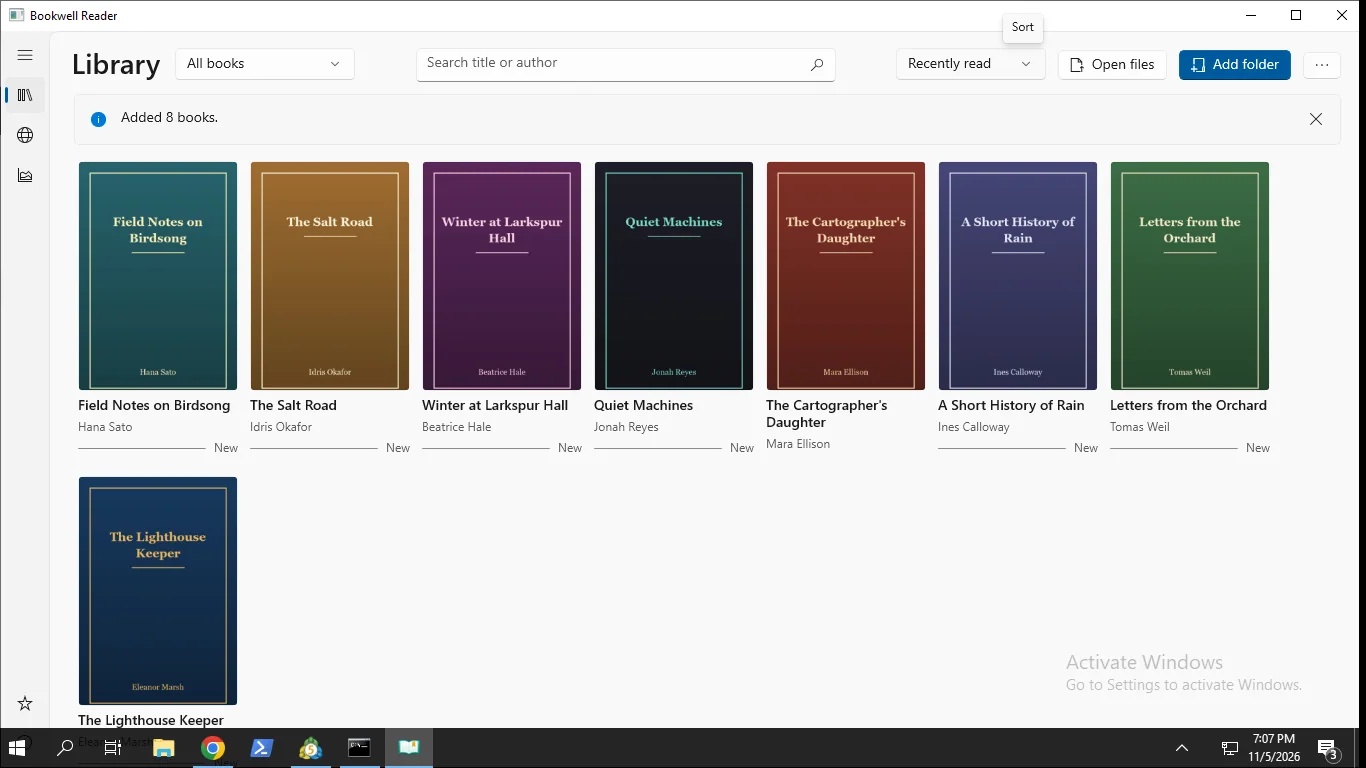
- Install Bookwell Reader free from the Microsoft Store.
- Open the app and drag your EPUB file into the window, or click 'Open'.
- Adjust font size, margins, and select Sepia or Dark theme from the reading bar.
- Select any text passage to highlight in five colors or attach a personal note.
- Click the Read Aloud button to listen using native Windows system voices.
- Supports EPUB, MOBI, AZW3, PDF, and comic formats (CBZ, CBR, CB7).
- Private and offline: no tracking, no account, and no network requirements.
- Reading, highlights, bookmarks, and notes are free forever.
How to browse and download free public-domain books directly
Finding legitimate, safe e-books online can sometimes expose users to ad-heavy websites. Bookwell Reader resolves this by integrating direct support for OPDS (Open Publication Distribution System) catalogs.
You can browse and download free, public-domain classics from Project Gutenberg directly within the app interface. Titles download straight to your PC in clean EPUB format without requiring a browser or registration.
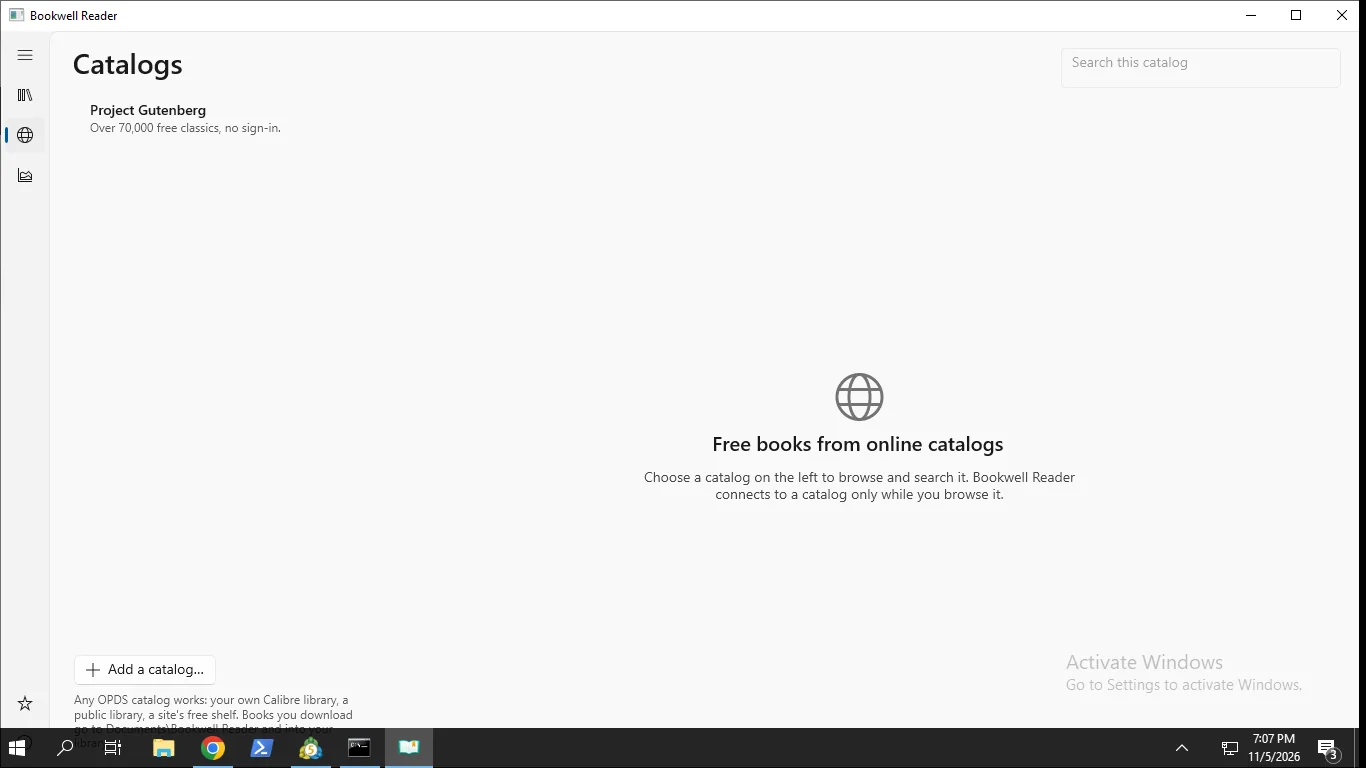
- In Bookwell Reader, click the 'Catalogs' tab in the left sidebar.
- Select Project Gutenberg or enter a custom OPDS feed URL.
- Browse by category, popularity, or search for titles and authors.
- Click 'Download' on any title to add it immediately to your library grid.
- Access thousands of classic titles safely without third-party download portals.
- Connect custom OPDS feeds from home media servers or local Calibre libraries.
How to set your default EPUB reader in Windows 11
Configure Windows 11 so that double-clicking any .epub file opens your book immediately without asking which program to use each time.
Windows 11 allows you to associate file extensions directly in File Explorer in under thirty seconds.
- Locate any .epub file in File Explorer and right-click it.
- Hover over 'Open with' and select 'Choose another app'.
- Select Bookwell Reader (or your chosen reader) from the list.
- Click 'Always' at the bottom of the prompt to lock the association.
- Alternatively, open Windows Settings (Win+I), go to Apps > Default apps, search for '.epub', and select your app.
- Associating .epub ensures all book downloads open with a single double-click.
- You can modify this file association anytime in Windows Settings.
Tools for this
Bookwell Reader
Fast, private ebook reader for EPUB, MOBI, PDF, and comics on Windows. No ads, no account, completely offline-first.
FAQ
Why did Microsoft remove EPUB support from Microsoft Edge?
Microsoft removed the EPUB reader from Microsoft Edge in late 2019 when Edge transitioned to the Chromium engine. Microsoft decided to focus Edge strictly on core web browsing and PDF reading, leaving e-book reading to specialized third-party desktop apps.
Can I open DRM-protected EPUB files on Windows 11?
DRM-protected files (such as ACSM tokens or Adobe DRM files from public libraries and commercial stores) require Adobe Digital Editions or the vendor's dedicated app. Standard EPUB readers like Bookwell Reader and Calibre only open DRM-free files.
Can Windows 11 read EPUB books aloud with text-to-speech?
Yes. While Windows does not have a built-in EPUB text-to-speech tool, apps like Bookwell Reader connect to the native Windows Speech synthesis voices to read chapters aloud with synchronized word highlighting.
Is Calibre or a dedicated reader better for reading EPUBs?
Calibre is best if you need to convert file formats, edit metadata, or manage thousands of titles. A dedicated reader like Bookwell Reader is better for day-to-day reading because it starts faster, uses less memory, and offers a cleaner distraction-free interface.