
How to Open Large CSV Files on Windows Without Excel Crashing
To open a large CSV file on Windows without freezing Excel, import only the columns or filtered rows you need through Excel Power Query, preview the top lines in PowerShell, or load the file in a virtualized read-only CSV viewer. Double-clicking a massive CSV opens it directly into an Excel worksheet, which stalls memory and cuts off files past 1,048,576 rows.
Why does Excel freeze or cut off large CSV files?
Microsoft Excel worksheets have a hard ceiling of 1,048,576 rows and 16,384 columns. When a database export or log file exceeds that count, double-clicking the file loads only the first million rows and drops the rest.
Even below a million rows, Excel parses every cell type into memory at once. That can stall a PC on a 200 MB file, strip leading zeros from postal codes or IDs, and misread UTF-8 text if the file lacks a byte-order mark (BOM).
- Hard worksheet limit: 1,048,576 rows maximum per sheet.
- Silent formatting changes: Excel converts long numeric IDs to scientific notation and strips leading zeros on open.
- Encoding mismatches: UTF-8 files without a BOM often display broken accented characters when opened directly.
How do you inspect a huge CSV safely in PowerShell?
If you only need to check column headers, find out which delimiter the file uses, or pull matching rows into a smaller file, Windows PowerShell is already installed on your PC. Reading only the first lines avoids loading gigabytes into RAM.
- Open Windows PowerShell from the Start menu and change to the folder holding your CSV file.
- Run Get-Content .\data.csv -TotalCount 15 to print only the header and first 14 rows without loading the rest of the file.
- To count total lines quickly without creating full objects, run (Get-Content .\data.csv -ReadCount 1000 | Measure-Object -Line).Lines.
- To extract a smaller subset by column value, run Import-Csv .\data.csv | Where-Object { $_.status -eq 'Pending' } | Export-Csv .\pending.csv -NoTypeInformation.
- Limit: Import-Csv loads rows as objects in memory, so filtering a multi-gigabyte file with it can still be slow.
How do you load a filtered CSV into Excel with Power Query?
When you still need Excel charts or pivot tables, do not double-click the CSV. Use Excel's built-in Power Query connector instead so you can filter rows and set text types before anything hits a worksheet.
- Open a blank workbook in Excel, click the Data tab, then select Get Data > From File > From Text/CSV.
- Pick your CSV file and verify the File Origin (such as 65001: Unicode UTF-8) and Delimiter in the preview window.
- Click Transform Data instead of Load to open the Power Query Editor.
- Filter out unneeded rows or remove extra columns so the result stays well under 1,048,576 rows.
- Click Close & Load to bring the filtered table into a sheet, or choose Close & Load To > Only Create Connection with Add this data to the Data Model for larger tables.
How do you browse and filter CSV files in a read-only viewer?
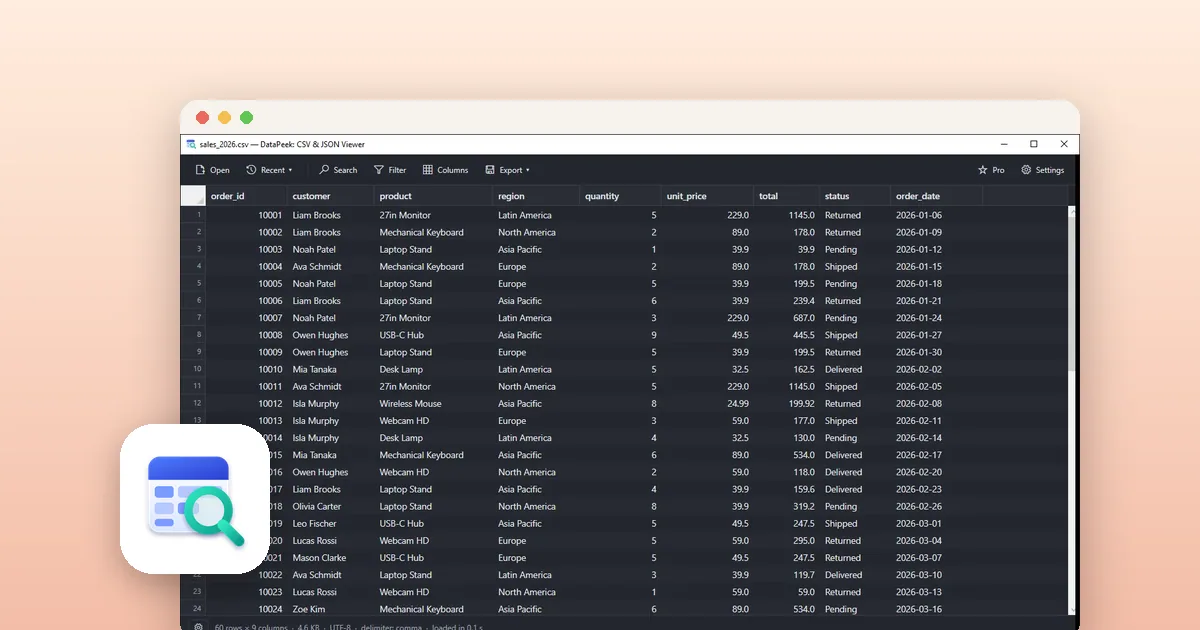
When you want to inspect rows, verify encodings, and filter columns without waiting on Power Query steps or altering the original file, a virtualized desktop viewer renders only the rows visible on screen. DataPeek: CSV & JSON Viewer from LoopOtter opens CSV, TSV, TXT, JSON, JSONL, and NDJSON files in the background with a progress indicator and Cancel button.
DataPeek detects delimiters and encodings (UTF-8, BOM, UTF-16, and Windows-1252) automatically, lets you override them if needed, and stays strictly read-only so raw exports are never overwritten. The free tier opens files up to 25 MB, includes single-column filtering, and exports up to 1,000 rows; a one-time $3.99 USD Pro purchase removes the 25 MB limit and adds multi-condition AND/OR filters, regex filtering, and unlimited export.
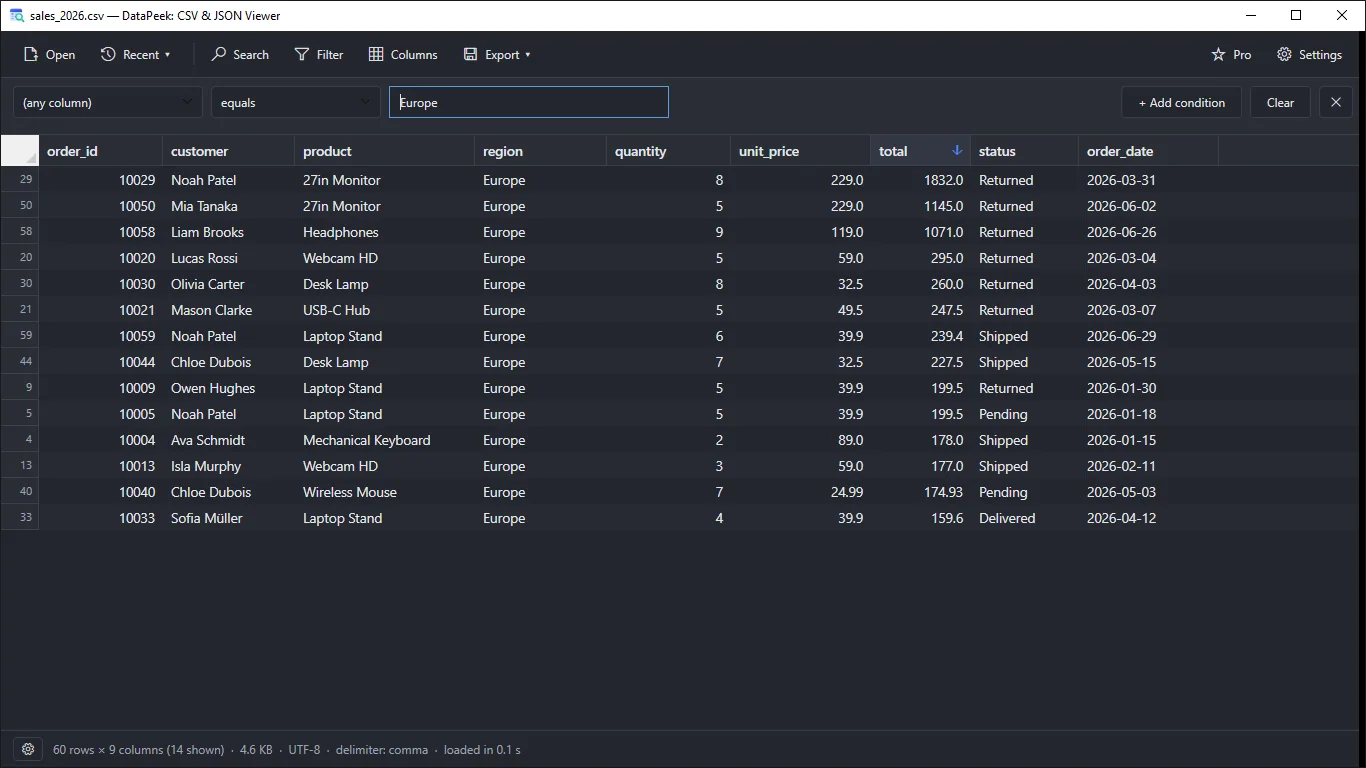
- Install DataPeek from the Microsoft Store and launch it.
- Click Open or drag and drop your CSV or TSV file into the window.
- Check the bottom status bar to confirm row count, column count, encoding, and detected delimiter.
- Click Filter on the toolbar, pick a column or (any column), choose an operator such as equals, and enter a value to narrow the table.
- Click any column header to sort numerically, alphabetically, or by date.
How do you search and export a clean subset?
After narrowing a large table, you often need to jump to a specific order ID or save just the matching rows for a teammate. Writing filtered results to a separate file keeps your original export untouched as an audit copy.
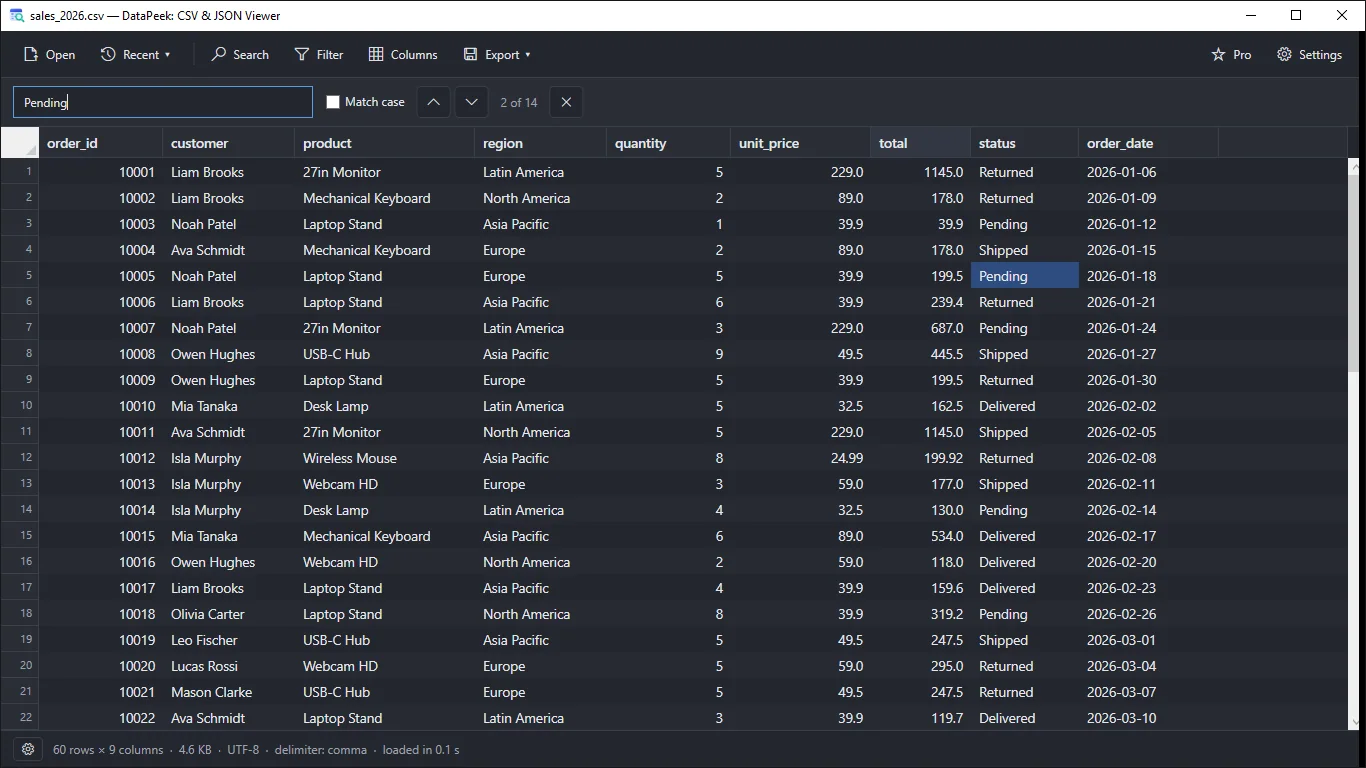
- Press Ctrl+F or click Search on the DataPeek toolbar, type your term, and toggle Match case if needed.
- Use the up and down arrows beside the match counter (such as 2 of 14) to step through matching cells.
- Click Columns if you want to hide, reorder, or freeze key columns while scrolling.
- Click Export to save the filtered or sorted view as a new CSV, TSV, or JSON file.
Tools for this
DataPeek: CSV & JSON Viewer
Open large CSV, TSV, and JSON files instantly as a table or tree. Fast, read-only, and completely offline.
FAQ
What is the maximum CSV file size Excel can open?
Excel limits each worksheet to 1,048,576 rows and 16,384 columns regardless of file size in megabytes. Files with more rows are truncated on open unless you load them through Power Query into the Data Model.
Can Notepad open a large CSV file?
Notepad loads the entire text into memory as unformatted lines and becomes sluggish or unresponsive on multi-hundred-megabyte files. It also does not align columns or filter rows.
Is DataPeek free for large CSV files?
DataPeek is free for files up to 25 MB, single-column filtering, search, sorting, and exporting up to 1,000 rows. Opening files larger than 25 MB, AND/OR or regex filters, and unlimited export require a one-time $3.99 USD Pro purchase on the Microsoft Store.
Will DataPeek change leading zeros or dates in my CSV?
No. DataPeek is read-only and never overwrites your source CSV file.