
How to Keep a Window Always on Top on Windows 11 (3 Free Ways)
To keep a window always on top on Windows 11, use Microsoft PowerToys (Win+Ctrl+T), the built-in Task Manager setting, or a dedicated utility like Pin Master. While Windows 11 does not provide a universal right-click pin option for all apps, these three methods allow you to keep reference documents, calculators, or video streams visible over your primary work.
Why does Windows 11 lack a universal pin button?
In Windows 11, window layering is controlled by a desktop window manager property called the Z-order. A normal window loses focus and hides beneath other windows whenever you click on another application.
Microsoft provides native always-on-top toggles inside only a handful of built-in tools, such as Calculator and Task Manager. Standard applications like Google Chrome, Notepad, Word, or PDF viewers do not include a topmost button in their title bar.
To force standard applications to stay on top, Windows requires modifying the window attribute known as WS_EX_TOPMOST through the Windows API.
- Windows 11 manages window stacking via an internal Z-order hierarchy.
- Most native Windows apps lack a built-in always-on-top option.
- System utilities apply the WS_EX_TOPMOST API attribute without altering application source code.
Method 1: How to pin Task Manager always on top using built-in settings
If you need to monitor CPU, memory, or disk performance while running a full-screen or demanding program, Windows 11 includes a native topmost setting inside Task Manager.
This method requires no additional software downloads, though it applies strictly to the Task Manager window.
- Press Ctrl+Shift+Esc to open Task Manager.
- Click the Settings gear icon located at the bottom-left corner of the Task Manager sidebar.
- Locate the 'Window management' section in the settings panel.
- Check the box labeled 'Always on top'.
- Task Manager will now remain visible above all normal desktop windows until you uncheck the option.
- Best for: Monitoring hardware usage and terminating unresponsive apps during resource-heavy tasks.
- Limitation: Works only for Task Manager; cannot pin browsers, notes, or media players.
Method 2: How to use Microsoft PowerToys Always on Top
For general applications, Microsoft offers an official suite of system utilities called Microsoft PowerToys that includes an Always on Top module.
PowerToys binds a global keyboard shortcut to toggle the topmost status of whatever window currently has keyboard focus.
- Install Microsoft PowerToys from the Microsoft Store or directly from GitHub.
- Launch PowerToys from your Start menu and open its Settings dashboard.
- Select 'Always on Top' from the left sidebar and ensure the toggle is set to On.
- Click on the window you want to pin (such as Notepad or a browser tab).
- Press Win+Ctrl+T on your keyboard.
- A colored outline will appear around the window border, confirming that it is locked on top. Press Win+Ctrl+T again to unpin it.
- Best for: Users who prefer keyboard shortcuts and already use the PowerToys utility suite.
- Limitation: Displays a thick colored border around pinned windows by default (can be disabled in settings).
- Limitation: Requires running the complete PowerToys suite in the background.
Method 3: How to pin any window with Pin Master
If you want a lightweight tool without installing the heavy PowerToys package, Pin Master provides a single-click visual interface and customizable hotkeys.
Pin Master runs quietly in the system tray, consumes minimal RAM, and works 100% offline with no telemetry, ads, or background network calls. It lists every running window so you can pin and unpin apps from one place.
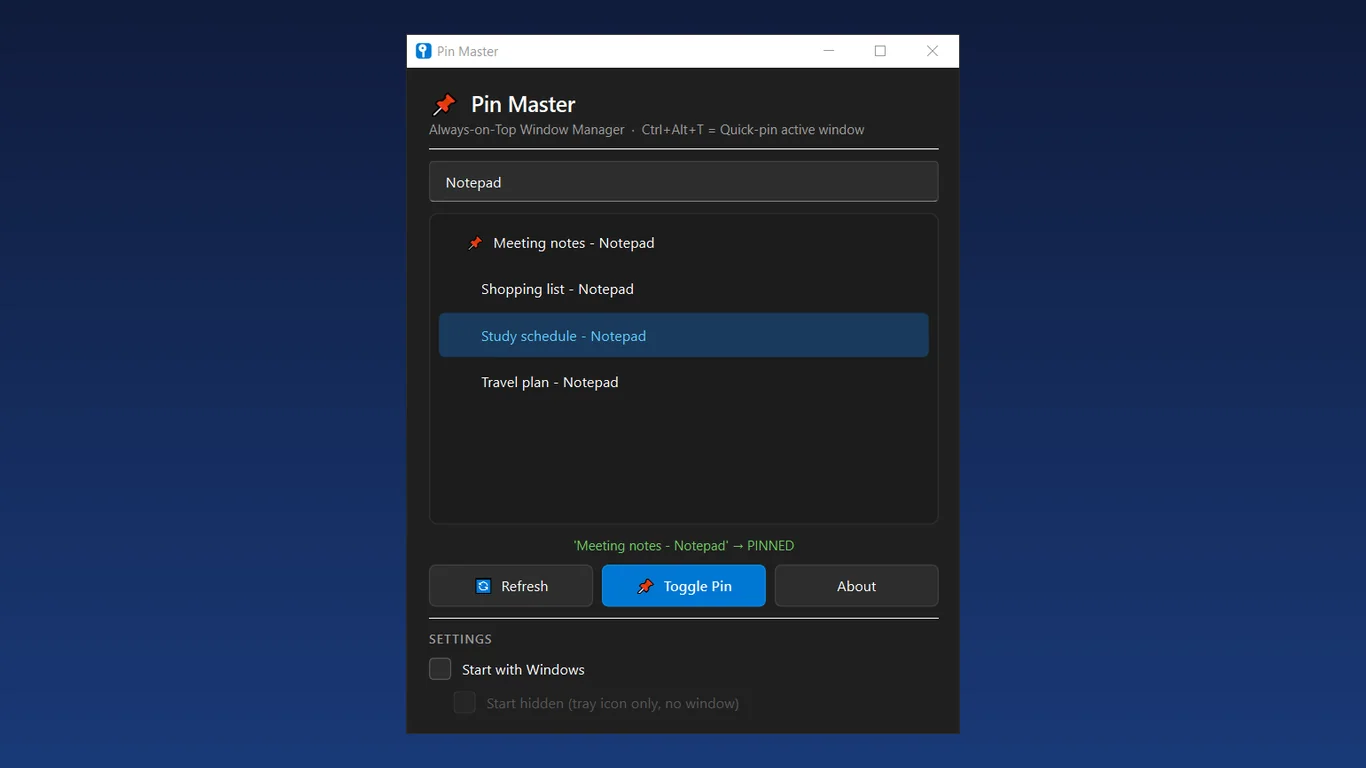
- Install Pin Master from the Microsoft Store and open it.
- Browse the list of active applications currently open on your desktop.
- Click the pin icon next to any window name to lock it always on top.
- Alternatively, focus any target window and press Ctrl+Alt+T to toggle pinning instantly.
- Pinned applications automatically appear with a pin badge and move to the top of your list.
- Visual window list: pin any background window without needing to bring it forward first.
- Customizable shortcut: default Ctrl+Alt+T avoids conflicts with standard browser keys.
- Clean appearance: keeps windows on top without injecting borders or modifying window graphics.
- Private and offline: zero analytics, zero network connections, and minimal CPU usage.
How to search and manage multiple pinned windows
When working across multiple monitors or running dozens of browser instances, finding the exact window you wish to pin can become tedious.
Pin Master includes an instant search bar that filters active application titles in real time as you type.
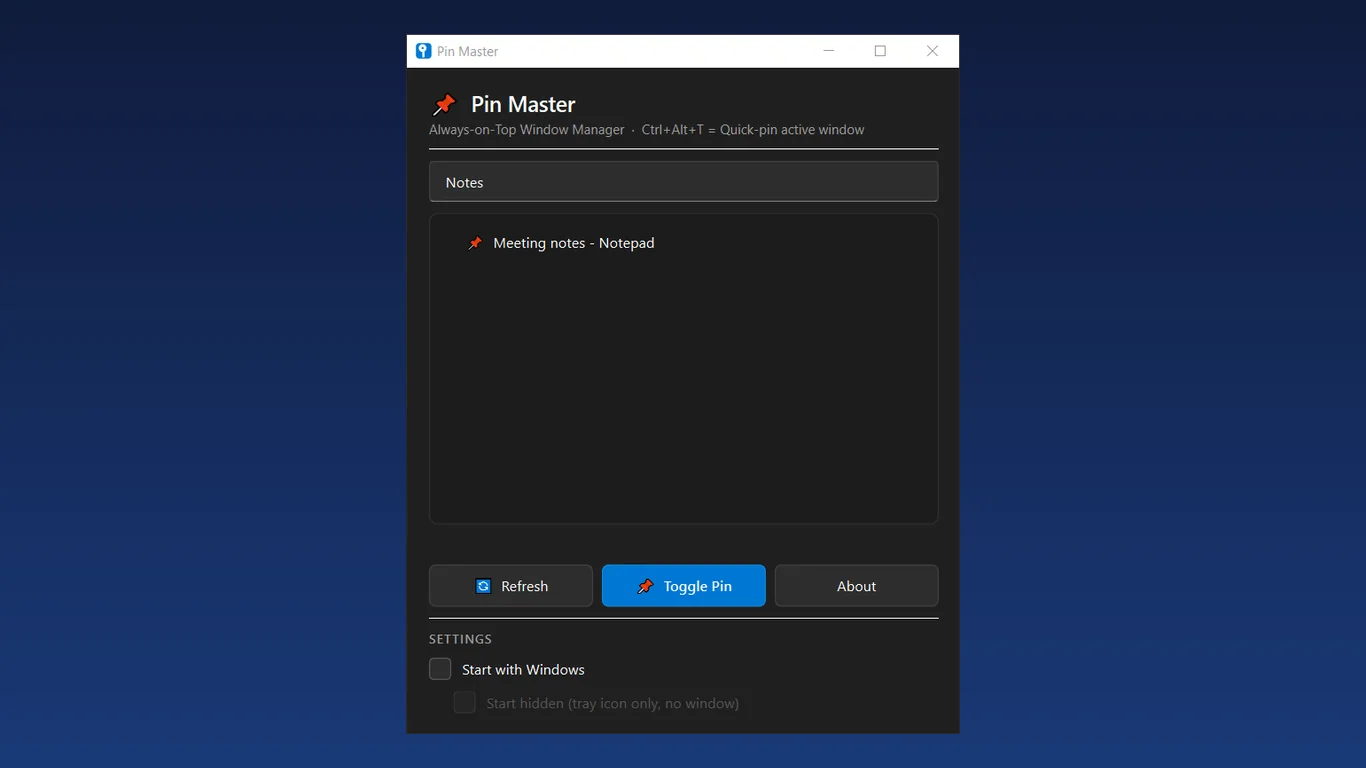
- Open Pin Master from your taskbar or system tray.
- Type a keyword into the top search field (for example, 'Chrome', 'PDF', or 'Calculator').
- The list instantly filters to matching active windows.
- Click the pin icon or toggle multiple applications simultaneously.
- To unpin all windows before a presentation, click the unpin icon on each pinned item.
- Instant filtering eliminates scrolling through dozens of background processes.
- System tray quick menu lets you show or hide the utility in one click.
Tools for this
Pin Master
Pin any window always on top with one click or Ctrl+Alt+T. Free, offline, no ads.
FAQ
Can I pin any application always on top on Windows 11?
Yes. Third-party utilities modify the standard Windows WS_EX_TOPMOST attribute via the Windows API, allowing standard applications like Chrome, Word, Notepad, VLC, and PDF viewers to stay above other windows.
What is the default Windows 11 shortcut for Always on Top?
Windows 11 does not have a native operating system shortcut for pinning all windows. If you install Microsoft PowerToys, the default shortcut is Win+Ctrl+T. In Pin Master, the default shortcut is Ctrl+Alt+T.
Does keeping a window on top impact PC performance or gaming?
No. Toggling the topmost attribute is an operating system flag handled directly by the Desktop Window Manager and consumes no measurable CPU or GPU resources. In exclusive full-screen games, top-level windows may be hidden unless the game runs in borderless windowed mode.
How do I unpin a window when I no longer need it on top?
Focus the pinned window and press your toggle shortcut again (Ctrl+Alt+T in Pin Master or Win+Ctrl+T in PowerToys), or open Pin Master and click the pin icon next to the application in the list.