
How to Fix Windows Update Stuck on Windows 11 (Step-by-Step)
To fix a stuck Windows Update on Windows 11, run the built-in Windows Update troubleshooter first, then reset the update services and rename the SoftwareDistribution and catroot2 folders, then repair system files with SFC and DISM. Updates usually stall because downloaded files are corrupted or an update service has hung. The methods below go from the least to the most involved.
Why does Windows Update get stuck on Windows 11?
Updates freeze most often when a download is interrupted or when update components fall out of sync.
Windows Update relies on three services: Windows Update (wuauserv), Background Intelligent Transfer Service (BITS) and Cryptographic Services (cryptsvc). If files in SoftwareDistribution are corrupted or signatures in catroot2 fail verification, the update can retry in a loop.
Resetting those folders makes Windows download fresh files and rebuild its update database.
- Corrupted files in C:\Windows\SoftwareDistribution\Download stop updates from finishing.
- Damaged catalog data in C:\Windows\System32\catroot2 causes verification errors.
- Damaged system files can block the servicing stack.
Method 1: Run the Windows Update troubleshooter
Start with the built-in troubleshooter. It checks for stopped services and resets basic update settings. It cannot repair deep file corruption, but it needs no commands.
- Press Windows key + I to open Settings.
- Go to System > Troubleshoot > Other troubleshooters.
- Find Windows Update and click Run.
- Apply any fix it suggests, then restart your PC and check for updates again.
Method 2: Reset Windows Update components in Command Prompt
If the troubleshooter does not help, reset the update cache. You stop the services, rename the two folders so Windows recreates them, and start the services again.
Your files, apps and settings are not touched. Windows re-downloads the update files on its next check.
- Type cmd in the Start menu search, right-click Command Prompt and choose Run as administrator.
- Run: net stop wuauserv
- Run: net stop bits
- Run: net stop cryptsvc
- Run: ren C:\Windows\SoftwareDistribution SoftwareDistribution.old
- Run: ren C:\Windows\System32\catroot2 catroot2.old
- Run: net start wuauserv
- Run: net start bits
- Run: net start cryptsvc
- Restart your PC, open Settings > Windows Update and click Check for updates.
- If a rename fails with Access denied, a service is still running. Repeat the net stop commands and try again.
- After updates install successfully, you can delete the .old folders to free space.
Method 3: Repair system files with SFC and DISM
If updates download but fail to install with codes such as 0x80070002 or 0x800f0922, damaged system files may be blocking the installer.
System File Checker (SFC) compares protected files with cached copies. DISM repairs the component store those copies come from.
- Open Command Prompt as administrator.
- Run: sfc /scannow and wait for it to finish. Restart if it reports repairs.
- If problems remain, run: DISM /Online /Cleanup-Image /RestoreHealth
- Let DISM finish, restart your PC and check for updates again.
- SFC repairs protected system files such as DLLs.
- DISM repairs the Windows component store (WinSxS).
Method 4: Reset Windows Update with FixKit
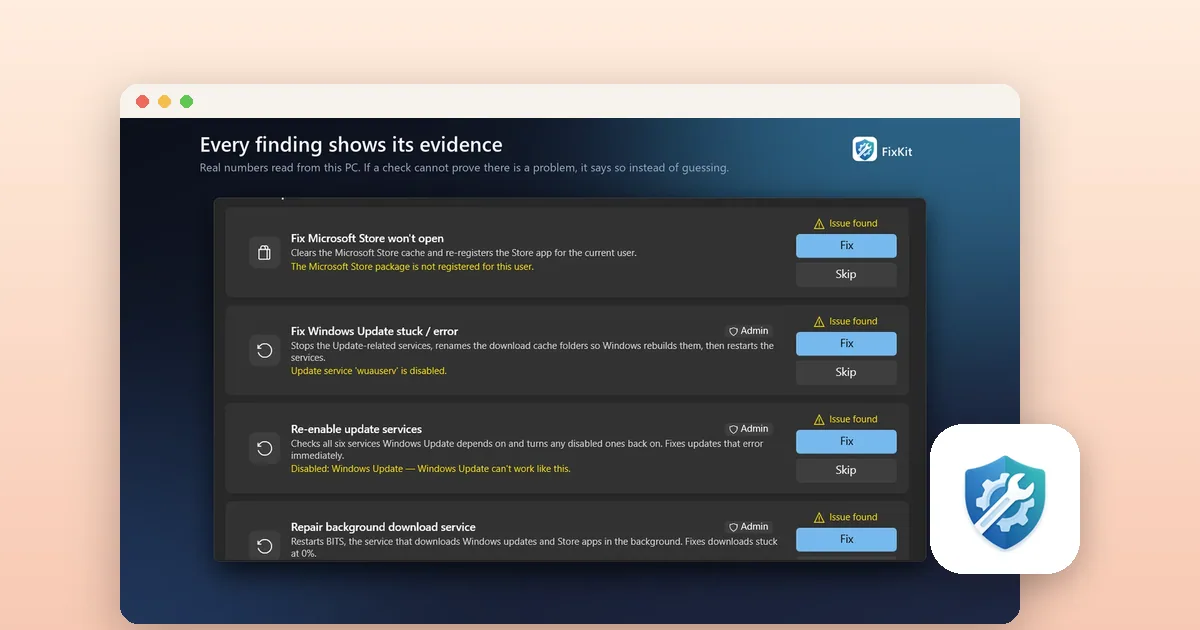
FixKit is a LoopOtter Windows repair app. If you prefer not to type commands, its Windows Update category includes repairs that reset update components, catroot2, BITS and the Update Orchestrator. Its listing says a restore point is created first.
On launch it runs a read-only health scan across 228 checks. Anything with a consequence explains itself before it runs, and every finding shows evidence from your PC. The app is free with an optional one-time Pro upgrade.
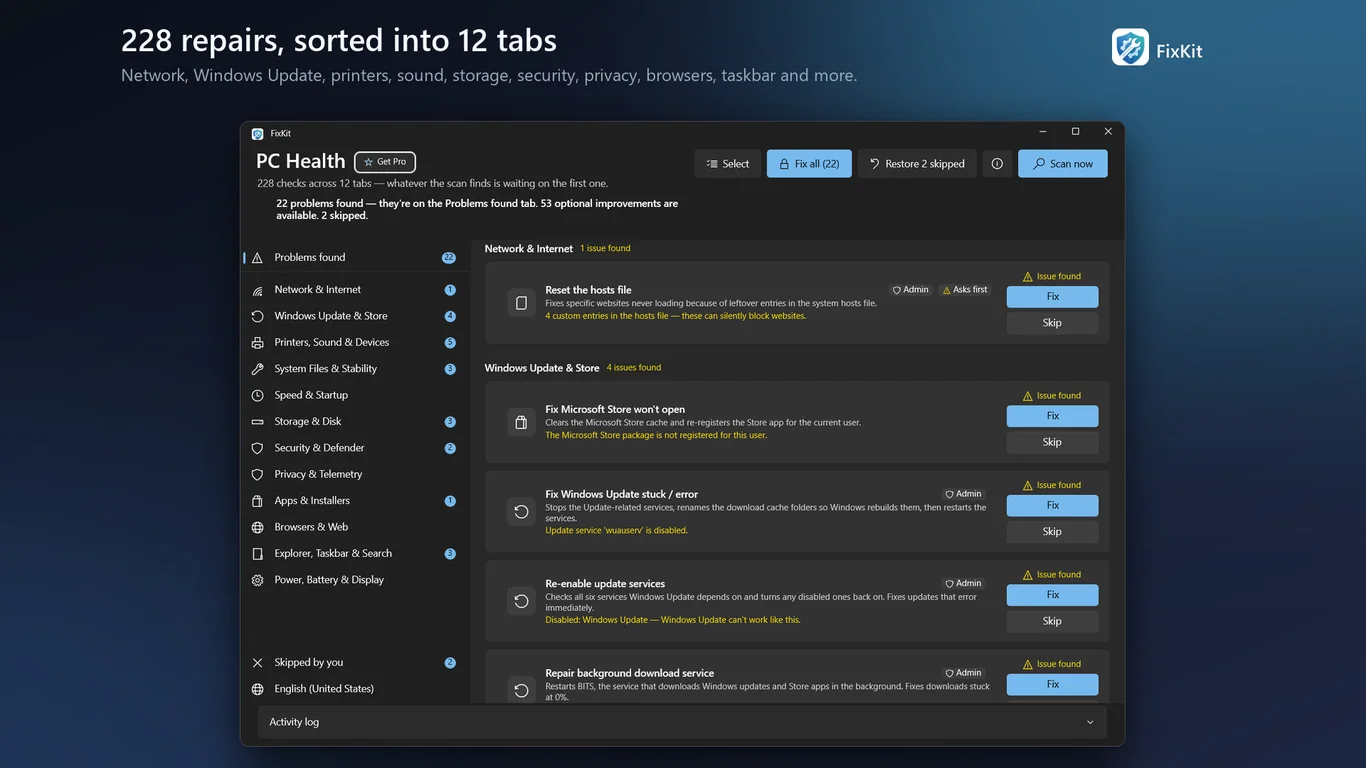
- Install FixKit from the Microsoft Store and open it. It scans your PC on launch.
- Open the Windows Update category.
- Select the repair you want, such as resetting update components, and read the explanation.
- Confirm and let it run, then restart your PC and check for updates.
Method 5: Install a stubborn update manually
When one cumulative update keeps failing, download its standalone installer from the Microsoft Update Catalog. Every update has a Knowledge Base (KB) number.
- Go to Settings > Windows Update > Update history and note the KB number of the failing update.
- Open catalog.update.microsoft.com in your browser.
- Search for the KB number and pick the version for your system, such as Windows 11 for x64-based Systems.
- Click Download, save the .msu file and double-click it to install.
- This bypasses the Windows Update client, so it helps when the client's local data is the problem.
Tools for this
FixKit — PC Repair Toolkit: Fix Windows Errors
Scan your PC for common Windows problems and fix them in one click. Free, with an optional Pro upgrade.
FAQ
Is it safe to rename the SoftwareDistribution folder?
Yes, once the update services are stopped. The folder holds temporary update downloads and history. Windows creates a new one the next time you check for updates.
What should I do if my PC is stuck on 'Updates are underway' during restart?
Wait at least 30 to 45 minutes, since large updates can take a while. If the screen is unchanged for over an hour, hold the power button for about 10 seconds to shut down. Windows usually rolls the failed update back on the next start.
Do I need to pay to use FixKit's Windows Update repairs?
FixKit is free to use and has an optional one-time Pro upgrade. Check the current Microsoft Store listing for exactly what Free and Pro include.
Why does DISM RestoreHealth fail with error 0x800f081f?
The error means DISM could not find the source files it needs to repair the component store. Connect to a stable internet connection, or point DISM at a Windows 11 ISO with the /Source option.