
How to Fix Wi-Fi Connected Without Internet on Windows 11
When Windows 11 shows Wi-Fi as "Connected, no internet" or "No internet, secured," your PC has joined the wireless router, but IP assignment, DNS, proxy settings, or your internet line is blocked. Check whether another device works on the same Wi-Fi, then renew your IP lease, flush DNS, and reset Winsock in Windows Terminal or run an automated check in FixKit.
Is the problem your Windows 11 PC or your router?
Before changing network settings on Windows, isolate whether the outage affects every device or only your PC. Spending twenty minutes resetting Windows adapters will not help if the modem lost its ISP signal.
- Connect a phone or second laptop to the same Wi-Fi network and try loading a web page.
- If no device can get online, unplug your modem and router for 30 seconds, plug them back in, and wait two minutes.
- If other devices work normally, disconnect from the Wi-Fi network in Windows 11 Quick Settings (Win+A), turn Airplane mode on for 10 seconds, turn it off, and reconnect.
- Check that your PC date and time are accurate in Settings > Time & language > Date & time, since wrong clocks break HTTPS connections.
How do you reset IP, DNS, and Winsock in Windows Terminal?
Stale DHCP leases, cached DNS errors, and corrupted Winsock entries are the most common local causes of "Connected, no internet" on Windows 11. Running Microsoft's built-in ipconfig and netsh commands clears them without erasing your saved Wi-Fi passwords.
- Right-click the Start button and select Terminal (Admin).
- Run ipconfig /release and then ipconfig /renew to request a fresh IP address from your router.
- Run ipconfig /flushdns to clear stale DNS entries.
- Run netsh winsock reset and netsh int ip reset to rebuild the Windows network stack.
- Restart your PC so the Winsock and TCP/IP resets take effect.
- If commands still fail, open Settings > Network & internet > Proxy and turn off Use a proxy server unless your workplace requires one.
When should you use Windows Network Reset?
Windows 11 includes a built-in Network reset page under Settings > Network & internet > Advanced network settings > Network reset. It removes and reinstalls all network adapters and sets networking components back to defaults.
Use this only as a last resort before blaming hardware, because it deletes saved Wi-Fi passwords, VPN profiles, and virtual switches, and forces a restart after five minutes.
How do you find broken DNS, proxy, or hosts file settings without typing commands?
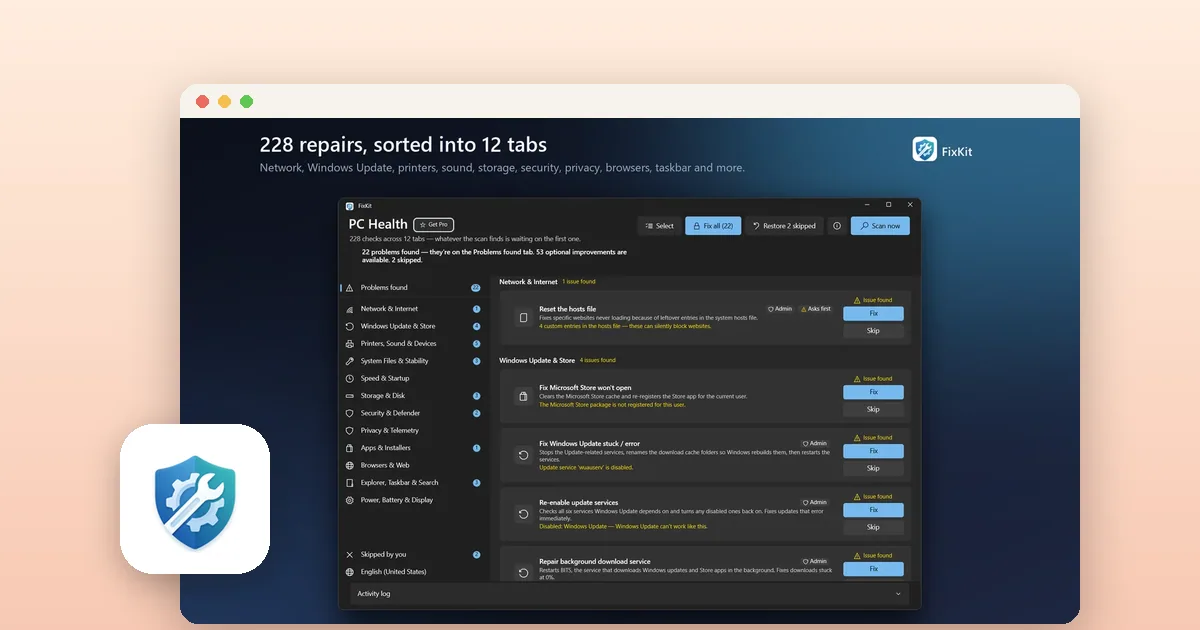
If you do not want to run terminal commands or guess whether a leftover hosts file entry, broken proxy, or stalled service is blocking traffic, FixKit checks your PC first. When you open FixKit, it runs 228 read-only checks without administrator rights and lists only real issues with plain-English evidence.
Its Network & Internet category covers flushing DNS, renewing IP addresses, Winsock and TCP/IP resets, broken proxy settings, custom hosts file entries, and adapter restarts. All 228 individual repairs are free and unlimited.
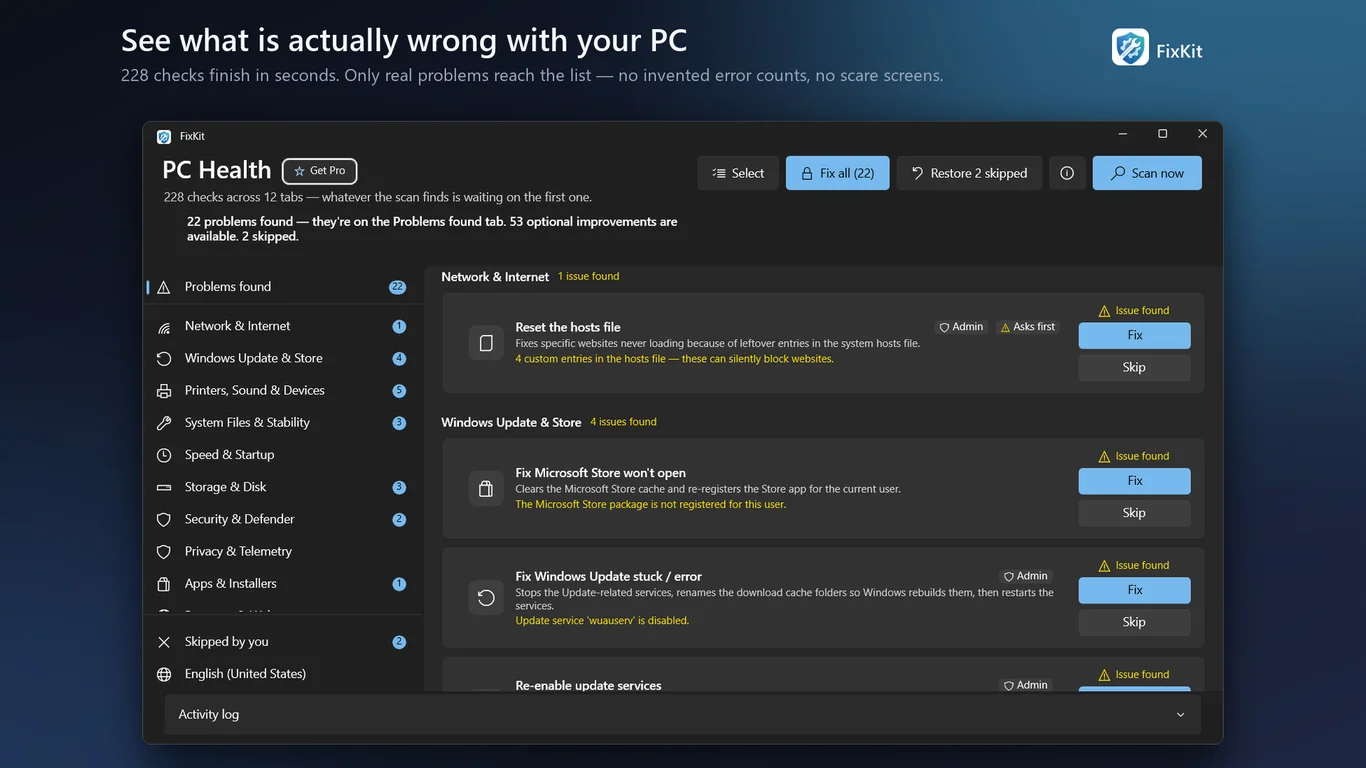
- Install FixKit from the Microsoft Store and open it to let the automatic read-only scan finish.
- Open the Problems found tab or select Network & Internet in the left sidebar.
- Read the yellow evidence line on any flagged card (such as custom entries in the hosts file or broken proxy settings) to see why it appeared.
- Click Fix on the repair card you want to run and approve the Windows administrator prompt when requested.
What safeguards run before FixKit changes network settings?
Repair tools should never change system files silently. FixKit keeps scans read-only, creates a Windows System Restore point before running any repair that requires administrator rights, and labels repairs that can change user behavior with an Asks first badge.
If a card has side effects—such as resetting custom entries in the Windows hosts file—it explains what will happen and waits for your confirmation. You can also click Skip on any card you want to leave untouched. An optional $4.99 USD one-time Pro upgrade adds Fix all batch execution with a single administrator prompt and activity log export.
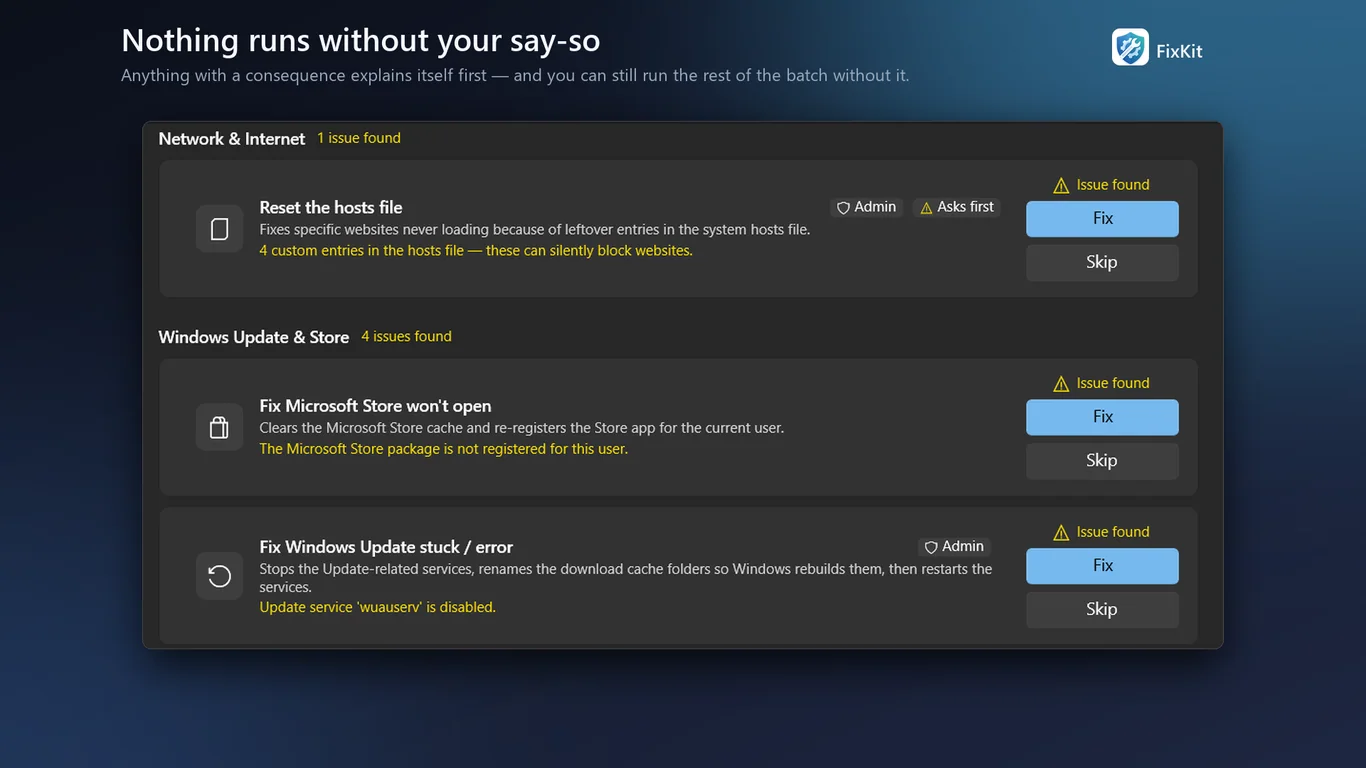
- Read-only scan: nothing changes until you press Fix.
- Restore point: created automatically before administrator-level repairs.
- No subscription: every individual repair card stays free.
Tools for this
FixKit — PC Repair Toolkit: Fix Windows Errors
Scan your PC for common Windows problems and fix them in one click. Free, with an optional Pro upgrade.
FAQ
Why does my Windows 11 laptop say Wi-Fi connected, no internet while my phone works?
That means your router and ISP line are working, so the block is on your Windows PC—most often a stale IP lease, broken DNS or proxy configuration, VPN leftovers, or corrupted Winsock settings.
Does netsh winsock reset delete my saved Wi-Fi passwords?
No. Running netsh winsock reset and ipconfig /flushdns keeps your saved Wi-Fi networks and passwords. Only the full Network reset option in Windows Settings erases saved Wi-Fi profiles.
Can FixKit run network repairs without wiping my PC?
Yes. FixKit uses documented Windows repairs such as netsh, ipconfig, and service restarts, creates a System Restore point before administrator repairs, and explains side effects before applying changes.
Are network repairs free in FixKit?
Yes. Scanning and all 228 repairs are free one card at a time. Optional FixKit Pro ($4.99 USD one-time) adds batch fixing and saving the activity log.