
How to Fix Microsoft Store Not Opening on Windows 11
To fix Microsoft Store not opening on Windows 11, clear the Store cache with wsreset.exe, run Repair and Reset under System components, and re-register the Store package if the app entry is missing. This guide walks through those built-in Windows fixes first, explains what causes blank or crashing Store launches, and shows how to diagnose the exact fault automatically.
How do I clear the Microsoft Store cache with wsreset.exe?
A stale Store cache often causes the window to flash and close immediately or spin indefinitely on launch. Windows includes a built-in reset command that wipes the local Store cache without removing installed apps or your Microsoft account.
Give the command roughly 30 seconds to finish. An empty Command Prompt window opens while it runs, then closes on its own and relaunches Microsoft Store.
- Press Win + R to open the Run dialog.
- Type wsreset.exe and press Enter.
- Wait for the blank command window to close automatically and see whether Microsoft Store opens.
- Restart your PC once if the Store window still freezes on the loading icon.
How do I repair or reset Microsoft Store in Windows Settings?
On Windows 11, Microsoft Store is listed under System components rather than Installed apps on newer builds. Running Repair first checks the app files without signing you out, while Reset clears local Store data and rebuilds its configuration.
Check your system clock and region while you are in Settings. An incorrect date, time, or time zone causes Store certificate checks to fail silently.
- Open Settings (Win + I), select System, and open System components (or Apps > Installed apps on older Windows 11 builds).
- Find Microsoft Store, click the three-dot menu, and choose Advanced options.
- Click Repair and test opening Microsoft Store.
- If Repair fails, return to the same screen, click Reset, and confirm.
- Open Time & language > Date & time and turn on Set time automatically and Set time zone automatically.
Which Windows services and PowerShell commands restore a broken Store package?
Microsoft Store depends on background services to start and download apps, especially Background Intelligent Transfer Service (BITS), Windows Update (wuauserv), and Microsoft Store Install Service (InstallService). If one of those services is disabled, clearing the cache will not fix the launch.
If the Store package itself became unregistered for your user profile, you can re-register it from PowerShell without wiping Windows. Expect red warning lines for apps that are currently open; you can ignore warnings about other packages while Microsoft.WindowsStore registers.
- Press Win + R, type services.msc, and press Enter.
- Double-click Background Intelligent Transfer Service, Windows Update, and Microsoft Store Install Service one by one, ensure Startup type is not Disabled, and click Start if stopped.
- Right-click Start, choose Terminal (Admin), and run: Get-AppxPackage -allusers Microsoft.WindowsStore | Foreach {Add-AppxPackage -DisableDevelopmentMode -Register "$($_.InstallLocation)\AppXManifest.xml"}
- Restart Windows and open Microsoft Store from the Start menu.
- Limit: if the Store files were stripped by a custom debloater script or system image, AppXManifest.xml may be missing on disk; in that case run DISM /Online /Cleanup-Image /RestoreHealth and sfc /scannow before re-registering.
How can I check which Store fault is actually happening without typing commands?
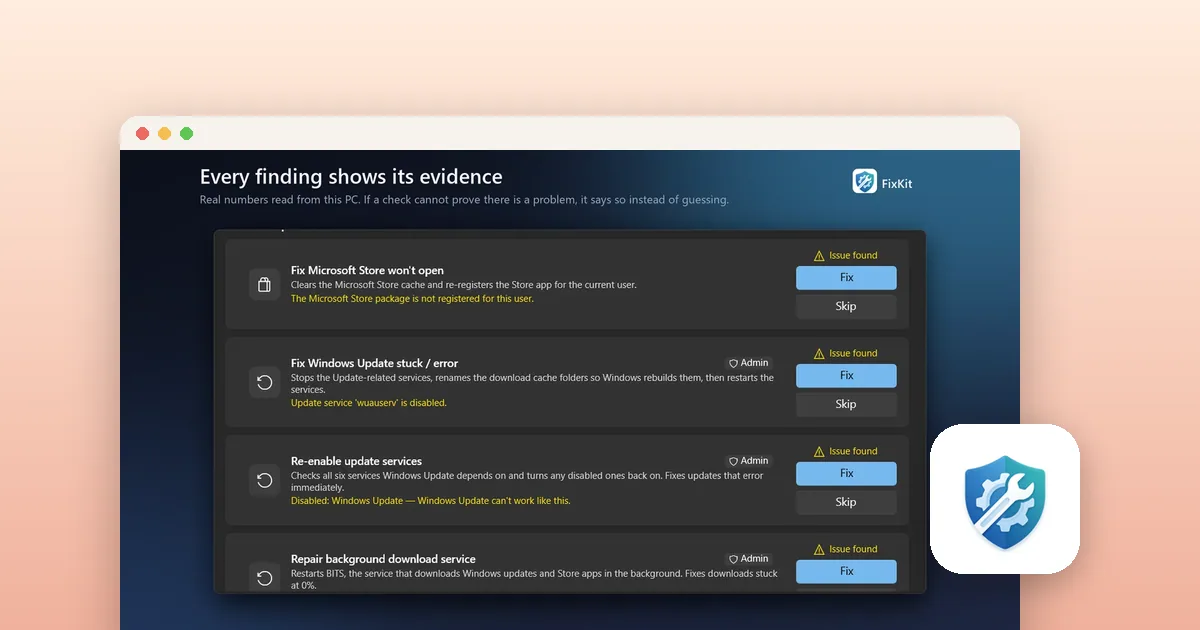
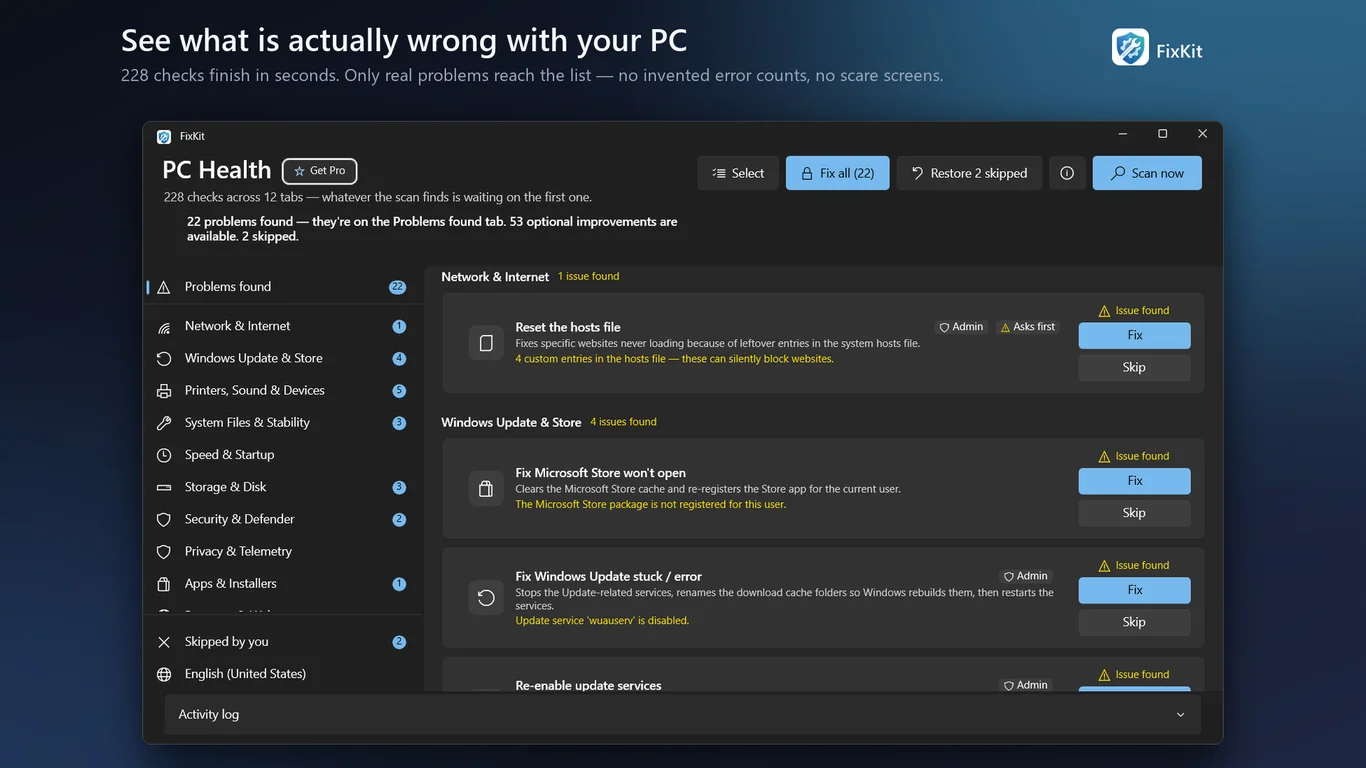
Instead of running through cache, service, and package fixes by guesswork, you can run a read-only check first to see which component broke. FixKit runs 228 read-only diagnostics on launch without administrator rights and lists only the issues it finds with plain evidence.
In FixKit's Windows Update & Store category, the Fix Microsoft Store won't open repair clears the Store cache and re-registers the Store app for the current user. Alongside it, separate cards detect disabled Windows Update services, stopped BITS download services, or a leftover hosts file blocking connections.
- Open FixKit and wait a few seconds for the automatic scan to finish.
- Check the Problems found tab (or open Windows Update & Store on the left).
- Read the yellow evidence line under Fix Microsoft Store won't open, such as whether the Store package is unregistered for your user.
- Click Fix on the individual card you want to run, and approve the administrator prompt if a service repair requests it.
- Free vs Pro: scanning and running any of the 228 repairs one card at a time stay free with no subscription; FixKit Pro ($4.99 one-time) adds batch fixing and log export.
- Recovery: FixKit creates a Windows restore point before repairs that require administrator rights and explains any side effects before running.
What should I check before running system-level Store repairs?
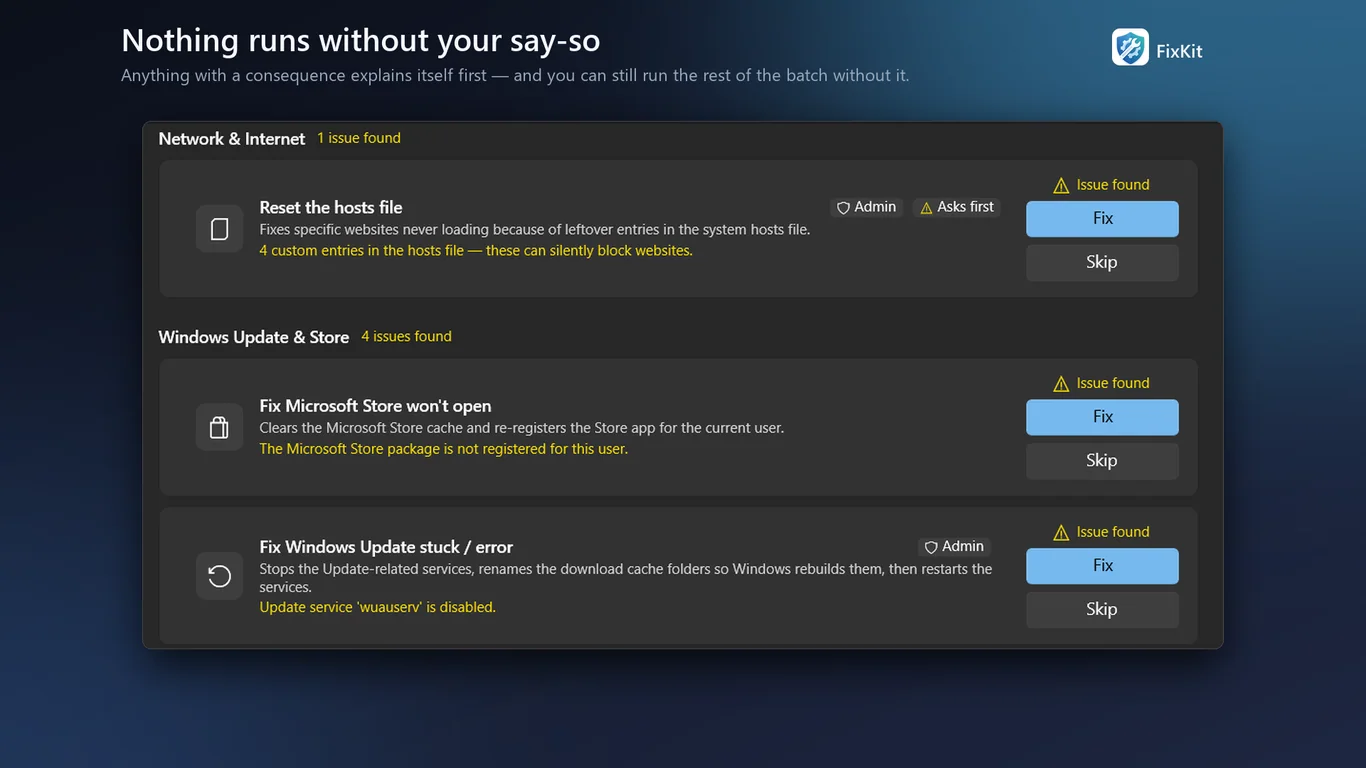
Any repair that modifies system services, the hosts file, or update folders changes shared Windows configuration. Read what a tool will change before approving elevation, especially if you use custom hosts rules for local development or work VPNs.
In FixKit, repairs that carry consequences display an Asks first badge and let you skip that card while still fixing the rest.
- Check whether a proxy, VPN, or custom hosts file entry is blocking Microsoft servers before resetting network settings.
- Make sure a restore point exists before running administrative repairs so you can roll back.
- Test opening Microsoft Store immediately after clearing the cache and re-registering so you know which step resolved it.
Tools for this
FixKit — PC Repair Toolkit: Fix Windows Errors
Scan your PC for common Windows problems and fix them in one click. Free, with an optional Pro upgrade.
FAQ
Does running wsreset.exe delete my installed Microsoft Store apps?
No. wsreset.exe clears only the Microsoft Store cache and temporary store data. Your installed apps, games, and personal files stay untouched.
Where is Microsoft Store Reset located in Windows 11 Settings?
In current Windows 11 builds, open Settings > System > System components, click the three-dot icon next to Microsoft Store, and select Advanced options to find Repair and Reset. On older builds, check Apps > Installed apps.
Why does Microsoft Store open and close immediately?
This usually happens when the Store local cache is corrupted, the Store Appx package registration is broken for your Windows account, or a required background service such as InstallService or BITS is stopped.
Is FixKit free for fixing Microsoft Store?
Yes. Scanning all 228 checks and applying repairs one card at a time, including Fix Microsoft Store won't open, are free. FixKit Pro is an optional $4.99 one-time upgrade for batch fixing and saving activity logs.