
How to Disable the Windows Key or Caps Lock While Gaming on Windows 11
To disable the Windows key or Caps Lock while gaming on Windows 11, check your keyboard's built-in Win-Lock shortcut (often Fn + Win) first, use PowerToys Keyboard Manager or a visual key remapper for standard games, or write a system-wide Windows Scancode Map registry entry for titles with kernel anti-cheat. This guide explains how each method works, why hook-based remappers fail in some multiplayer games, and how to turn normal keys back on quickly.
Can I disable the Windows key without installing software?
Many mechanical and gaming keyboards include a hardware Win-Lock switch or shortcut, commonly Fn + Win or a dedicated lock button. When enabled, the keyboard firmware itself stops sending the Windows key signal until you toggle it off.
If your laptop or office keyboard has no hardware lock, Windows 11 has no single toggle in Settings to disable the Windows key or Caps Lock. You will need either a remapping utility or a registry Scancode Map.
- Check your keyboard's function row or Windows key for a padlock icon and try pressing Fn + Win.
- If you only want to avoid switching apps accidentally during notifications, open Settings > System > Focus or Gaming > Game Mode and turn Game Mode on (note: Game Mode reduces background updates, though it does not block the Windows key itself).
How do I use PowerToys or Registry Scancode Map to disable keys?
Microsoft PowerToys includes a free Keyboard Manager utility that uses a low-level Windows keyboard hook. It lets you remap Caps Lock to Escape or Control, or disable the Left Win key, and supports app-specific shortcuts.
For games with kernel-level anti-cheat such as Valorant (Vanguard) or Easy Anti-Cheat titles, low-level keyboard hooks are often blocked. In those games, the Windows Registry Scancode Map key (HKEY_LOCAL_MACHINE\SYSTEM\CurrentControlSet\Control\Keyboard Layout) remaps or disables keys at the Windows input driver level without running a background hook, though it applies to all apps and requires signing out or restarting.
- For standard apps and single-player games: install Microsoft PowerToys, open Keyboard Manager, click Remap a key, pick Win (Left) or Caps Lock, and select Disable.
- For system-wide remaps without a hook: back up your registry first, then add a binary Scancode Map value under HKEY_LOCAL_MACHINE\SYSTEM\CurrentControlSet\Control\Keyboard Layout and sign out or restart Windows.
- Limit of PowerToys: relies on a background hook, which kernel anti-cheat drivers frequently ignore or block.
- Limit of raw Registry edits: a single mistyped hex byte in Scancode Map can disable the wrong key, and changes apply globally until removed and restarted.
How do I disable Win or Caps Lock only for specific games?
If you still use the Windows key for shortcuts like Win + E or Win + Shift + S on the desktop, turning it off permanently gets in the way. Using per-app profiles keeps your normal keyboard layout everywhere else and disables Win or Caps Lock only when a game window is active.
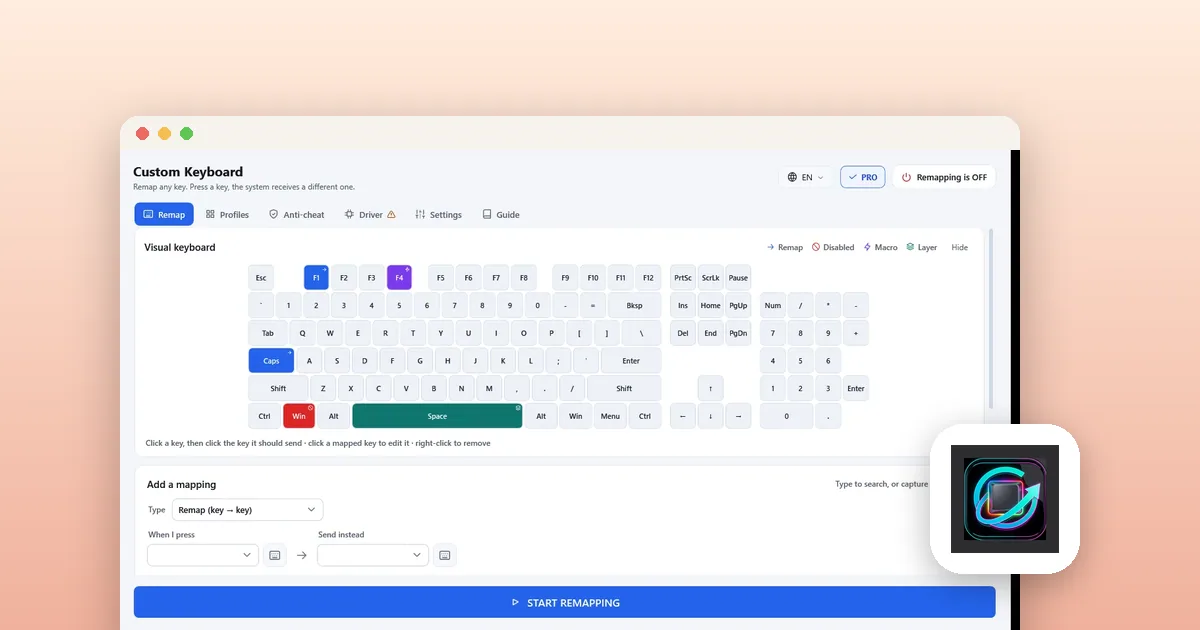
Custom Keyboard is a free Windows key remapper with a visual keyboard where you click a key to remap or disable it, and press Ctrl + Alt + F12 as a panic shortcut to turn remapping off immediately. Its optional Pro upgrade ($4.99 one-time) adds automatic per-app profiles that detect active game processes.
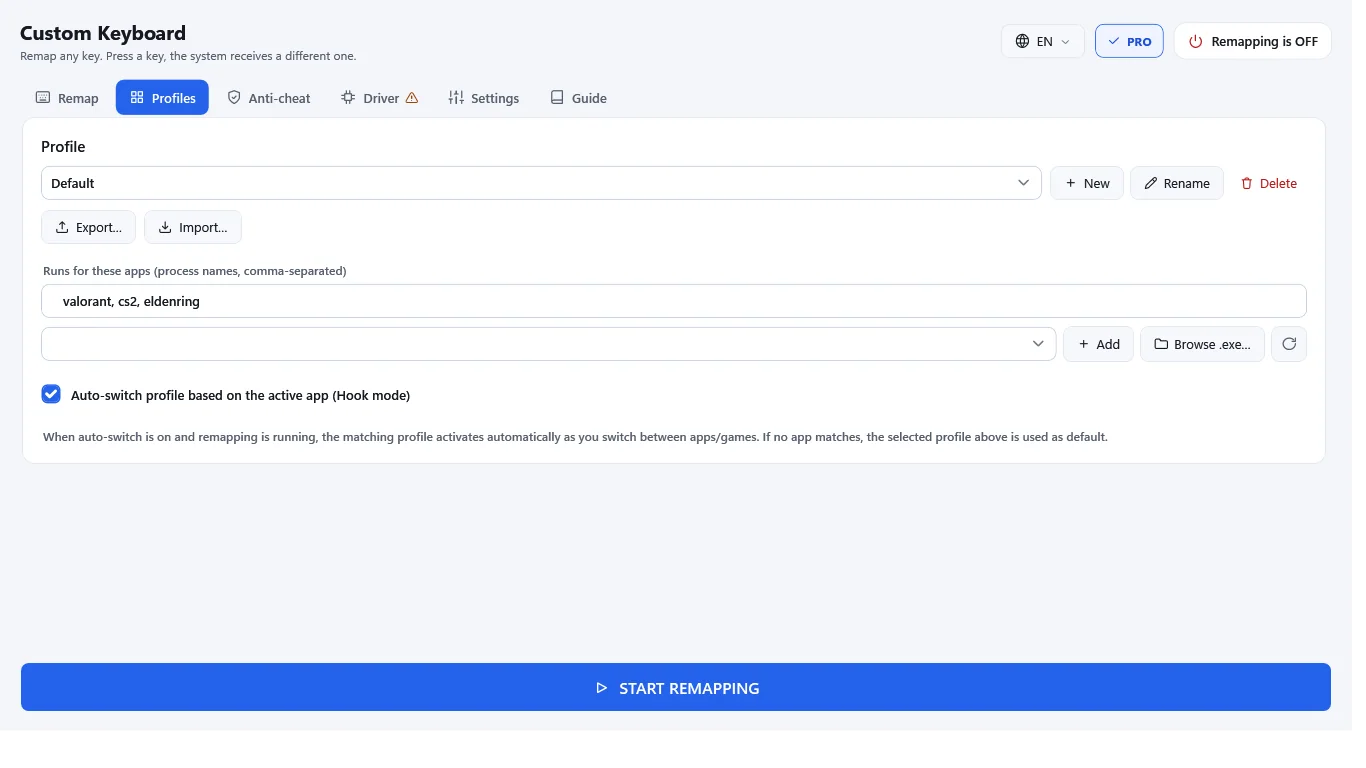
- Open Custom Keyboard and go to the Profiles tab.
- Create or select a gaming profile and disable Win and Caps on the visual keyboard.
- Under Runs for these apps, enter process names (such as valorant, cs2, or eldenring) or click Browse .exe to pick the game executable.
- Check Auto-switch profile based on the active app (Hook mode) and click START REMAPPING.
- Free vs Pro: visual 1-to-1 key remapping, disabling keys, system tray startup, profile export, and the Ctrl+Alt+F12 panic key are free forever. Per-app auto-switching, macros, QMK-style layers, Anti-cheat mode, and Driver mode are part of Custom Keyboard Pro ($4.99 one-time).
What works in games with Vanguard or Easy Anti-Cheat?
When a competitive game blocks hook-based remapping, writing a clean Windows Scancode Map is the safest way to disable the Windows key or swap Caps Lock without running an active hook. Instead of hand-editing hex bytes in Regedit, Custom Keyboard Pro provides an Anti-cheat tab that writes and removes the Scancode Map entry for your current profile.
Keep the tradeoffs in mind: as noted inside Custom Keyboard's Anti-cheat screen, Scancode Map mode supports 1-to-1 key changes only, applies across all apps, needs administrator approval, and takes effect after you sign out or restart Windows.
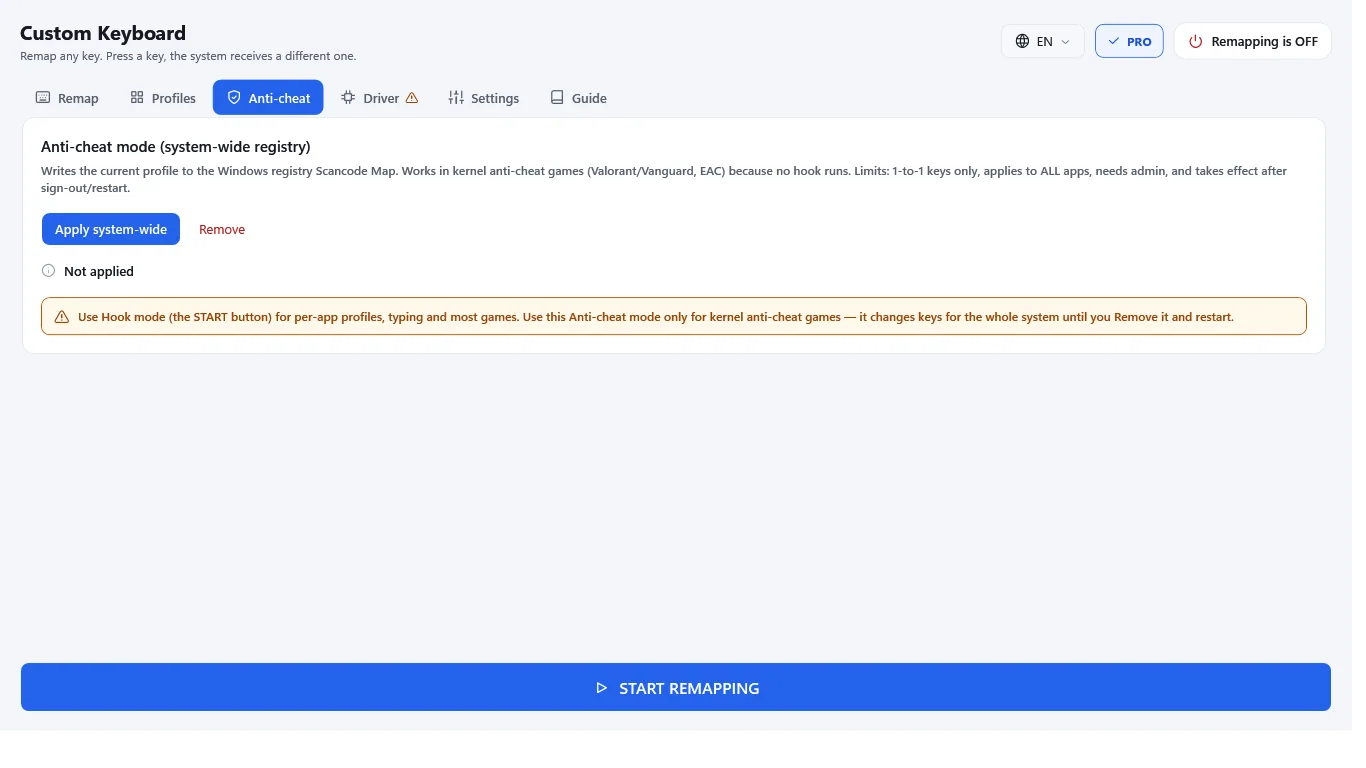
- Set up your 1-to-1 remaps or disabled keys (such as Win disabled and Caps remapped) in your Custom Keyboard profile.
- Open the Anti-cheat tab and click Apply system-wide.
- Approve the administrator prompt, then sign out or restart Windows so the Scancode Map takes effect.
- When you want normal keys back for everyday work, return to the Anti-cheat tab, click Remove, and restart.
- Privacy note: Custom Keyboard processes keystrokes locally and does not record or transmit what you type.
Tools for this
Custom Keyboard - Remap any key
Visual key remapper for Windows to swap keys, disable keys, and trigger macros without accounts or telemetry.
FAQ
Can disabling the Windows key trigger game anti-cheat?
Hardware keyboard locks and the Windows Registry Scancode Map do not inject hooks or macros, so they avoid hook-based conflicts. Hook-based software tools are often blocked by Vanguard or EAC, while macros that automate multi-key sequences can violate game rules.
How do I re-enable the Windows key if I get stuck?
If you use Custom Keyboard in Hook mode, press the built-in panic shortcut Ctrl + Alt + F12 to turn remapping off immediately. If you applied a system-wide Scancode Map, click Remove in the Anti-cheat tab (or delete the Scancode Map registry value) and sign out or restart.
What is the difference between Hook mode and Anti-cheat mode?
Hook mode works immediately without restarting and supports per-app profiles, macros, and layers, making it best for typing and most games. Anti-cheat mode writes 1-to-1 key changes to the Windows registry Scancode Map so no background hook runs, which requires a restart and affects all apps.
Is Custom Keyboard free to disable Caps Lock or the Windows key?
Yes. Disabling keys and remapping one key to another on the visual keyboard are free forever. Per-app profile switching, macros, layers, and one-click Anti-cheat Scancode Map mode are optional Pro features ($4.99 one-time).