
How to Create Text Shortcuts That Expand as You Type on Windows 11
To make short codes expand into full text as you type on Windows, you need a text expander: you save a snippet, give it an abbreviation such as ;sig, and the program replaces the abbreviation wherever you type. Windows 11 has no system-wide version of this, so this guide covers the built-in partial options and how to set up a real expander.
What can Windows 11 do on its own?
Windows itself cannot swap an abbreviation for longer text in every app. You do have a few partial tools, each with limits.
- Clipboard history (Win+V): you can pin items so they stay after a restart, then paste them from the list. It is not typed by an abbreviation, so it takes several steps each time.
- Microsoft Word AutoCorrect: you can add entries that replace a short word with longer text, but only inside Office apps that use it.
- Gmail templates and Outlook quick parts: useful for email, but they only work in that one program.
- Power Automate for desktop: it can automate text entry, but you start a flow yourself instead of just typing a short code.
What is a text expander and when is it worth using?
A text expander watches what you type in the background. When it sees one of your abbreviations, it deletes it and inserts the saved text. It works in browsers, chat apps, mail and editors, because it acts on what you type, not on one program.
It pays off when you retype the same things: a signature, a shipping address, a support reply, an interview invite, a code review comment, or meeting notes with the date at the top.
How do I choose good abbreviations?
A good abbreviation is short, easy to remember and unlikely to appear in normal writing. Starting every code with a symbol such as a semicolon solves most of that, because ;sig or ;addr is not a real word.
Keep a consistent pattern, for example ;thx for a thank-you reply and ;ooo for out of office. Avoid abbreviations that are prefixes of each other, since they can trigger too early.
How do I set up text shortcuts with SnapText Expander?
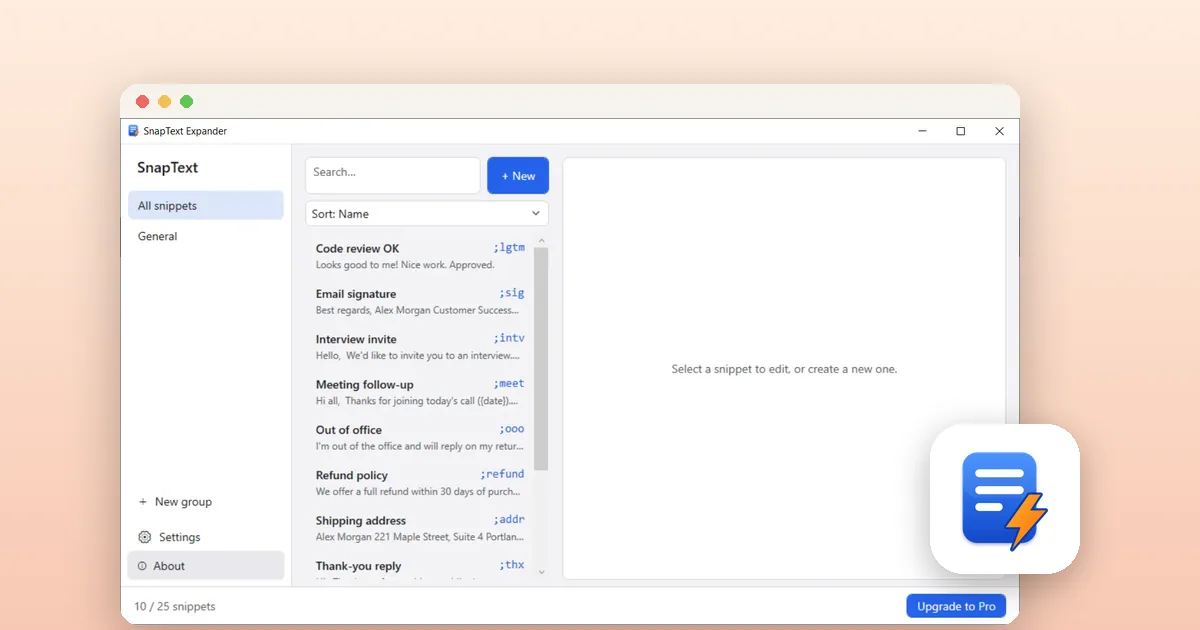
SnapText Expander is a free, offline text expander for Windows from the Microsoft Store. The free version includes up to 25 snippets.
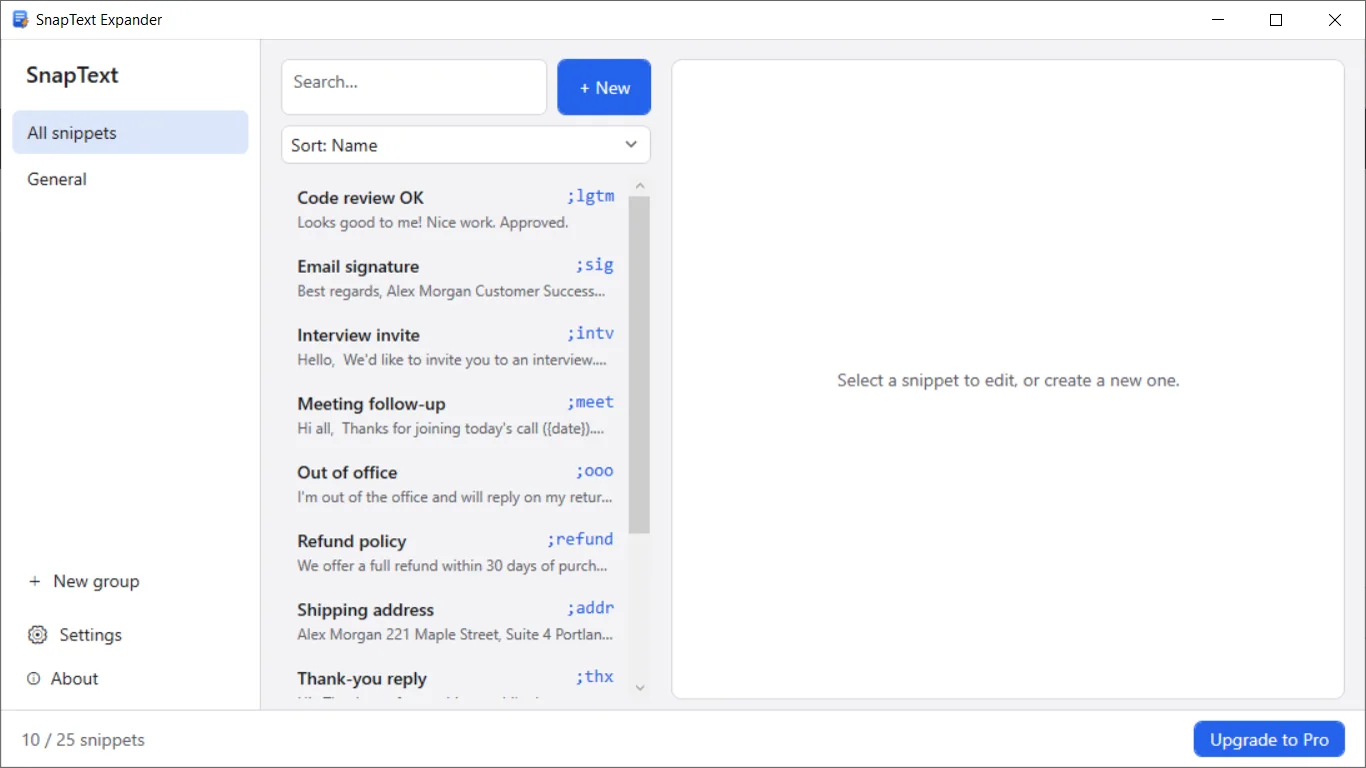
- Install SnapText Expander from the Microsoft Store and open it.
- Click New to create a snippet and give it a name.
- Type the abbreviation, for example ;sig.
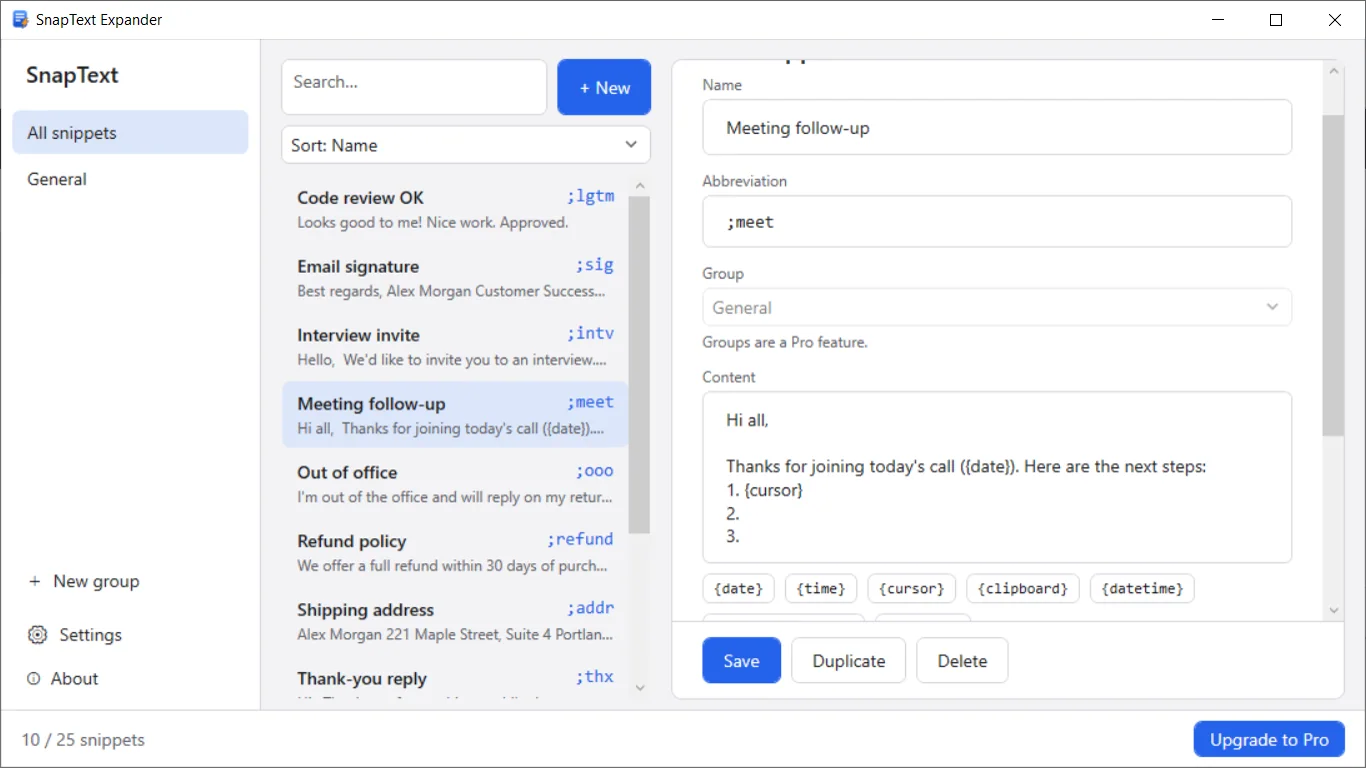
- Write the full text in the Content box. Use {date} or {time} to insert the current date or time, and {cursor} to place the caret where you want to keep typing.
- Click Save.
- Go to any app, type the abbreviation, and watch it turn into your text.
How do I use dates and cursor placement in a snippet?
Variables make one snippet reusable. In a meeting follow-up, {date} fills in today's date and {cursor} leaves the caret at the first numbered item, so you can start typing the next steps right away.
The Pro upgrade adds more variables, such as {clipboard} and date math, but the basic ones are in the free version.
What should I change if expansion misbehaves?
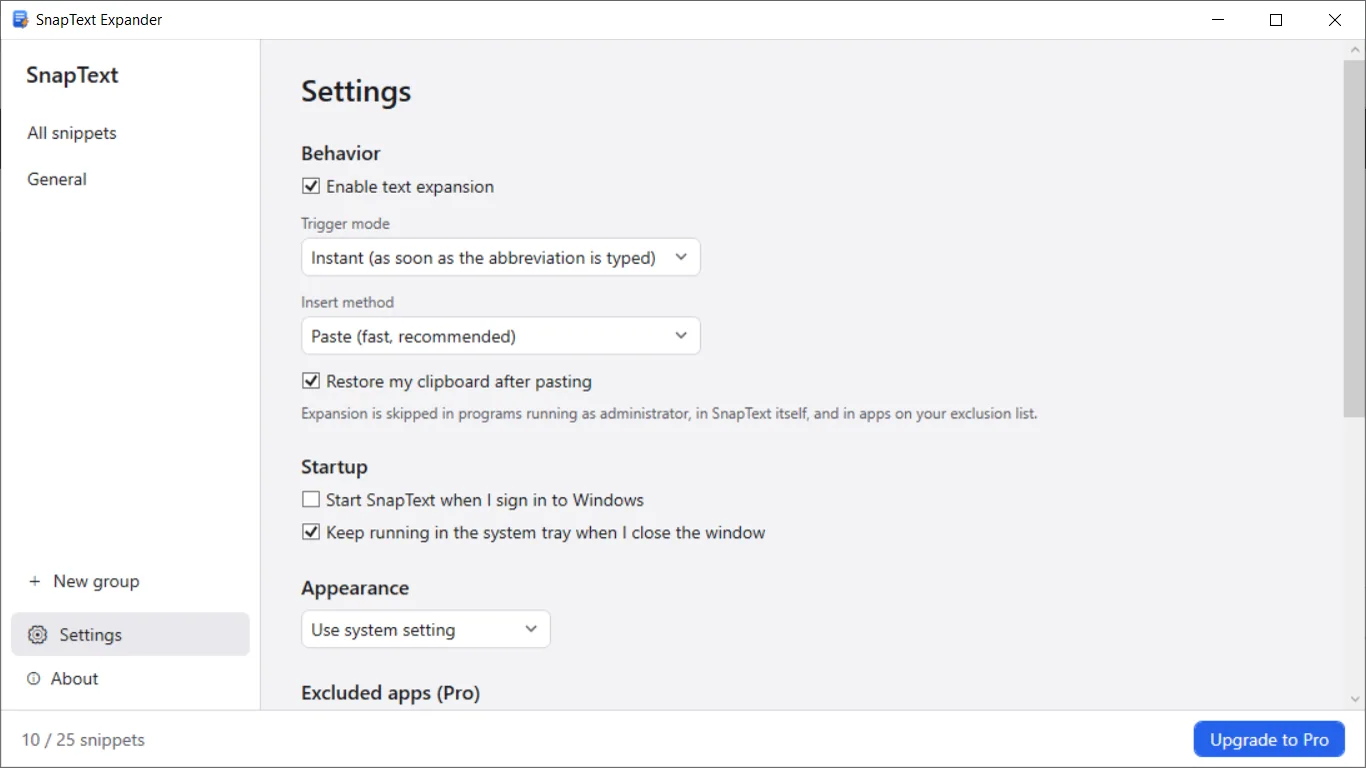
Open Settings. Trigger mode decides whether text expands the moment you finish the abbreviation, or only after you press Space, Enter or Tab. If snippets fire when you did not mean them to, use the delimiter option.
Insert method has two choices. Paste is fast and is the recommended default. Type-each-character mode is for apps that block pasting. The setting that restores your clipboard afterward keeps whatever you had copied.
Expansion is skipped in programs running as administrator, which is a limit of how Windows separates privileges, and in apps on your exclusion list (Pro).
Is it safe to use a program that watches my typing?
It is a fair question, since a text expander has to see your keystrokes. Look for a tool that says what it stores. SnapText Expander works offline, has no account and collects no data. It keeps only the last few characters in memory to spot your abbreviations, and keystrokes are never saved, logged or sent anywhere.
Whatever tool you pick, do not store passwords or card numbers as snippets.
Tools for this
SnapText Expander
Offline text expander for Windows. Expand short abbreviations into saved text and dates across any desktop app.
FAQ
Does Windows 11 have a built-in text expander?
No. Windows has clipboard history with pinned items, and apps like Word have their own AutoCorrect, but there is no system-wide feature that replaces a typed abbreviation in every app.
How do I make ;sig type my full email signature?
Create a snippet in a text expander, set the abbreviation to ;sig, and put your signature in the content. Then type ;sig in any app and it is replaced with the full text.
Is SnapText Expander free?
Yes, the free version includes up to 25 snippets. An optional Pro upgrade is a one-time purchase with no subscription.
Why does my text expander not work in some programs?
Programs running as administrator are usually skipped, and some apps block pasting. Switch to type-each-character mode in Settings for the second case.
Does a text expander need the internet?
Not necessarily. SnapText Expander works fully offline, with no account and no cloud, and snippets stay on your PC.