
How to Convert HEIC to JPG in Bulk on Windows 11 (Without Uploading Photos)
To convert many HEIC photos to JPG on Windows 11, install the free HEIF Image Extensions so Windows can read them, then use a batch tool: a script, or an offline converter where you drop in a folder and choose JPG. Opening and saving one by one in Photos or Paint works, but it is slow for more than a handful of files.
Why do iPhone photos come as HEIC?
HEIC (High Efficiency Image Container) is the default image format used by Apple iPhones and iPads because it preserves high dynamic range and sharpness at roughly half the file size of an equivalent JPG.
The primary drawback is compatibility across non-Apple devices. Many desktop programs, online government forms, photo print kiosks, and older Windows applications cannot open .heic files without specialized codecs.
Windows 11 does not ship with native bulk conversion capabilities out of the box, requiring either built-in extensions, command-line scripts, or dedicated batch converters.
- HEIC provides efficient compression but lacks universal compatibility outside the Apple ecosystem.
- Windows 11 requires dedicated codecs to view HEIC thumbnails in File Explorer.
- Bulk conversion creates standard JPG copies while preserving your original HEIC masters.
How do I make Windows 11 open HEIC files?
Before converting HEIC images on Windows 11, you must ensure that File Explorer and the Windows graphics subsystem can decode the HEIF container format.
Many third-party desktop tools rely directly on Windows codecs to read Apple photo files, making this installation step essential.
- Open the Microsoft Store on your Windows 11 PC.
- Search for 'HEIF Image Extensions' published by Microsoft Corporation and click Install.
- If your iPhone photos include Live Photos or were captured in high-efficiency video formats, also install 'HEVC Video Extensions' from the Store.
- Restart File Explorer (or sign out and back in) to refresh shell thumbnail caches.
- Confirm that .heic files now display proper photo thumbnails instead of generic blank file icons.
- HEIF Image Extensions enables native thumbnail generation and Photos app decoding.
- Installing the official codec ensures third-party offline utilities read image headers properly.
How do I convert a few HEIC photos to JPG with built-in apps?
If you only have one or two photos to convert, built-in Windows 11 apps such as Microsoft Photos or Microsoft Paint can complete the task without downloading additional tools.
- Double-click your HEIC photo to open it inside the default Windows Photos app.
- Click the three horizontal dots (...) in the top toolbar to open the options menu.
- Select 'Save as' (or press Ctrl+S).
- In the 'Save as type' dropdown menu, change the format from 'HEIC (*.heic)' to 'JPG (*.jpg; *.jpeg)'.
- Choose your destination folder and click Save.
- Repeat this manual export sequence individually for each remaining image.
- Best for: Individual photos or urgent one-time conversions.
- Limitation: Impractical for processing vacation albums or large photo backups.
What are the options for converting a whole folder?
When dealing with hundreds of photos transferred from an iPhone or digital camera, manual saving becomes tedious. Several batch approaches exist on Windows 11.
Whichever method you choose, always retain your original HEIC files until you have verified the resolution and color quality of the generated JPG copies.
- PowerShell and ImageMagick scripts: Free, powerful, and customizable, but requires familiarity with terminal commands and can fail if file paths contain special characters.
- Online file converters: Quick for casual files, but uploads your personal photos to third-party web servers with privacy concerns, file size limits, and queue delays.
- Offline desktop converters: Drag in whole folders and convert files locally using your PC's multi-core CPU without internet access or cloud storage risks.
How do I batch convert with PicForge?
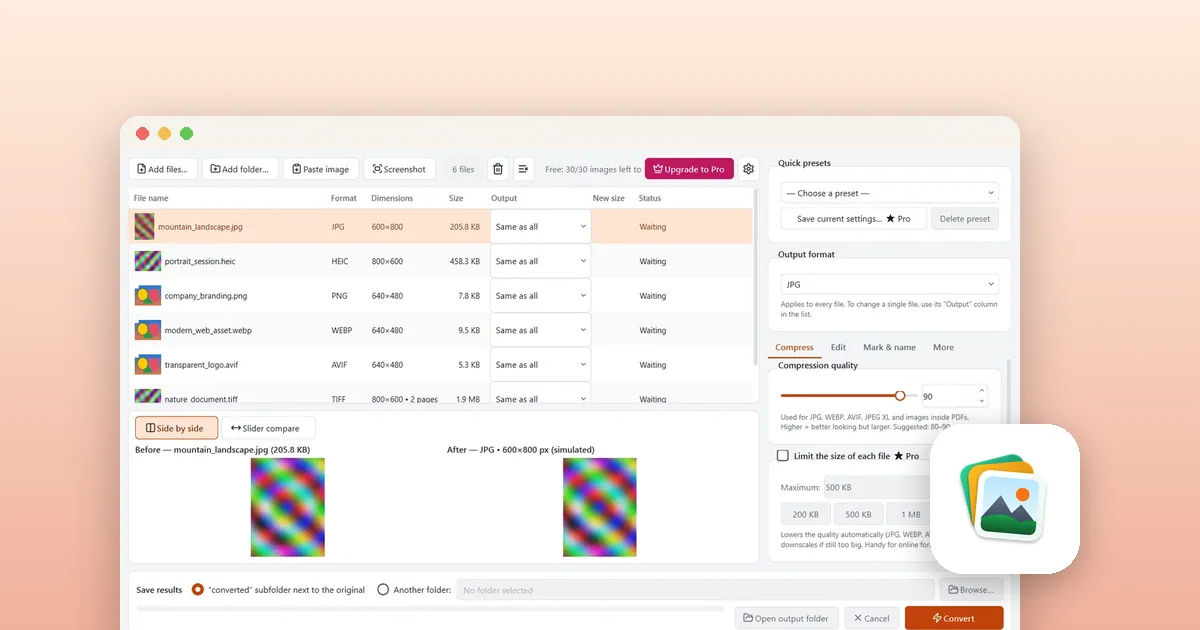
PicForge is a dedicated Windows image converter designed by LoopOtter to convert and compress large batches of photos offline.
The app reads HEIC, AVIF, RAW, PNG, WebP, TIFF, SVG, and PDF files, converting them into standard JPG or PNG formats. It runs 100% locally with zero cloud uploads, no account registration, and no ads. Original photos remain untouched in their original folders.
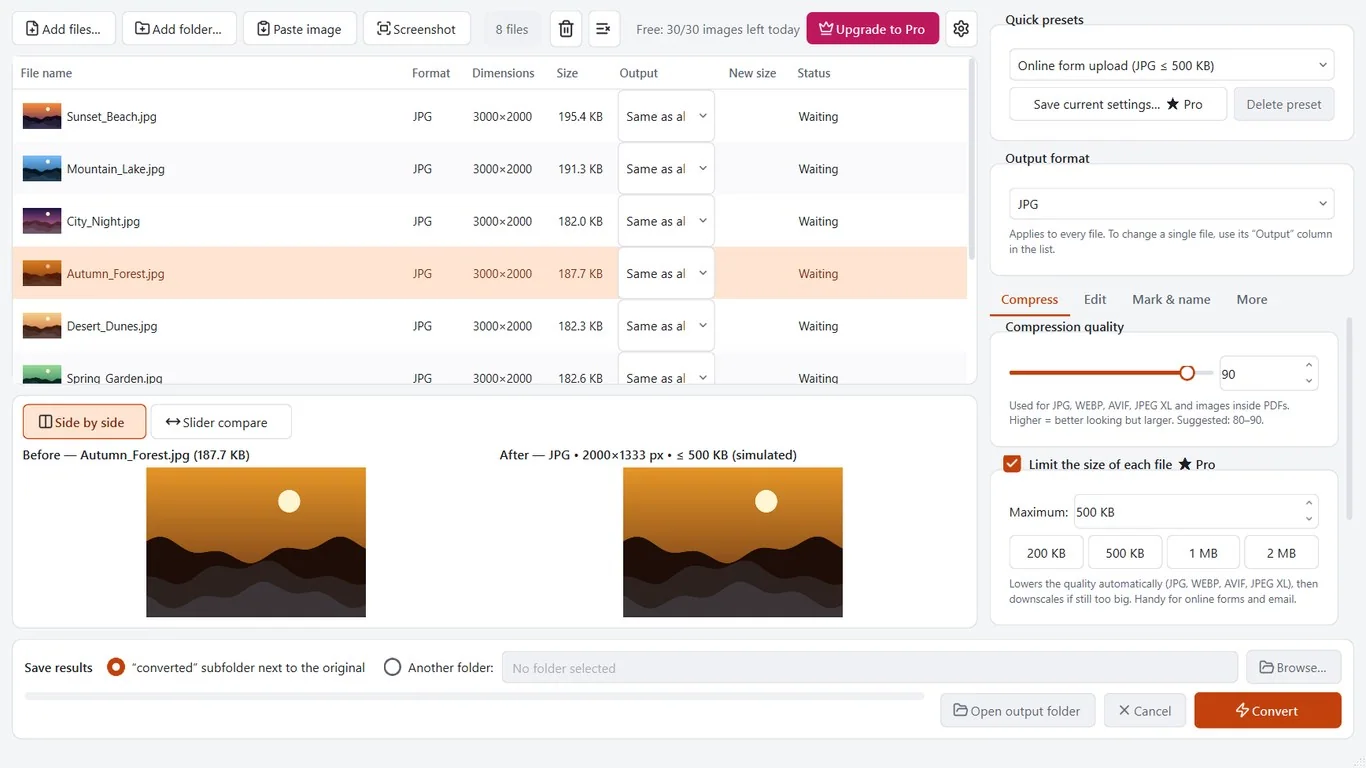
- Install PicForge free from the Microsoft Store and launch the app.
- Drag and drop your HEIC photos or an entire folder into the main window.
- Select 'JPG' as the target format, or choose a pre-configured output preset for web, email, or social media.
- Adjust the target quality slider to balance visual clarity with storage savings.
- Review the live file size estimate, then click 'Convert'.
- Converted JPG files are saved immediately into a designated subfolder alongside your originals.
- Multi-core batch engine: processes dozens of photos concurrently.
- Interactive comparison: inspect original HEIC vs converted JPG quality at 100% zoom.
- Privacy-focused: files never leave your PC and no network connection is required.
- Free edition converts up to 30 photos per day; optional one-time Pro removes all limits.
How can I make the JPG files smaller or remove location data?
When sharing photos online or emailing attachments, smaller file sizes and location privacy are paramount.
Smartphones embed detailed metadata into every photo, including GPS coordinates, camera models, and capture timestamps. PicForge allows you to strip this private EXIF data automatically during the batch conversion process.
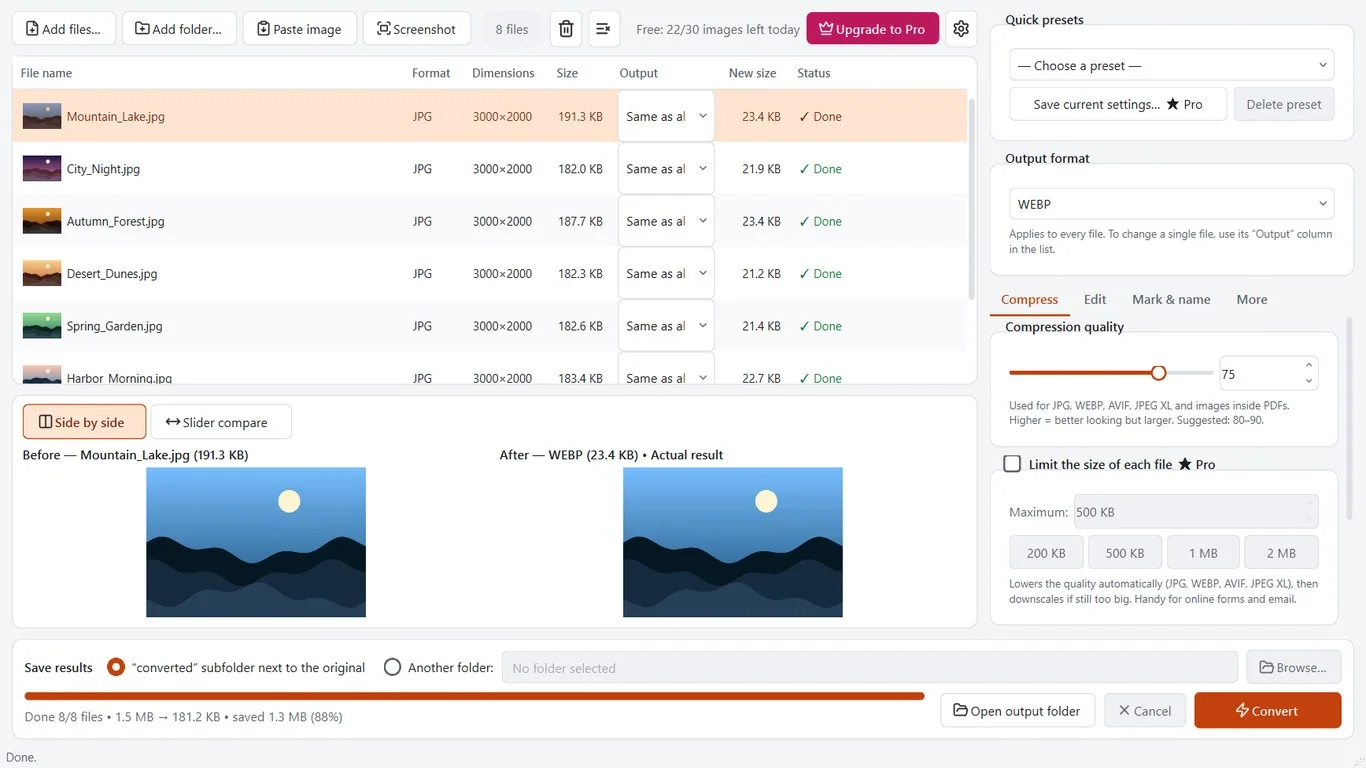
- In PicForge, locate the 'Presets & Advanced Settings' tab on the right panel.
- Enable the 'Strip EXIF metadata' toggle to remove GPS location and camera tags.
- Select a resize option (by percentage or specific maximum pixel width/height) if you need smaller dimensions for web publishing.
- Set your desired JPG quality level between 80% and 90% for optimal balance between visual fidelity and small file size.
- Click Convert to export lightweight, privacy-cleared JPG files.
- Strip GPS location data before posting photos to social media or sending to clients.
- Proportional resizing prevents image distortion while drastically cutting email attachment sizes.
Tools for this
PicForge – Batch Image Converter & Compressor
Batch convert, compress, and resize photos offline on Windows with instant preview and zero cloud uploads.
FAQ
Can Windows 11 convert HEIC to JPG in bulk by itself?
Windows 11 does not feature a native one-click bulk conversion tool. Users must either manually resave individual photos in Microsoft Photos or Paint, write custom PowerShell command scripts, or utilize a dedicated offline batch utility.
Why can't Windows 11 open my HEIC photos?
Windows requires the official HEIF Image Extensions codec from the Microsoft Store to decode HEIC file containers. Once installed, File Explorer and Photos display HEIC files normally.
Is it safe to use online HEIC converters?
Online web converters upload your files to remote third-party servers, creating security and privacy risks for personal family albums or sensitive documents. An offline desktop tool processes files locally without an internet connection.
Will converting HEIC to JPG reduce photo quality?
Because JPG is a lossy compression format, a minor degree of compression occurs. Using a high quality setting (85-95%) ensures differences remain indistinguishable to the human eye while maintaining broad compatibility.
Is PicForge free for batch conversion?
Yes. PicForge offers free batch conversion for up to 30 images per day with no watermarks or accounts. An optional one-time Pro upgrade unlocks unlimited daily conversions and custom file naming rules.