
How to Auto Click in a Background Window on Windows 11 Without Moving Your Mouse
To auto click in a background window on Windows 11 without moving your mouse, you need a tool that sends click messages straight to one chosen window instead of moving the real cursor. Windows has no built-in auto clicker, so this guide explains how background clicking works, which apps ignore it, and how to set it up step by step.
Does Windows 11 have a built-in auto clicker?
No. Windows 11 has no setting that repeats mouse clicks for you. Mouse Keys lets you move the pointer with the number pad, but it is an accessibility feature, not a repeating clicker.
If you only need a repeated task now and then, Microsoft's Power Automate for desktop can build flows that click inside a window, and AutoHotkey scripts can do it too. Both work, but both need some learning before you see a result.
How can a click go to a window that is in the background?
A normal auto clicker moves the real cursor to a spot on the screen and clicks. That means your mouse is busy and the target window has to be visible and on top.
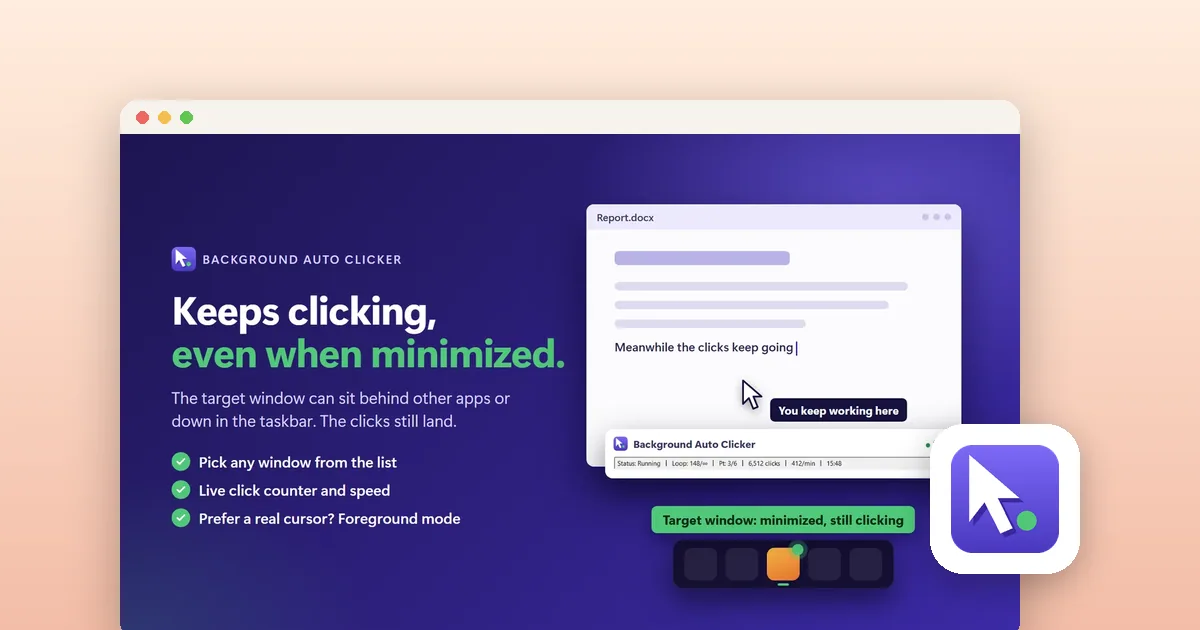
A background clicker works differently. It addresses a specific window and sends the click to it as a message, with coordinates relative to that window. The cursor never moves, the window can be covered by other apps, and many programs still react as if you had clicked.
- Your mouse and keyboard stay free for other work.
- The target window can sit behind other windows, and often even be minimized.
- Click positions are relative to the window, so they stay correct if you do not resize the window.
When does background clicking not work?
Not every program accepts clicks sent this way. Some games and apps read raw mouse input, or check which window is active, and simply ignore background messages. Anti-cheat systems in online games also tend to block this kind of input.
When that happens, the fallback is foreground mode: the tool moves your real cursor and clicks on the visible window. It always works, but you cannot use the mouse for anything else while it runs.
Test with a harmless target first, such as a browser idle game or a simple app, before you rely on a setup for something that matters. Also check the rules of any online game, since many forbid automation.
How do I set up background auto clicking with Background AutoClicker?
Background AutoClicker is a Windows app from the Microsoft Store that uses the method described above. You can try it free first. This is the setup flow.
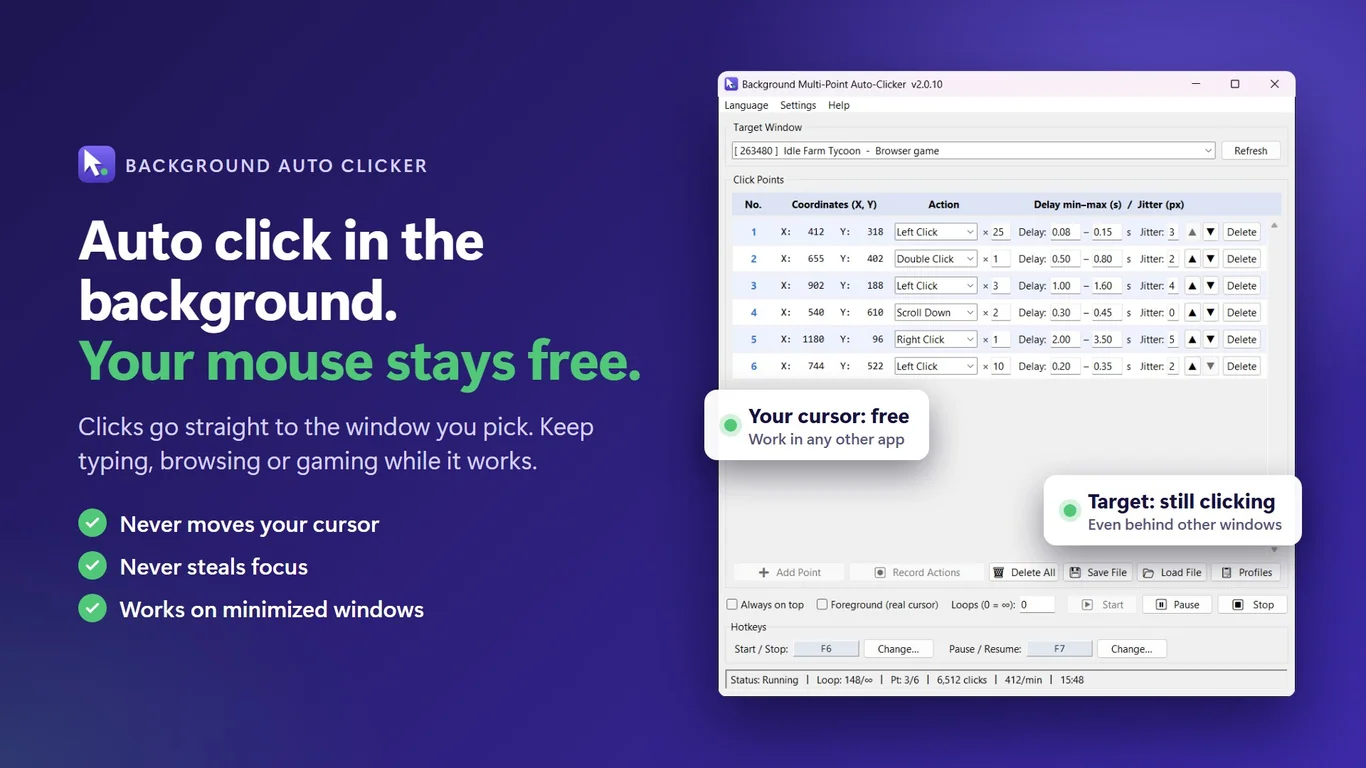
- Install Background AutoClicker from the Microsoft Store and open it.
- Open the Target Window list and pick the window you want to click in. Press Refresh if it is not listed.
- Add click points. Click Add Point and then click the spot in the target, or press Record Actions and click through the sequence once.
- For each point choose the action: left, right, middle, double-click or scroll. Set how many times to repeat it.
- Set a delay range (minimum and maximum seconds) and, if you want, a few pixels of jitter so the timing is not perfectly regular.
- Set Loops to a number, or leave 0 to run until you stop it.
- Press the start hotkey (F6 by default) and go back to your own work. F7 pauses and resumes.
How do I build a click sequence with several points?
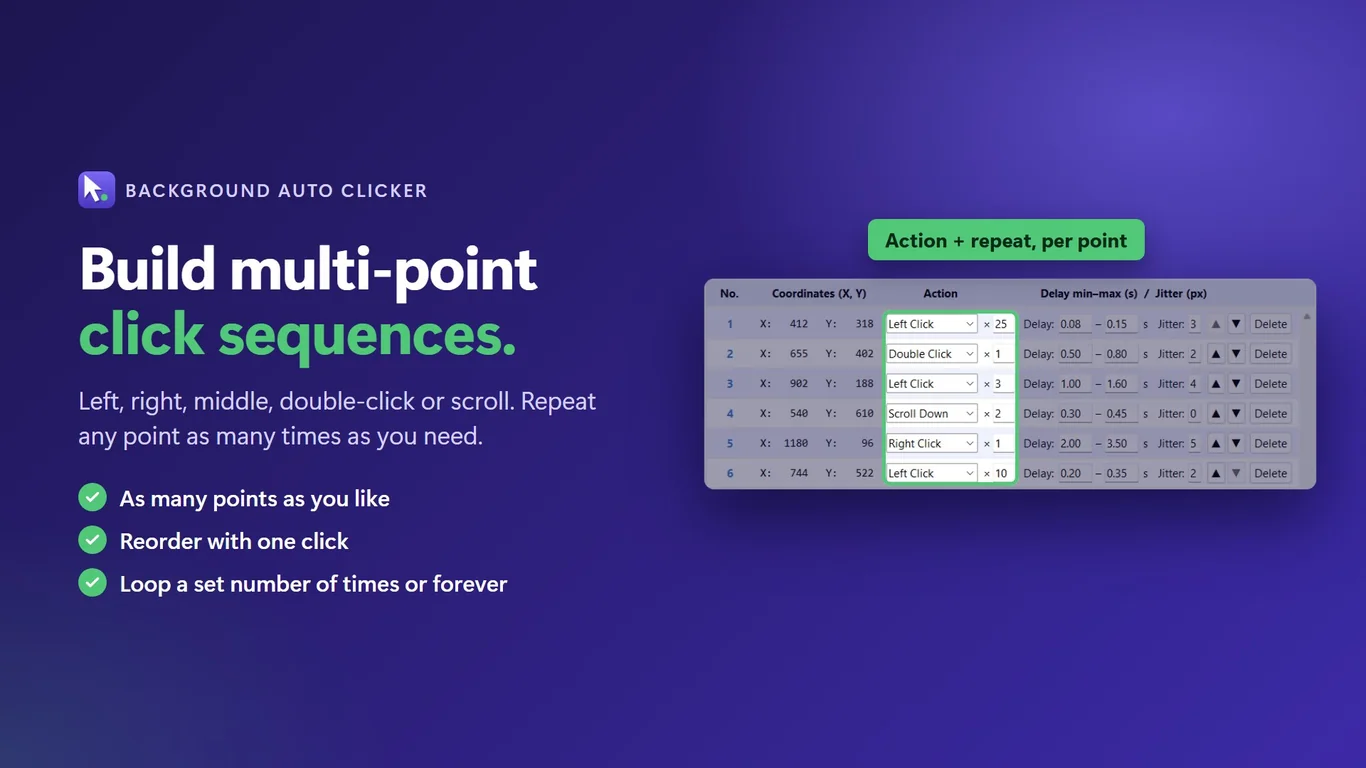
Many tasks need more than one click: open a menu, pick an item, confirm. Add one point for each step and put them in order. Each point has its own action, repeat count and delay, so a fast 25-click burst on one spot can be followed by a slow single click elsewhere.
You can reorder points with the arrow buttons, and save the whole setup as a profile or a file so you can load it next time.
How do I stop it quickly if something goes wrong?
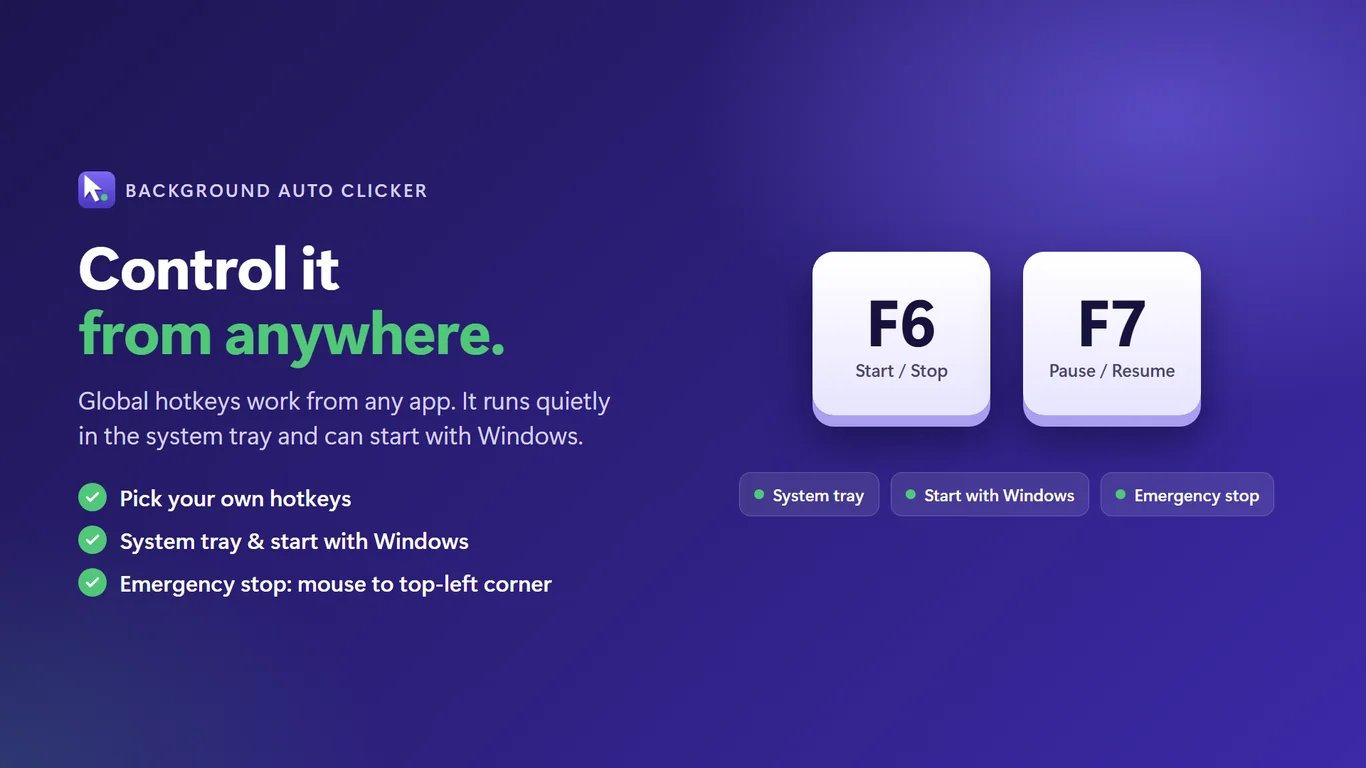
Always know your stop method before you start. The start and stop hotkey works from any app, and you can change it. As an emergency stop, push the mouse into the top-left corner of the screen. The app also runs in the system tray, so you can control it without keeping its window open.
Tips for reliable auto clicking
- Do not resize or move the target window after you set the points.
- Use a small delay range rather than a fixed delay if the program reacts to timing.
- Start with a low loop count to check the result before leaving it running.
- If clicks do nothing, switch to foreground mode and check the window is selected correctly.
Tools for this
Background AutoClicker
Auto click in the background without moving your mouse. Works even when the target window is minimized.
FAQ
Can an auto clicker click a minimized window?
Often yes, if it sends clicks directly to the window instead of moving the cursor. Programs that read raw mouse input may ignore those clicks. Background AutoClicker works on windows behind others and minimized ones, and has a foreground mode for programs that need real cursor movement.
How do I auto click without moving my mouse?
Use a tool that targets a specific window and sends click messages to it. Your real cursor stays where it is, so you can keep working in other apps while the clicks run.
Is there a free auto clicker built into Windows 11?
No. Windows 11 has no repeating click feature. You can use Power Automate for desktop or an AutoHotkey script, or install a dedicated auto clicker app.
Is Background AutoClicker free?
You can try it free first. After that it is a one-time purchase with no subscription and no ads. The current price is on its Microsoft Store page.
Is auto clicking allowed in online games?
Many online games forbid automation in their rules, and anti-cheat may block it. Check the rules of the game you play. Auto clicking is a better fit for idle games, repetitive office tasks and testing a screen flow.